How to Use Appdome's Support Agent
The Support Agent is Appdome’s AI-powered conversational assistant that helps mobile app teams understand and resolve security threats detected by Appdome-protected apps. It introduces an intuitive, interactive approach to investigating and resolving mobile threats.
Each time a security protection triggers inside a mobile app, Appdome generates a ThreatCode™—a unique identifier that captures the precise protection triggered, the reason for the trigger, and the device, OS, and environment in which it occurred. The Support Agent turns this raw ThreatCode™ into clear, actionable guidance explaining the threat, how to find it on the device, and how to disable or remove it.
The Support Agent is designed for support, engineering, SecOps, fraud, and mobile operations teams who need to resolve mobile security issues faster and with greater confidence.
Benefits of Appdome’s Support Agent.
Faster Threat Resolution
The Support Agent transforms diagnostic threat data into step-by-step instructions so teams can resolve issues quickly and accurately.
Reduced Support Burden
By automating investigation and explanation, support teams spend less time diagnosing device conditions and more time resolving user issues.
Threat-, Device-, and OS-Specific Guidance
Responses are tailored to the specific device, OS version, and detected attack, ensuring accuracy and relevance.
Conversational Insight
Teams can ask unlimited follow-up questions about the threat, what triggered it, and how to resolve it.
Secure, Guarded Interactions
The Support Agent uses Appdome’s RAG-based architecture with strict guardrails to ensure responses are safe, correct, and limited to the active ThreatCode™ session.
What Is a ThreatCode™?
A ThreatCode™ is a unique identifier automatically generated when an Appdome protection detects or blocks a threat at runtime.
Each ThreatCode™ maps directly to:
- The specific protection triggered (e.g., Rooted Device, Hooking Framework, SSL Bypass)
- The operating system and version
- The device make and model
- The environmental condition or attack that caused the detection
You can think of it as the diagnostic fingerprint of a single security event on a device.
All Support Agent conversations begin with a ThreatCode™.
The ThreatCode™ is 14 characters (4 + 4 + 6), for example;
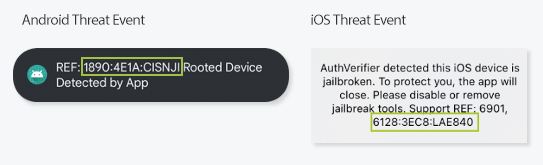
ThreatEvent Metadata
The ThreatCode™ is comprised of the context Keys in the ThreatEvent Metadata
| ReasonCode | 4 bytes: Reason code of the occurred event |
| fusedAppToken | 4 bytes: the first 4 characters of the build or task ID, also called the “fuse token”) |
| ThreatCode™ | 6 bytes: also called the eventcode (the actual “threat code”) |
{reasonCode} : {taskID} : {EventCode}
Once entered, the Support Agent automatically loads the associated threat context and begins the dialogue.
Navigating the Support Agent
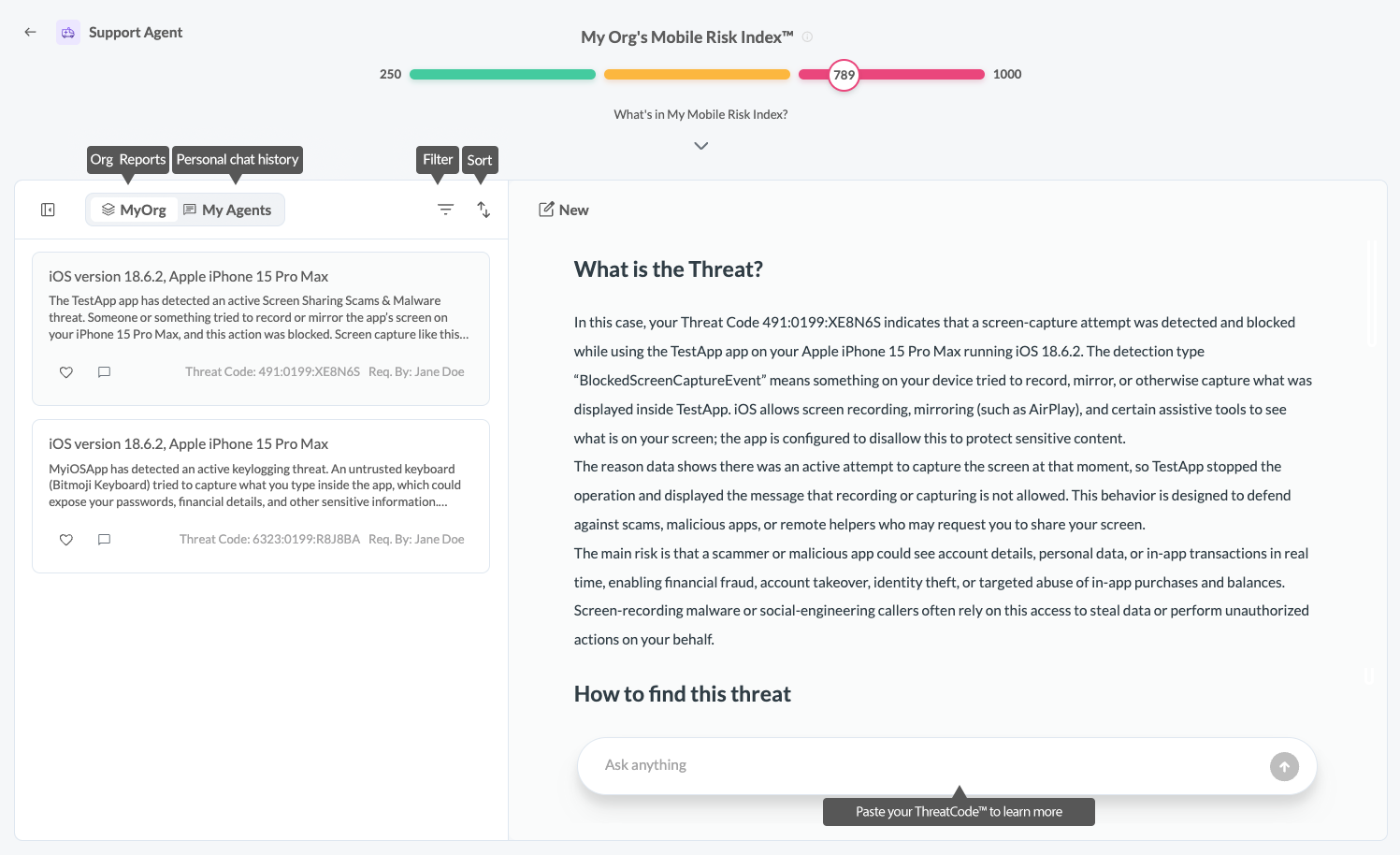
The Support Agent interface is divided into two primary areas:
Left Pane: ThreatCode™ History & Collaboration Panel
This pane helps teams manage and collaborate on past and current threat investigations.
It includes:
- ThreatCodes List
All ThreatCodes previously submitted by the team. Each entry shows summary details (attack type, date, context). - Filters & Sorting
Filter ThreatCodes tagged with your username
Sort by Date or Attack Type - Endorsing ThreatCodes (“Heart” Icon)
Use this when you believe a ThreatCode™—or the conversation around it—should be seen by others. - Company Tagging
Tag teammates to bring them into a conversation about a specific ThreatCode™. - Your Agents Tab
A list of ThreatCodes you personally submitted and ThreatCodes where you continued the conversation with follow-up questions - Download Remediation Steps
Download the complete summary and remediation details for any ThreatCode™.
Right Pane: Conversation Panel
This is where the Support Agent provides guidance, answers questions, and walks you through understanding and resolving the threat.
How to Use the Support Agent
- Log in to Your Appdome Account
- Use your standard credentials to access the AI Agents.
- Open the Support Agent – Click the Support Agent button from the Main Menu on the Landing Page.
- Enter a ThreatCode™
- Start the Conversation
After entering the ThreatCode press Enter.
The Support Agent will present a structured response divided into three sections:
1. What the Threat Is
-
-
- What triggered the detection
- What is it and why it matters
- Impact on app integrity, user safety, or device security
- Additional relevant context (e.g., rooting tools, instrumentation frameworks, MitM activity)
-
2. How to Find the Threat on the Device
Three methods are provided:
Typically broken down into 3 difficulty levels dependent on the identified threat.
-
-
- Easiest: Non-technical steps (e.g., check settings, review installed apps)
- Medium: Intermediate steps (e.g., validating system state, checking developer settings)
- Expert: Advanced steps (e.g., ADB commands)
-
3. How to Disable or Remove the Threat
Three methods are provided for guidance broken down into 3 difficulty levels based on the identified threat.
-
-
- Easiest: Basic removal actions
- Medium: More involved settings and cleanup
- Expert: Technical or command-line steps for hardened cases
-
4. Download Remediation Details
Download your remediation details as a PDF for documentation, compliance, or sharing purposes. This helps providing detailed information about the Threat but also how to find and remove them from the device.
5. Ask Follow-Up Questions
You can ask the Support Agent any question related to the current ThreatCode, such as:
-
-
- “What should I do next?”
- “How did this threat get on the device?”
- “Should the user be concerned?”
- “Is the device compromised?”
- “These steps didn’t work—what else can I try?”
-
The Support Agent will only answer questions related to the active ThreatCode.
To investigate a different threat, click new to start a new session.
Guardrails & Privacy
Enterprise-Grade Guardrails
All Appdome AI Agents operate entirely inside Appdome’s secure enterprise framework. Every interaction and workflow is governed by strict security, privacy, and compliance controls to ensure safe, auditable use of AI in enterprise environments.
Appdome ensures the following:
- No threat telemetry, device data, or customer information is ever shared with public AI systems
- No PII is processed, stored, or used by any Appdome AI Agent
- All agent actions and responses follow Appdome audit and access controls
- External reasoning components operate under strict No-Learning and No-Retention policies, preventing any data persistence or model training
- All intelligence remains tenant-scoped, ensuring complete isolation between customer tenants
These guardrails ensure safe and governed use of AI for Appdome customers.
Context-Engineered Intelligence
Appdome’s AI Agents do not rely on generic RAG (Retrieval-Augmented Generation) approaches or public datasets. Instead, Appdome uses a Context Engineering approach that synthesizes Appdome-governed threat telemetry, build context, historical intelligence, and enrichment data before any reasoning occurs.
This approach replaces traditional retrieval-based techniques and ensures all reasoning is grounded exclusively in Appdome-governed, tenant-specific context.
This ensures that:
- Insights are accurate, explainable, consistent, and reproducible
- Responses reflect real mobile events, not generalized assumptions
- Threat analysis, remediation guidance, and recommendations remain aligned with each customer’s apps, defenses, and active threat surface
- No public data sources or external information feeds shape the agent’s intelligence
All outputs are derived exclusively from verified, internal, tenant-scoped data.
Managing ThreatCodes and Conversations
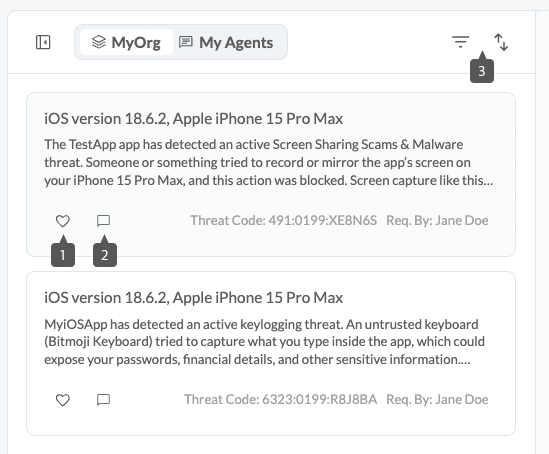
1. Endorsing ThreatCodes (Heart Icon)
The Heart icon allows you to publicly endorse a ThreatCode™. This is not a personal favorite list and cannot be used for sorting.
Instead, clicking the Heart:
- Signals to your team that this ThreatCode™ is important, useful, or noteworthy
- Helps highlight active or relevant investigations for other users
- Makes the ThreatCode™ more visible across team and company views
Use this when you believe a ThreatCode™—or the conversation around it—should be seen by others.
2. Tag Teammates & Start a Conversation (Chat Icon)
Invite colleagues into a threat investigation by tagging them from the list.
3. Filters & Sorting
- Filter to show ThreatCodes where you were tagged
- Sort by Date or Attack Type
Summary
The Support Agent provides a faster, more intuitive, AI-guided method for understanding and resolving mobile security threats. With its ThreatCode™-driven workflow, structured guidance, team collaboration features, and secure conversational model, it helps teams resolve issues faster and with greater confidence.
Related Articles
- How to use Appdome’s AI Agent Team
- How To Use Appdome’s Mobile Risk Index™ (MRI)
- How To use No-Code Security for Android & iOS Apps
- How To Get Started with Appdome
- How To Release Secured Android & iOS Apps
- Appdome Support Levels Overview
How Do I Learn More?
If you have any questions, please send them our way at support.appdome.com or via the chat window on the Appdome platform.
Thank you!
Thanks for visiting Appdome! Our mission is to secure every app on the planet by making mobile app security easy. We hope we’re living up to the mission with your project.