How to Use Fastly's WAF with Appdome MobileBOT™ Defense
Introduction
Web Application Firewalls (WAFs), like the one offered by Fastly, play a crucial role in protecting web applications from a wide range of cyber threats. Using Fastly’s WAF with Appdome’s MobileBOT™ Defense solution offers app developers a streamlined approach to protect backend APIs against malicious bots and botnets, credential stuffing attacks, DDoS, invalid traffic and other automated attacks. In this guide, you’ll learn how to integrate Appdome’s MobileBOT™ Defense with Fastly’s WAF using Fastly Compute@Edge and custom request validation logic.
Before delving into the steps, let’s understand some of the terms used:
MTLS (Mutual Transport Layer Security): Mutual TLS (mTLS) is a method for mutual authentication in which both parties in a network connection validate the SSL certificates presented by each other against a trusted root Certificate Authority (CA) certificate.
Client Certificate: In cryptography, a client certificate is a type of digital certificate that is used by client systems to make authenticated requests to a remote server.
Safe Session: Represents sessions that are determined to be safe or not at risk of any threat.
At Risk Session: Represents sessions that are potentially under threat or have detected anomalies.
Header Payload: The data transferred in the header of HTTP requests or responses. Protecting this data ensures that it cannot be tampered with during transit.
When Appdome’s logic is implemented within the Fastly Compute@Edge service, it enhances the firewall’s capability to determine the validity of a session. To categorize sessions as “Safe Session” or “At Risk Session”, Appdome’s code analyzes specific headers within incoming requests: Timestamp, Nonce, and SignedMessage. The Timestamp header allows Appdome’s code to detect potential delay attacks by comparing the request’s timestamp with the server’s time. The Nonce, a unique random value, ensures the uniqueness of each request, protecting against replay attacks. The SignedMessage, typically an RSA-encrypted SHA256 hash of the timestamp, nonce, and a shared secret, ensures the integrity of the request.
Prerequisites for Using Fastly & Appdome MobileBOT™ Defense
For utilizing Appdome MobileBOT™ Defense with Fastly, you’ll need the following:
- Access to Fastly with permissions to create and activate services
- A backend host or API origin
- An Android or iOS app secured with Appdome MobileBOT™ Defense
- An Appdome MobileBOT™ Defense License
- Required certificates / keys (if using mTLS)
Fastly Service Setup and Configuration
Step 1: Create a Fastly Compute Service
Log in to your Fastly account.
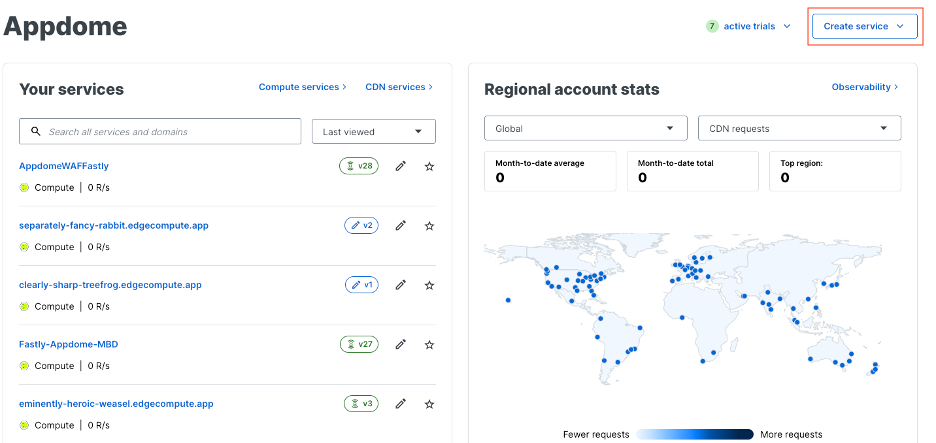
Create a new service by clicking on Compute option > Create service .
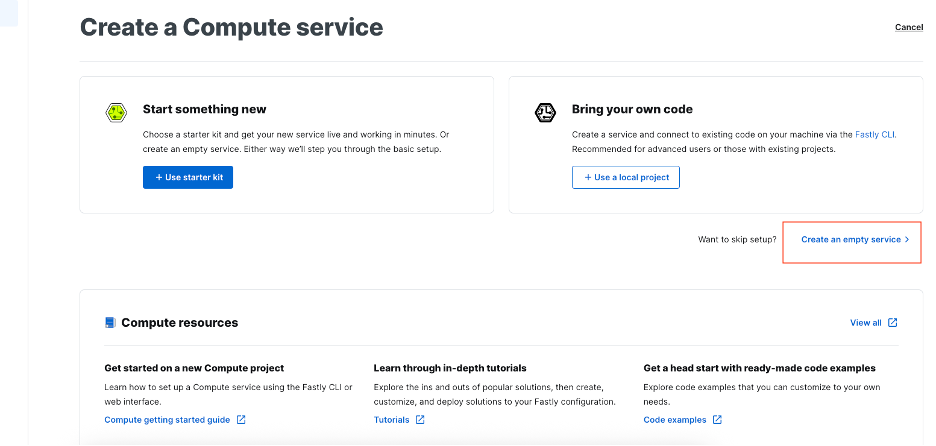
Select Create an Empty Service.
Step 2: Rename the Service
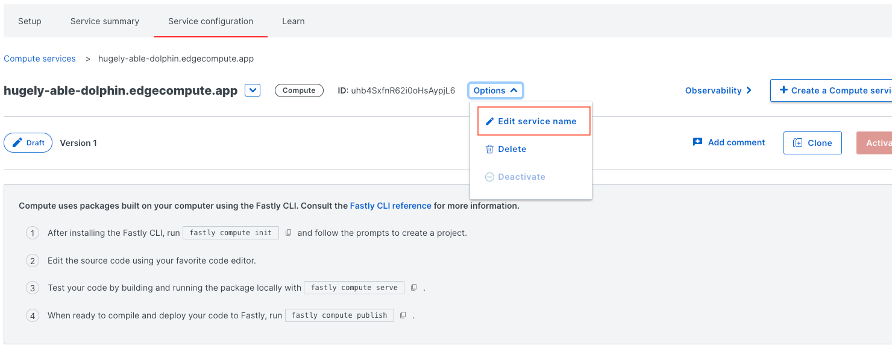
Open the service options menu and select Edit Service Name.
Enter the desired service name and save the changes.
Step 3: Add the Domain
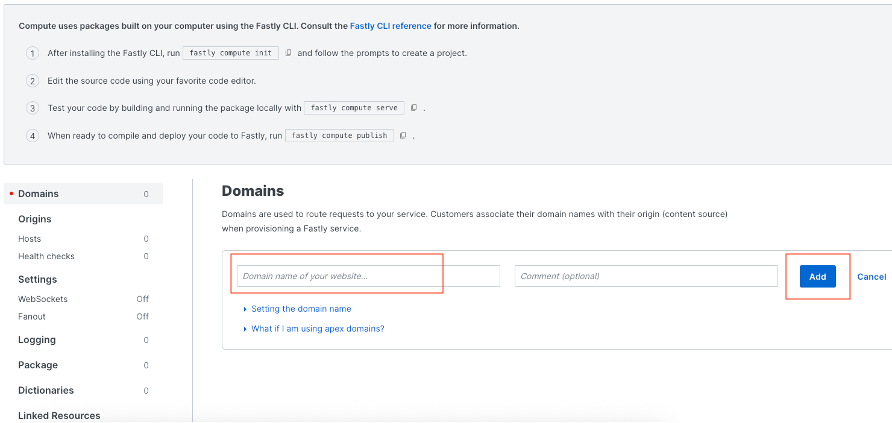
Add the domain name of your website and click Add.
Select the domain.
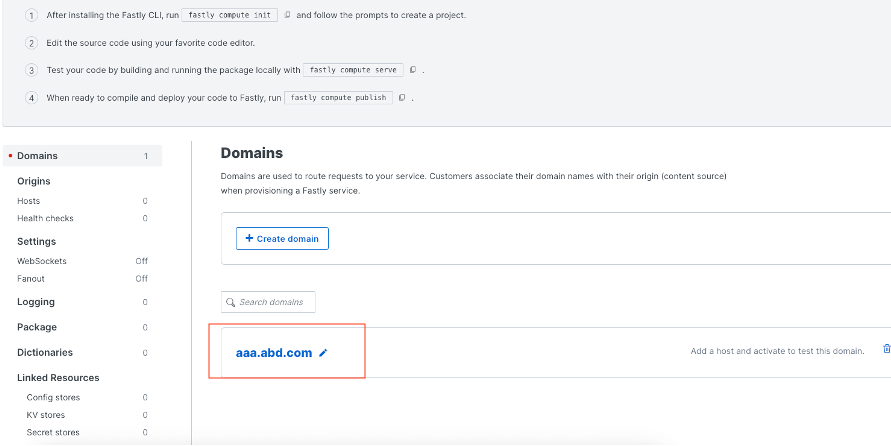
Step 4: Configure the Backend Host
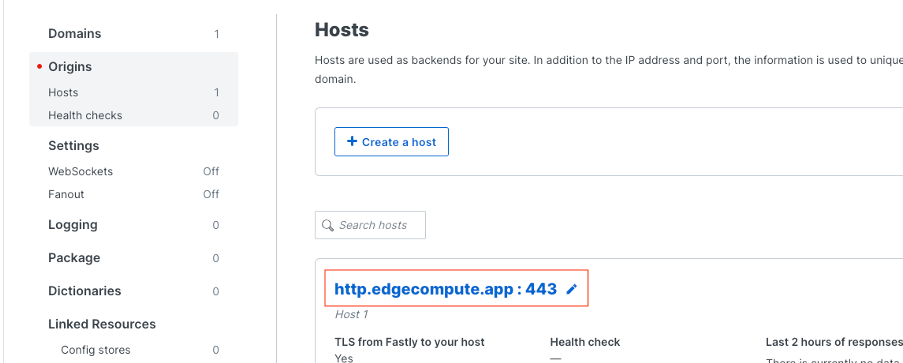
From the left menu, open Hosts and add the backend hostname or IPv4 address.
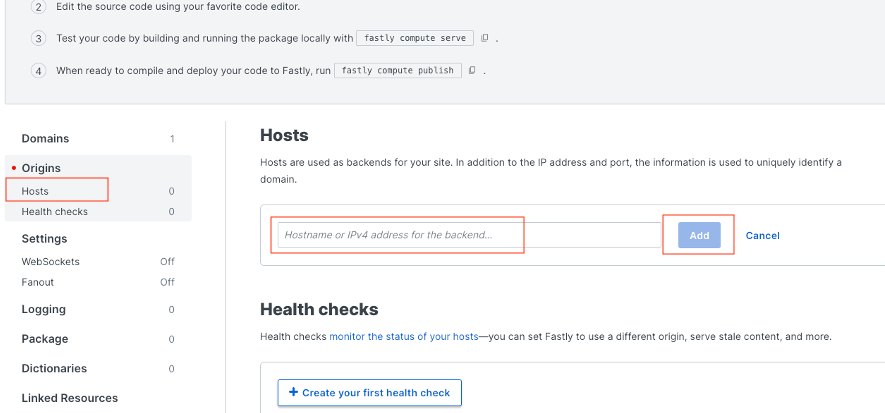
Open the newly created host.
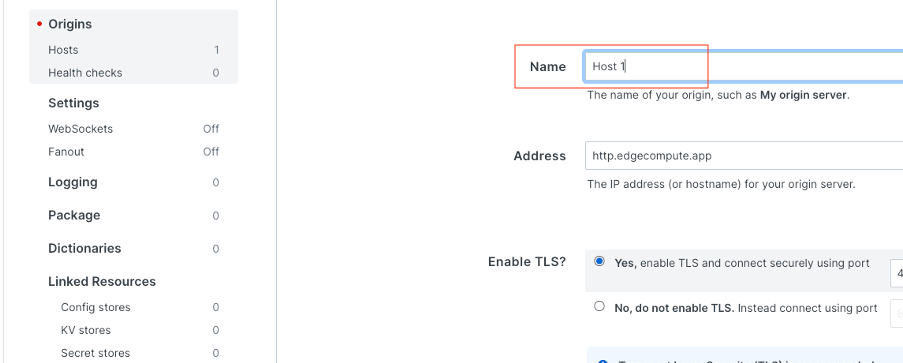
Step 5: Edit the Host Settings
(Optional) Rename the host.
Note: If using custom rules code, the host name should match the value referenced in the rules configuration.
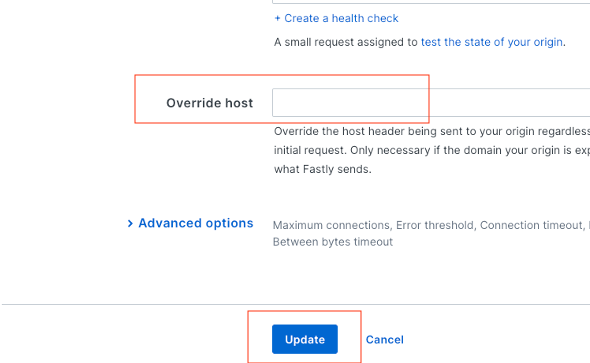
Step 6: Configure Override Host
Enter the Override Host value and click Update.
Step 7: Create a KV Store
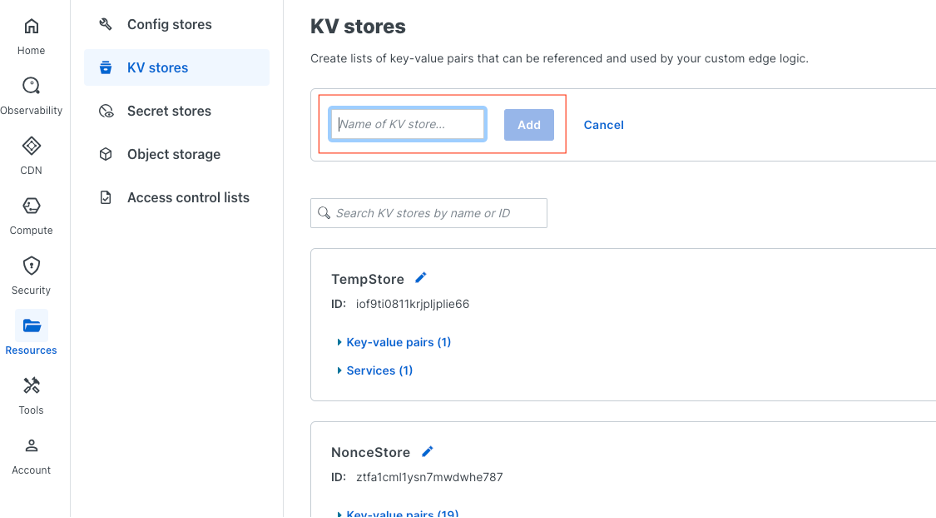
From the Resources menu, open KV Stores > Create a new KV Store.
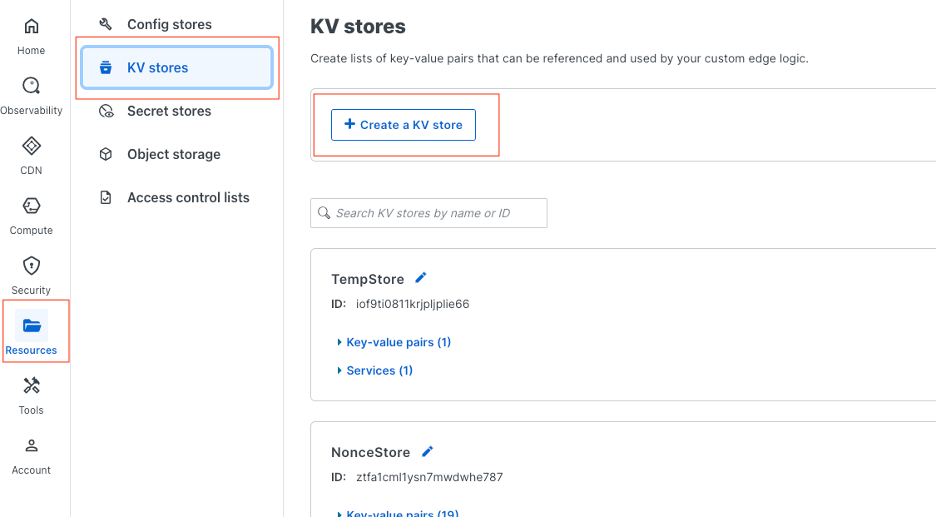
Copy the KV Store ID displayed under the created store name.
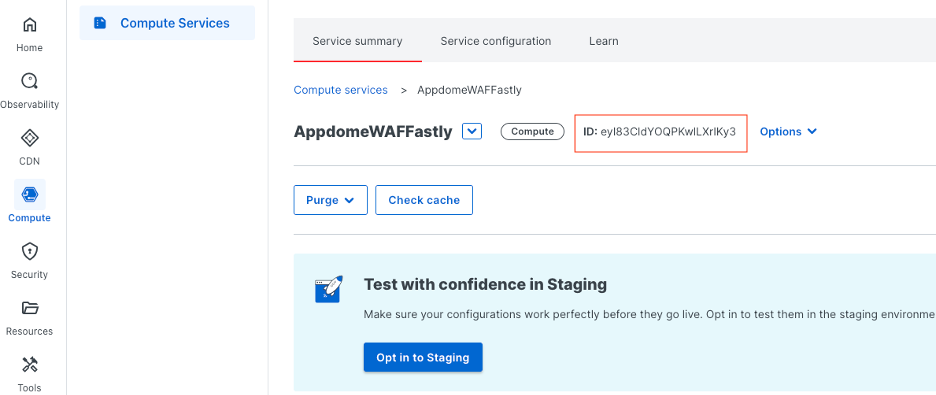
Step 8: Add Initial KV Entry
Use the following command to create an initial test entry in the KV Store and verify that the store is accessible through the Fastly CLI:
fastly kv-store-entry create --store-id=<STORE_ID> --key=temp --value=temp
Replace <STORE_ID> with the copied KV Store ID.
Step 9: Install Fastly CLI
Install Fastly CLI on your local machine using the official Fastly documentation.
After installation, Fastly CLI will create a local project folder in the selected location – Ensure the folder includes the required project files.
Update the Cargo.toml file with the required dependencies and application rules.
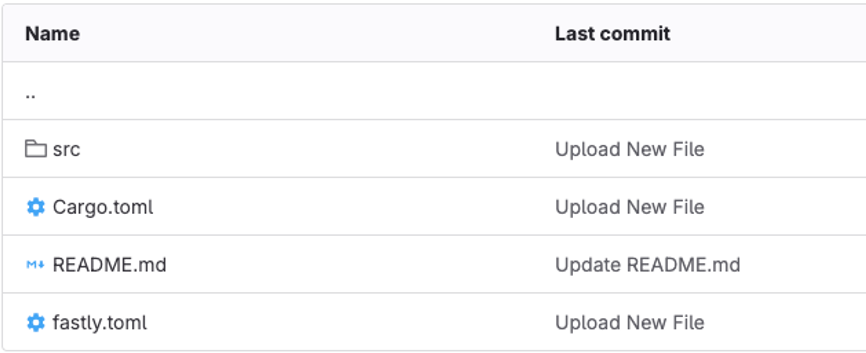
Place the required private key file inside the src folder.

Step 10: Link the Secret Store to the Service
Refresh the Fastly dashboard.
Go to Resources > Secret Stores and click Link to Services.
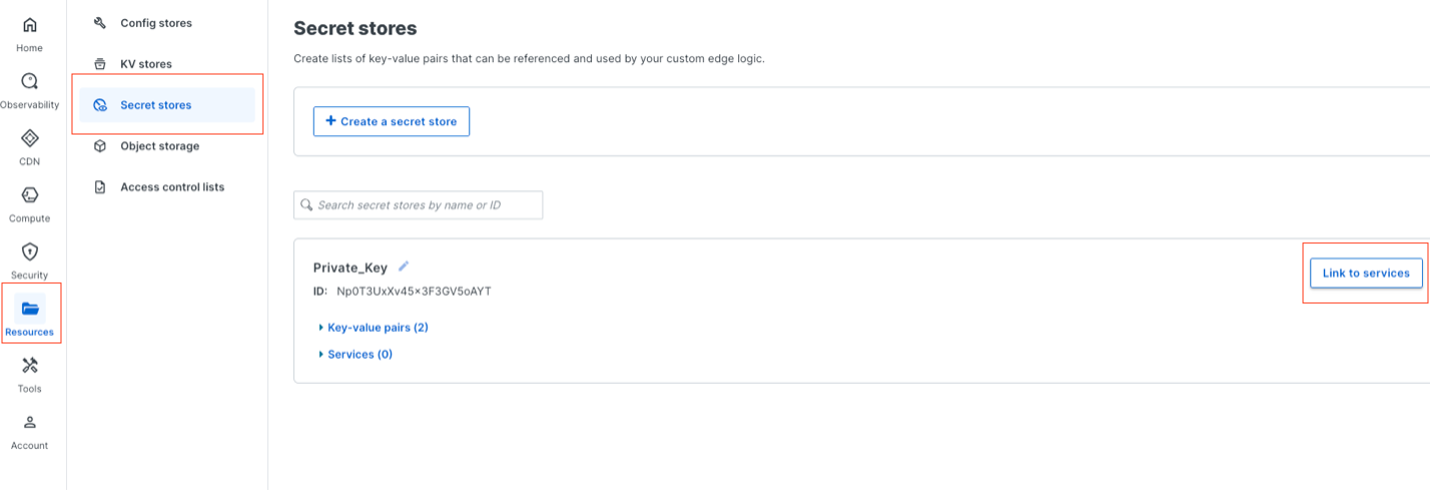
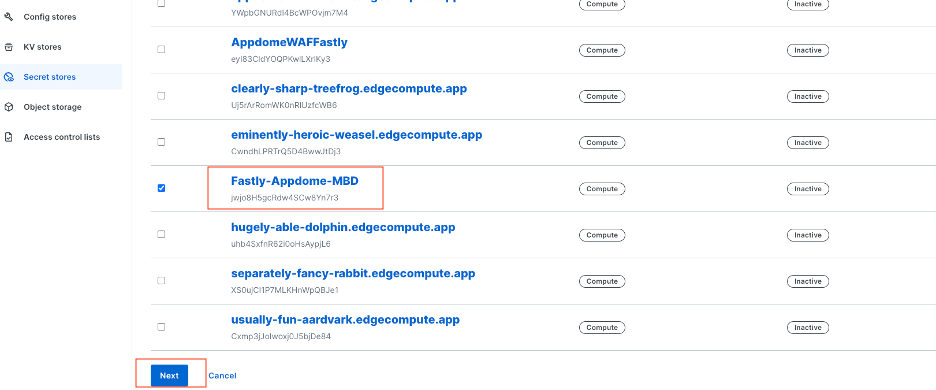
Select the service you created and click Next.
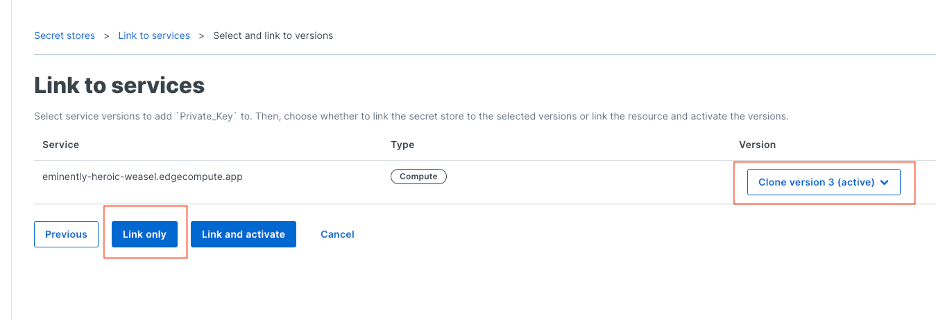
Choose the required version and click Link Only.
Step 11: Build and Deploy the Compute Project
Open a new terminal window and run the following commands:
-
fastly compute build #(Follow the prompts and choose the preferred options)#
Build the project after updating the rules code
-
fastly compute build #(Run this command each time the rules code is updated)#
-
fastly compute update --service-id=<SERVICE_ID> --version=latest #replace <SERVICE_ID> with the Service ID shown in Fastly#
Step 12: Open the Compute Service
Go to Compute and open the service.
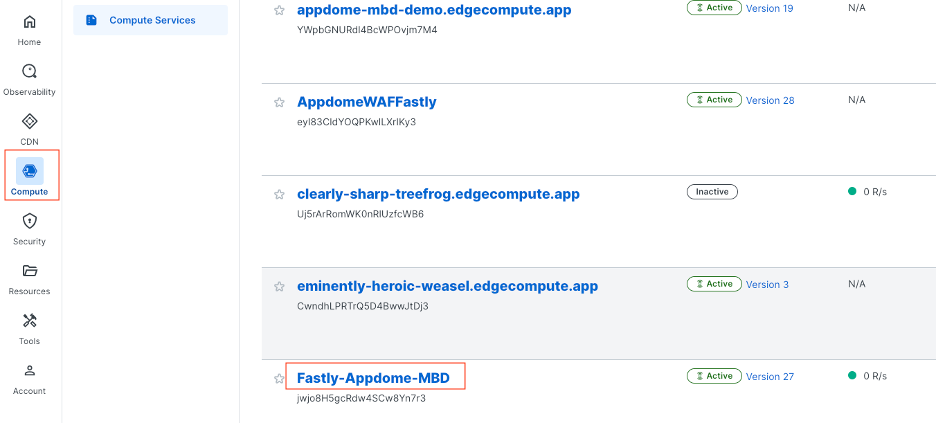
Select the required version.
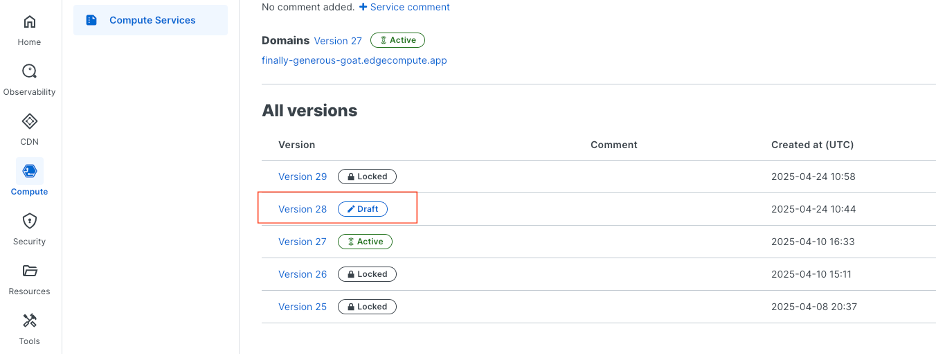
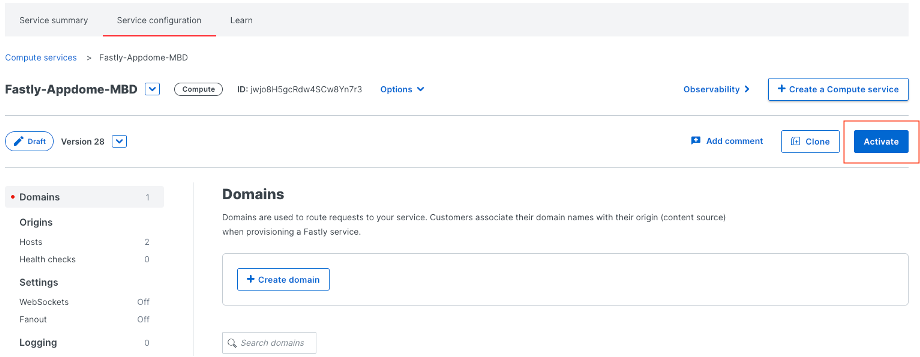
Step 13: Activate the New Version
Click Activate.
fastly log-tail --service-id=<SERVICE_ID> #Replace <SERVICE_ID> with the Fastly Service ID#
- MobileBOT™ Defense
- Using Akamai WAF with Appdome MobileBOT™ Defense
- How to Secure Android & iOS Apps in Azure DevOps Pipelines
- Using F5 WAF with Appdome MobileBOT™ Defense
How Do I Learn More?
If you have any questions, please send them our way at support.appdome.com or via the chat window on the Appdome platform.
Thank you!
Thanks for visiting Appdome! Our mission is to secure every app on the planet by making mobile app defense easy. We hope we’re living up to the mission with your project. If you don’t already have an account, you can sign up for free.