How to Configure Azure Application Gateway mTLS Validation for Appdome MobileBOT™ Defense
Introduction
Web Application Firewalls (WAFs) help protect web applications and APIs from malicious traffic and automated attacks. When combined with Appdome MobileBOT™ Defense, organizations can strengthen protection for mobile applications by allowing backend infrastructure to identify and trust requests originating from protected mobile apps.
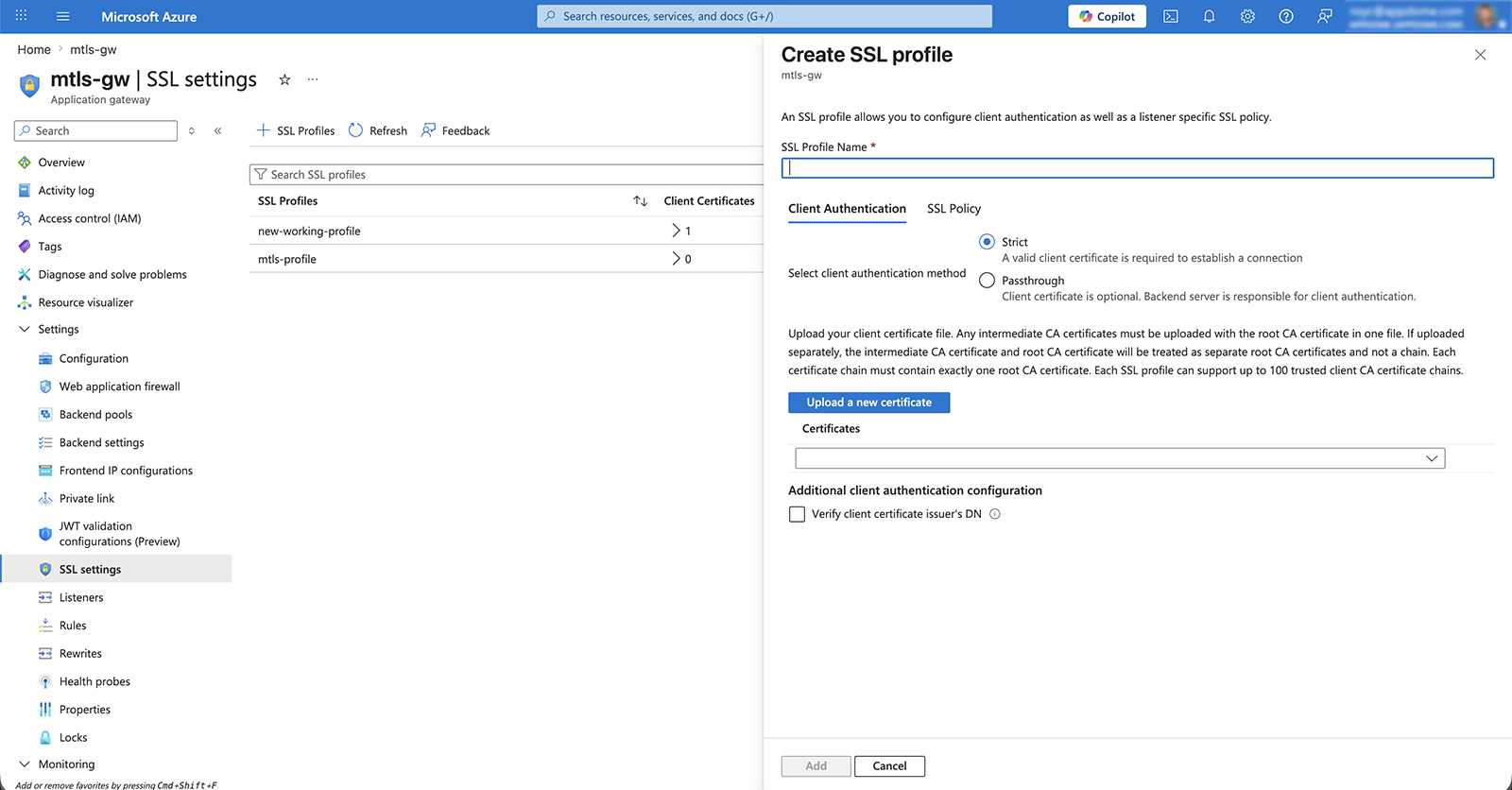
This Knowledge Base article explains how to configure an Azure Application Gateway to work with Appdome MobileBOT™ Defense using Mutual TLS (mTLS). In this configuration, the Application Gateway validates client certificates presented by Appdome-protected mobile applications before allowing traffic to reach backend services.
What is mTLS?
Mutual TLS (mTLS) is an authentication method in which both the client and server validate each other’s TLS certificates against a trusted Certificate Authority (CA). This establishes a trusted and encrypted connection between the mobile application and backend infrastructure.
Prerequisites for Using Azure Application Gateway with Appdome-Protected Apps
Before proceeding, ensure you have:
- A configured and accessible Azure Application Gateway
- An Appdome MobileBOT™ Defense license
- An Android or iOS application protected with Appdome MobileBOT™ Defense
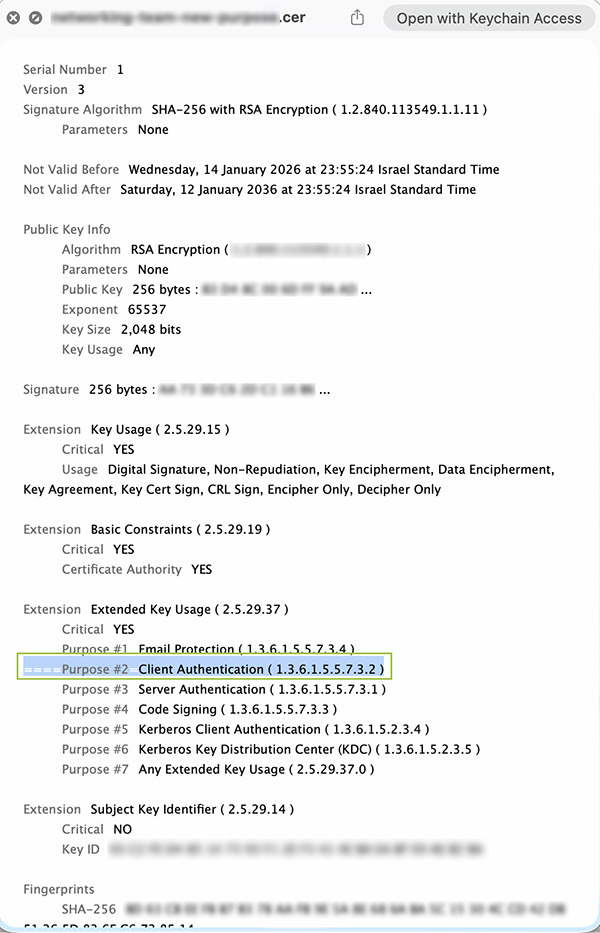
- An mTLS client certificate signed by a trusted Certificate Authority (CA)
How to Configure the Application Gateway to trust the client identity.
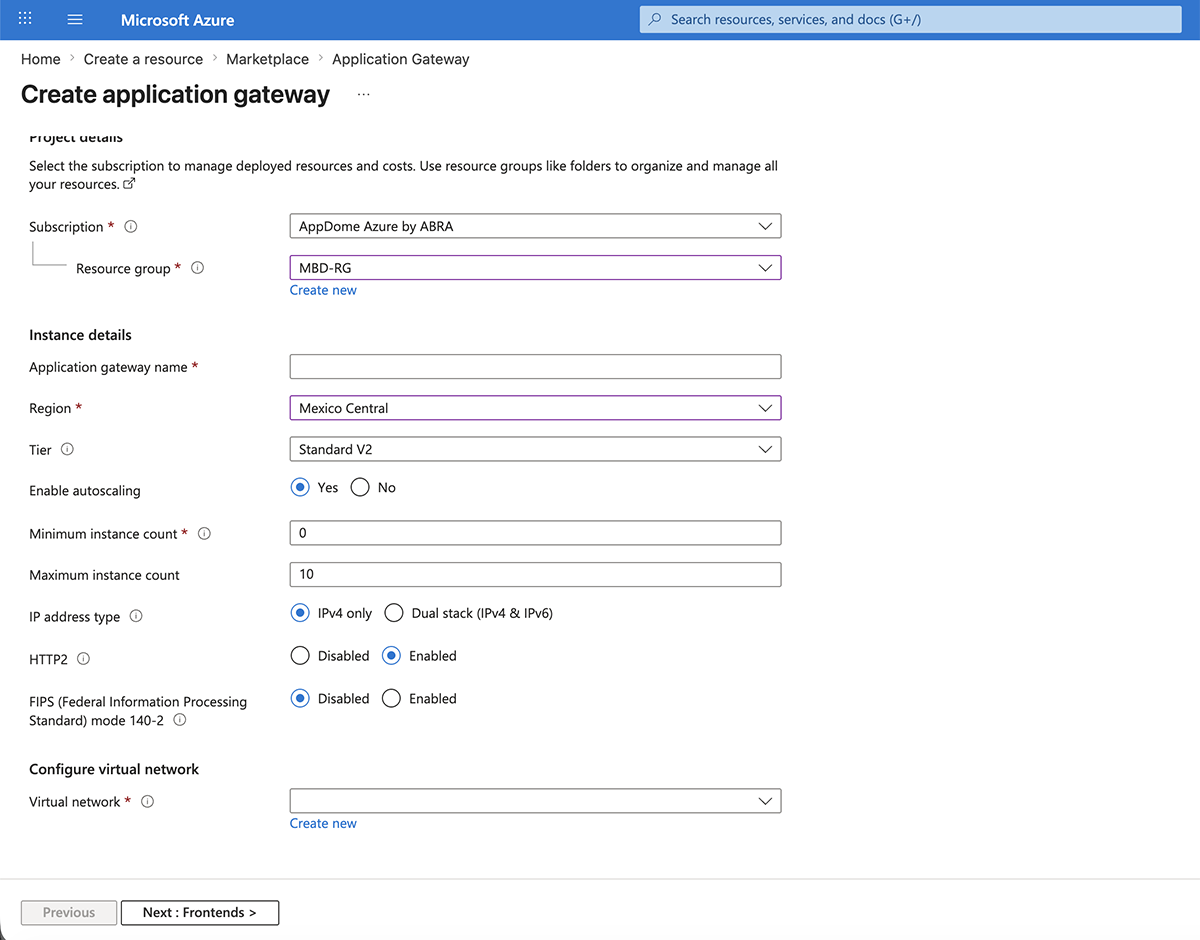
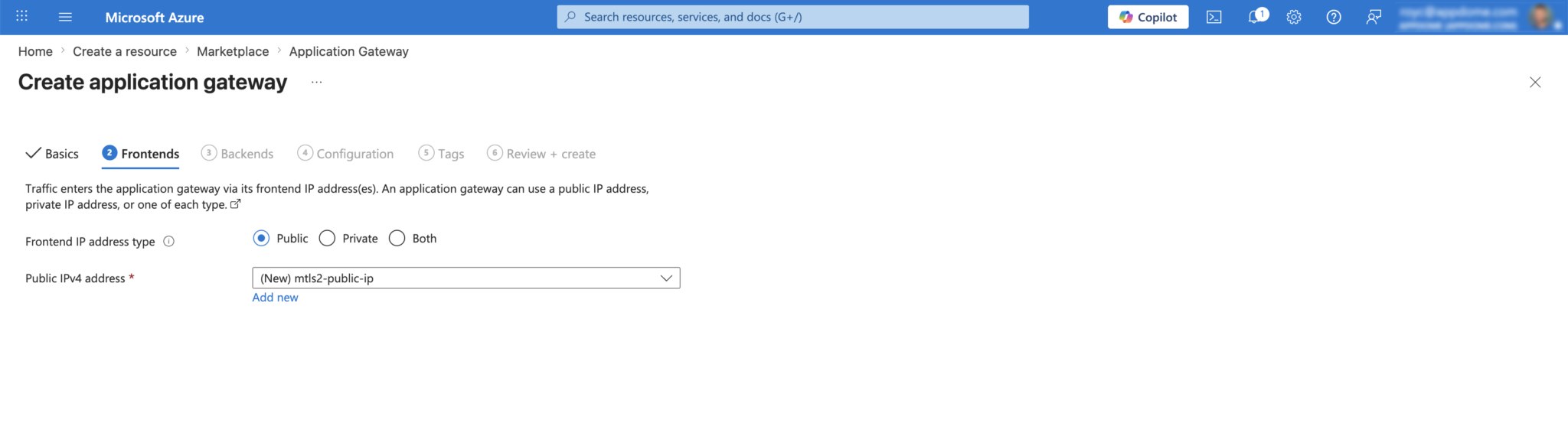
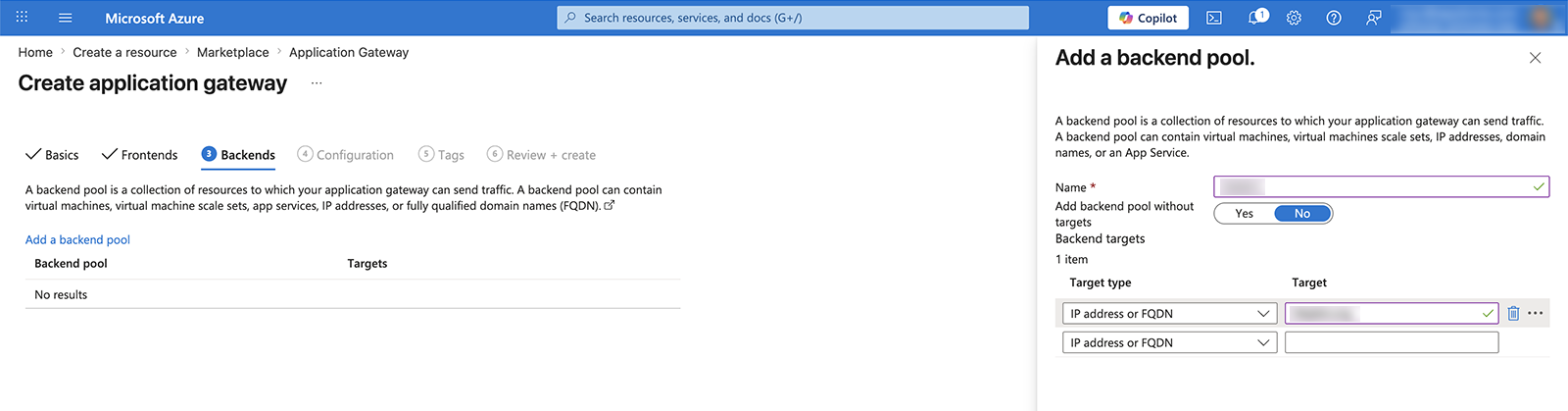
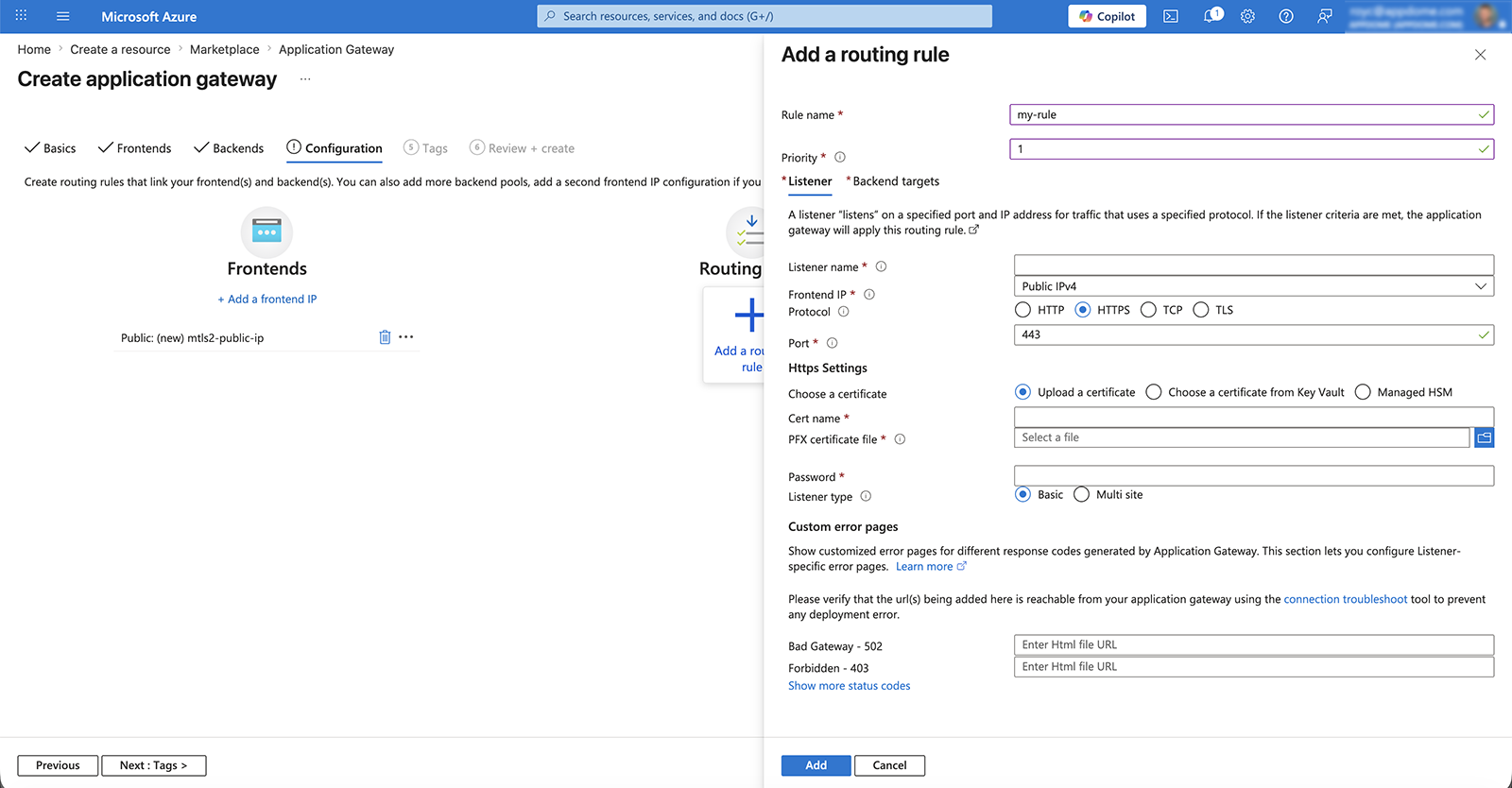
Getting Started with Azure Setup and Configuration

Related Articles:
- MobileBOT™ Defense
- How to Configure GCP to work with Appdome MobileBOT™ Defense
- How to Secure Android & iOS Apps in Azure DevOps Pipelines
How Do I Learn More?
If you have any questions, please send them our way at support.appdome.com or via the chat window on the Appdome platform.
Thank you!
Thanks for visiting Appdome! Our mission is to secure every app on the planet by making mobile app defense easy. We hope we’re living up to the mission with your project. If you don’t already have an account, you can sign up for free.