Accelerate With Startup Profiles in Android Apps with Appdome
Discover how to improve Android app startup performance by customizing your app with Startup Profiles in a mobile CI/CD environment using Appdome’s Data-Driven DevSecOps™ build system.
What is Startup Profile Optimization on Appdome?
Startup Profile optimization allows Android developers to improve app startup performance by optimizing the layout of startup-critical code within DEX files. The Startup Profile consists of a .txt file generated using Android Studio, which lists important classes and methods required during the application’s startup path. This profile is consumed during the build process to optimize DEX layout, ensuring that startup-critical code is grouped into the primary classes.dex file and loaded first during application launch.
Startup Profiles are a specialized subset of Baseline Profiles, focusing specifically on startup performance optimization rather than Ahead-of-Time (AOT) compilation for broader runtime performance improvements.
How Appdome Improves App Performance with Startup Profile Optimization?
Appdome’s Accelerate with Startup Profiles optimization feature allows developers to upload Startup Profile files using the --startup_profile switch. A Startup Profile identifies startup-critical methods and classes that should remain in the primary DEX file, even when Appdome applies security protections that may require DEX restructuring.
By preserving startup optimizations after security features are applied, Appdome ensures that protected applications maintain fast cold-start performance and efficient application launch behavior while benefiting from Appdome’s mobile app security protections.
Prerequisites for Using App Customization with Startup Profiles:
To use Appdome’s mobile app security build system to Customize an App with a Startup Profile, you’ll need the following:
- Appdome account (create a free Appdome account here)
- A license for ONEShield™ – Accelerate with Startup Profiles
- Mobile App (.apk or .aab for Android)
- Startup Profile ZIP file
Steps to Integrate Startup Profile:
- Designate the mobile app to be protected.
- Upload a mobile app via the Appdome Mobile Defense platform GUI or via Appdome’s DEV-API or CI/CD Plugins.
- Android Formats: .apk or .aab
- Accelerate with Startup Profiles is compatible with Java, JS, C++, C#, Kotlin, Flutter, React Native, Unity, Xamarin, Cordova, and other Android apps.
- Select the defense: Accelerate with Startup Profiles.
- Create and name the Fusion Set (security template) that will contain the Accelerate with Startup Profiles feature as shown below:

Figure 1: Fusion Set that will contain the App Customization with Startup Profile featureNote: Naming the Fusion Set to correspond to the protection(s) selected is for illustration purposes only (not required). - Follow the steps in Sections of this article to add the App Customization with Startup Profile feature to your Fusion Set via the Appdome Console.
- When you select the App Customization with Startup Profile feature, you’ll notice that the Fusion Set you created in step 2.1.1 now bears the icon of the protection category that contains the App Customization with Startup Profile feature.

Figure 2: Fusion Set that displays the newly added Accelerate with Startup Profiles protection.
Note: Annotating the Fusion Set to identify the protection(s) selected is optional only (not mandatory).
-
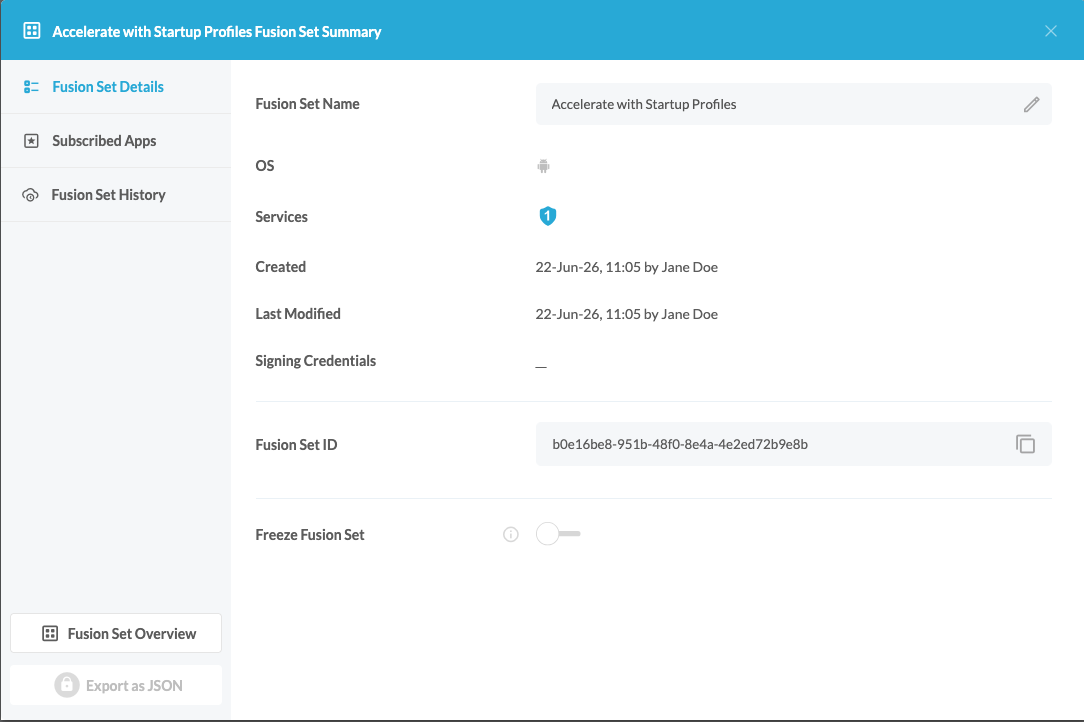
Open the Fusion Set Detail Summary by clicking the “…” symbol on the far-right corner of the Fusion Set. Copy the Fusion Set ID from the Fusion Set Detail Summary (as shown below):
Note: This is crucial, as you will need it to make the API call.
-
Follow the instructions below to use the Fusion Set ID inside any standard mobile DevOps or CI/CD toolkit like Bitrise, Jenkins, Travis, Team City, Circle CI, or other systems:
-
Refer to the Appdome API Reference Guide for API building instructions.
-
Check Appdome’s GitHub Repository for sample APIs
-
Add the Accelerate with Startup Profiles feature to your security template.
-
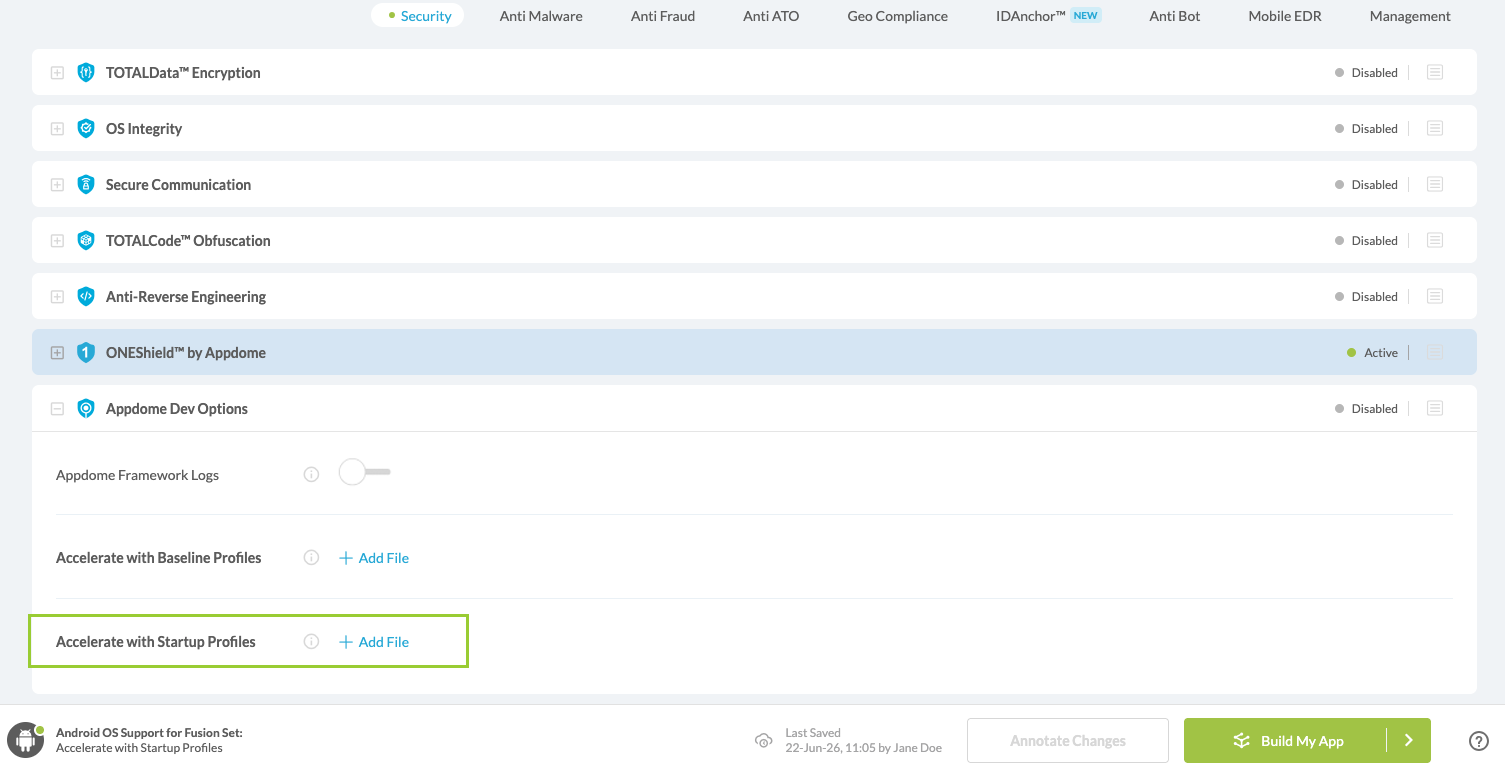
Navigate to Build > Security tab > Appdome Dev Options section in the Appdome Console.
-
Upload a Startup Profile file.
-
Startup Profile File Requirements
When uploading a Startup Profile to Appdome, the profile must be provided as a ZIP archive:
The ZIP file must meet the following requirements:
• ZIP format only. Any other file format will cause the build to fail.
• After filtering out:
-
- _MACOSX/ directories
- subdirectories
- AppleDouble files (files beginning with .)
-
- exactly one file must remain in the archive:
• The remaining file may have any filename.
• The file is read as UTF-8 text and parsed as Startup Profile rules.
• Empty lines and comment lines beginning with # are ignored.Startup Profiles contain startup-critical classes and methods generated by Android Studio and used to optimize application startup performance.Appdome preserves these startup optimizations during the protection process, ensuring that startup-critical code remains prioritized even when DEX restructuring is required by security protections.
- Create and name the Fusion Set (security template) that will contain the Accelerate with Startup Profiles feature as shown below:
- Initiate the build command either by clicking Build My App at the bottom of the Build Workflow or via your CI/CD as described in Section 2.1.4.
Build with Startup Profile Using the API
- Copy your App ID
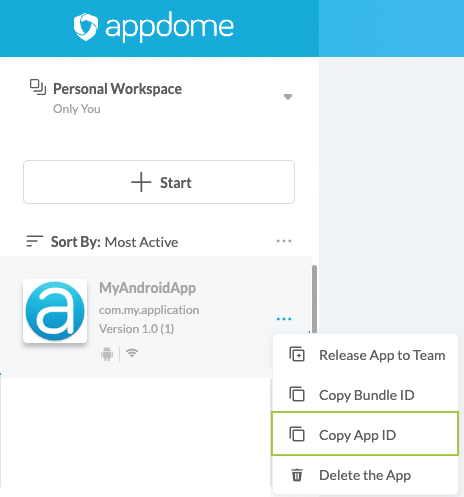
- Prepare to make a POST request to the appropriate Appdome API endpoint.
- Refer to the image provided for the correct parameter setup:

- Configure the API Parameters:
- app_id: The unique identifier for your app obtained from the upload response.
- fusion_set_id: The Fusion Set ID you copied earlier.
- action: Set this to “fuse” to initiate the integration process.
- Startup_profile:
Attach a ZIP archive containing your Startup Profile.
Use the –startup_profile API parameter to upload the Startup Profile ZIP file during the build process. The ZIP archive must contain exactly one Startup Profile file after filtering out:
• _MACOSX/ directories
• subdirectories
• AppleDouble files (files beginning with .) - Send the API Request
- Appdome’s system will process the Startup Profile along with your specified Fusion Set and apply the necessary configurations to your app.
- Verify the Integration
After the API call, you can verify the integration by checking the build status on the Appdome platform. Ensure that the Startup Profile has been correctly applied as per your configuration.
After successfully integrating the Startup Profile using the API, your Android app will benefit from optimized performance through enhanced specific code paths. This integration not only improves app performance but also maintains the efficacy of Appdome’s security measures.
This streamlined process simplifies the integration of performance optimization features without the need for manual adjustments in the Fusion Set, allowing for greater flexibility and efficiency in your CI/CD pipeline.
Related Articles:
- ONEShield™ No-Code Mobile RASP Explained
- Appdome API Recipe- Build an App/SDK
- Accelerate With Baseline Profiles in Android Apps with Appdome
How Do I Learn More?
If you have any questions, please send them our way at support.appdome.com or via the chat window on the Appdome platform.
Thank you!
Thanks for visiting Appdome! Our mission is to secure every app on the planet by making mobile app security easy. We hope we’re living up to the mission with your project.