
How to Detect Rogue Installation in Android Apps Using AI
This Knowledge Base article describes how to use Appdome’s AI in your CI/CD pipeline to continuously deliver plugins that Detect Rogue Installation in Android apps.
What Is a Rogue Installation?
A rogue installation occurs when an Android app is installed from an unauthorized or untrusted source, such as a third-party app store, sideloaded APK, or direct download outside of Google Play or other trusted marketplaces. Attackers can use these distribution methods to deliver malicious or repackaged apps containing malware designed to steal credentials, inject malicious code, or bypass security protections.
Rogue installations can expose users to threats such as overlay attacks, keylogging, SMS interception, and root exploits, increasing the risk of device compromise, unauthorized app modifications, and fraud. Detecting rogue installations helps organizations ensure that their apps are installed from trusted and authorized sources.
How Does Appdome Detect Rogue Installations in Android Apps?
Appdome’s Detect Rogue Installation feature monitors the installation origin of the protected mobile app to identify when the app is installed from an unauthorized source. It detects sideloaded installations and other unauthorized distribution methods.
Developers can use Appdome’s Threat-Events™ to monitor the installation source of the protected app and configure custom responses when a rogue installation is detected.
Prerequisites for Using Appdome's Detect Rogue Installation Plugins:
To use Appdome’s mobile app security build system to Detect Rogue Installation , you’ll need:
- Appdome account (create a free Appdome account here)
- A license for Detect Rogue Installation
- Mobile App (.apk or .aab for Android)
- Signing Credentials (see Signing Secure Android apps and Signing Secure iOS apps)
How to Implement Detect Rogue Installation in Android Apps Using Appdome
On Appdome, follow these 3 simple steps to create self-defending Android Apps that Detect Rogue Installation without an SDK or gateway:
-
Designate the Mobile App to be protected.
-
Upload an app via the Appdome Mobile Defense platform GUI or via Appdome’s DEV-API or CI/CD Plugins.
-
Android Formats: .apk or .aab
-
Detect Rogue Installation is compatible with: Java, JS, C++, C#, Kotlin, Flutter, React Native, Unity, Xamarin, Cordova and other Android apps.
-
-
Select the defense: Detect Rogue Installation.
-
-
Follow the steps in Sections 2.2-2.2.2 of this article to add the Detect Rogue Installation feature to your Fusion Set via the Appdome Console.
-
When you select the Detect Rogue Installation you'll notice that the Fusion Set you created in step 2.1 now bears the icon of the protection category that contains Detect Rogue Installation.

Figure 2: Fusion Set that displays the newly added Detect Rogue Installation protection
Note: Annotating the Fusion Set to identify the protection(s) selected is optional only (not mandatory). -
Open the Fusion Set Detail Summary by clicking the “...” symbol on the far-right corner of the Fusion Set. Copy the Fusion Set ID from the Fusion Set Detail Summary (as shown below):
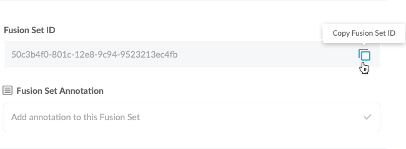
Figure 3: Fusion Set Detail Summary
-
Follow the instructions below to use the Fusion Set ID inside any standard mobile DevOps or CI/CD toolkit like Bitrise, Jenkins, Travis, Team City, Circle CI or other system:
-
Refer to the Appdome API Reference Guide for API building instructions.
-
Look for sample APIs in Appdome’s GitHub Repository.
-
Create and name the Fusion Set (security template) that will contain the Detect Rogue Installation feature as shown below:
Figure 1: Fusion Set that will contain the Detect Rogue Installation feature
-
-
Add the Detect Rogue Installation feature to your security template.
-
Navigate to Build > Anti ATO tab > Social Engineering Prevention section in the Appdome Console.
-
Toggle On > Detect Rogue Installation.
(a) Choose to monitor this attack vector by checking the Threat Events checkbox associated with Detect Rogue Installation as shown below.
(b) To receive mobile Threat Monitoring, check the ThreatScope™ box as shown below. For more details, see our knowledge base article on ThreatScope™ Mobile XTM.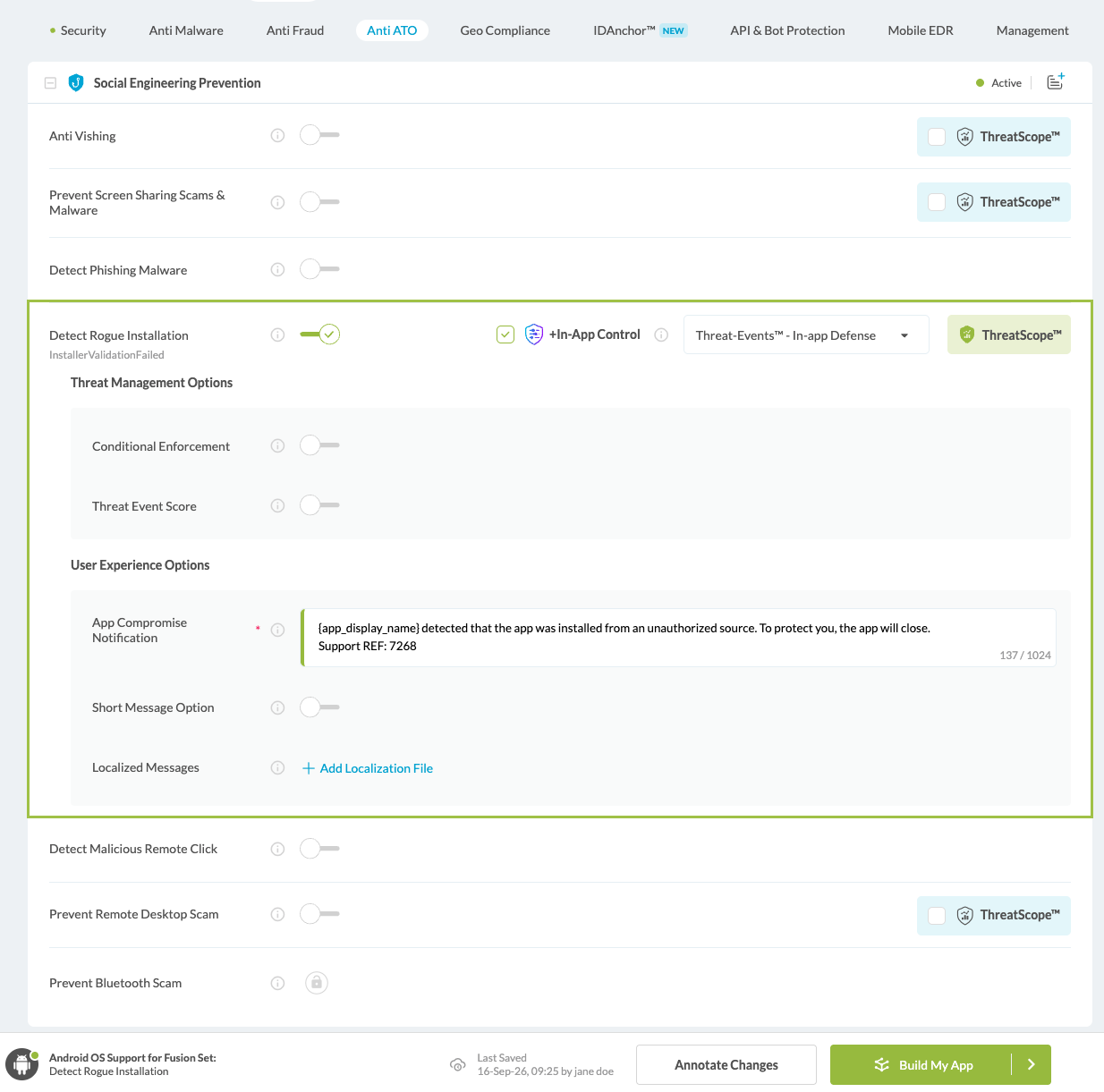
Figure 4: Selecting Detect Rogue Installation
Note: The Appdome Platform displays the Mobile Operation Systems supported by each defense in real-time. For more details, see our OS Support Policy KB. -
Select the Threat-Event™ in-app mobile Threat Defense and Intelligence policy for Detect Rogue Installation:
-
Threat-Events™ OFF > In-App Defense
If the Threat-Events™ setting is not selected. Appdome will detect and defend user and app by enforcing Detect Rogue Installation.
-
Threat-Events™ ON > In-App Detection
When this setting is used, Appdome detects Rogue Installation and passes Appdome’s Threat-Event™ attack intelligence to the app’s business logic for processing, enforcement, and user notification. For more information on consuming and using Appdome Threat-Events™ in the app, see section Using Threat-Events™ for Detect Rogue Installation Intelligence and Control in Mobile Apps.
-
Threat-Events™ ON > In-App Defense
When this setting is used, Appdome detects and defends against Rogue Installation (same as Appdome Enforce) and passes Appdome’s Threat-Event™ attack intelligence to the app’s business logic for processing. For more information on consuming and using Appdome Threat-Events™ in the app, see section Using Threat-Events™ for Detect Rogue Installation Intelligence and Control in Mobile Apps.
-
-
Configure the User Experience Options for Detect Rogue Installation:
With Threat-Events™ OFF, Appdome provides several user experience options for mobile brands and developers.- App Compromise Notification: Customize the pop-up or toast Appdome uses to notify the user when a threat is present while using the protected mobile app.
- Short message Option. This is available for mobile devices that allow a banner notification for security events.
-
Localized Message Option. Allows Appdome users to support global languages in security notifications.
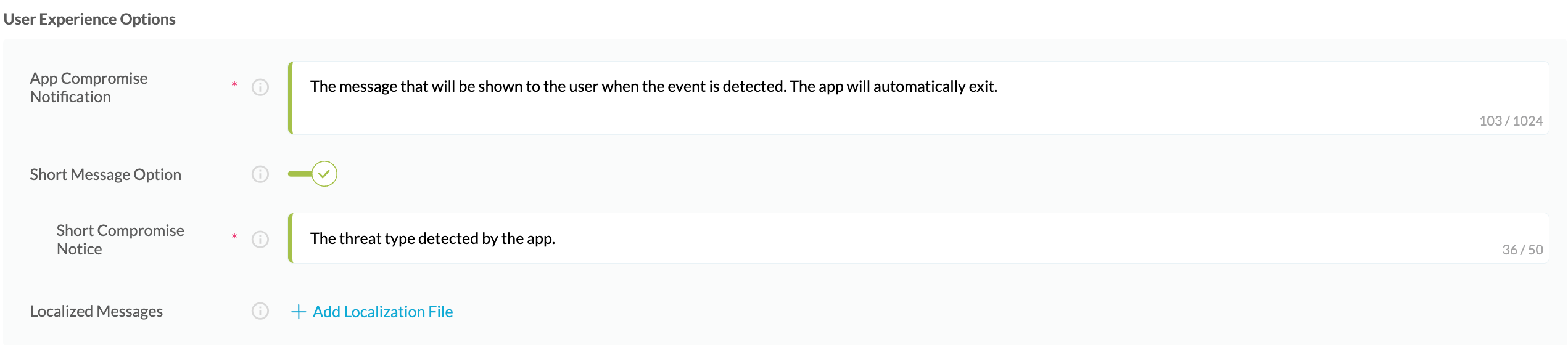
Figure 5: Default User Experience Options for Appdome’s Rogue Installation
-
Detect Rogue Installation Threat Code™. Appdome uses AI to generate a unique code each time Detect Rogue Installation is triggered by an active threat on the mobile device. Use the code in Appdome Threat Resolution Center™ to help end users identify, find and resolve active threats on the personal mobile devices.
-
Congratulations! The Detect Rogue Installation protection is now added to the mobile app -
-
Certify the Detect Rogue Installation feature in Android Apps
After building Detect Rogue Installation, Appdome generates a Certified Secure™ certificate to guarantee that the Detect Rogue Installation protection has been added and is protecting the app. To verify that the Detect Rogue Installation protection has been added to the mobile app, locate the protection in the Certified Secure™ certificate as shown below:
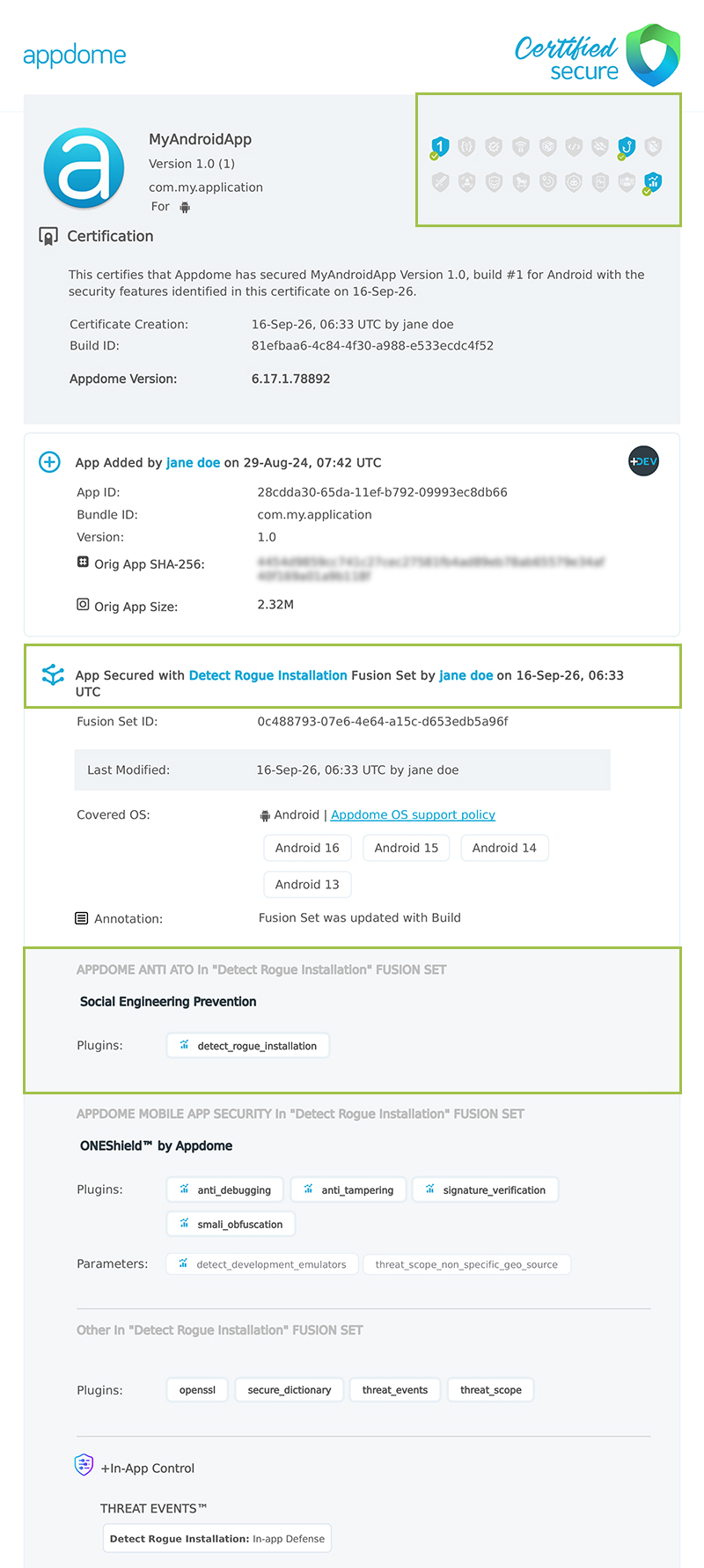
Figure 6: Certified Secure™ certificate
Each Certified Secure™ certificate provides DevOps and DevSecOps organizations the entire workflow summary, audit trail of each build, and proof of protection that Detect Rogue Installation has been added to each Android app. Certified Secure provides instant and in-line DevSecOps compliance certification that Detect Rogue Installation and other mobile app security features are in each build of the mobile app.
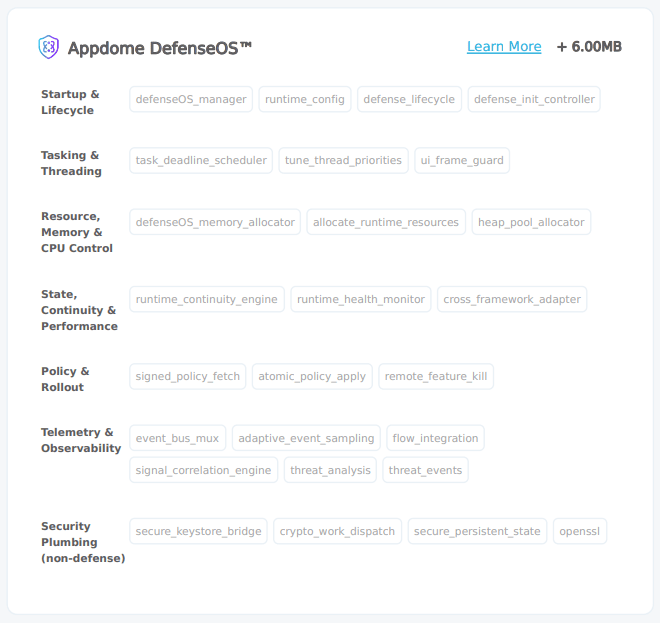
Figure 7: DefenseOS™
DefenseOS™ manages and coordinates Appdome defense capabilities in protected mobile apps. To learn more about DefenseOS and its runtime modules, see Understanding DefenseOS™.
Using Threat-Events™ for Rogue Installation Intelligence and Control in Android Apps
Appdome Threat-Events™ provides consumable in-app mobile app attack intelligence and defense control when Rogue Installation is detected. To consume and use Threat-Events™ for Rogue Installation in Android Apps, use registerReceiver in the Application OnCreate, and the code samples for Threat-Events™ for Rogue Installation shown below.
The specifications and options for Threat-Events™ for Rogue Installation are:
| Threat-Event™ Elements | Detect Rogue Installation Method Detail |
|---|---|
| Appdome Feature Name | Detect Rogue Installation |
| Threat-Event Mode | |
| OFF, IN-APP DEFENSE | Appdome detects, defends and notifies user (standard OS dialog) using customizable messaging. |
| ON, IN-APP DETECTION | Appdome detects the attack or threat and passes the event in a standard format to the app for processing (app chooses how and when to enforce). |
| ON, IN-APP DEFENSE | Uses Appdome Enforce mode for any attack or threat and passes the event in a standard format to the app for processing (gather intel on attacks and threats without losing any protection). |
| Certified Secure™ Threat Event Check | |
| Visible in ThreatScope™ | |
| Developer Parameters for Detecting Rogue Installation Threat-Event™ | |
| Threat-Event NAME | InstallerValidationFailed |
| Threat-Event DATA | reasonData |
| Threat-Event CODE | reasonCode |
| Threat-Event REF | 7268 |
| Threat-Event SCORE | |
| currentThreatEventScore | Current Threat-Event score |
| threatEventsScore | Total Threat-events score |
| Threat-Event Context Keys | |
|---|---|
| Timestamp | The exact time the threat event was triggered, recorded in milliseconds since epoch |
| message | Message displayed for the user on event |
| externalID | The external ID of the event which can be listened via Threat Events |
| osVersion | OS version of the current device |
| deviceModel | Current device model |
| deviceManufacturer | The manufacturer of the current device |
| fusedAppToken | The task ID of the Appdome fusion of the currently running app |
| kernelInfo | Info about the kernel: system name, node name, release, version and machine. |
| carrierPlmn | PLMN of the device. Only available for Android devices. |
| deviceID | Current device ID |
| reasonCode | Reason code of the occurred event |
| deviceBrand | Brand of the device |
| deviceBoard | Board of the device |
| buildUser | Build user |
| buildHost | Build host |
| sdkVersion | Sdk version |
| threatCode | The last six characters of the threat code specify the OS, allowing the Threat Resolution Center to address the attack on the affected device. |
With Threat-Events™ enabled (turned ON), Android developers can get detailed attack intelligence and granular defense control in Android applications and create amazing user experiences for all mobile end users when Rogue Installation is detected.
The following is a code sample for native Android apps, which uses all values in the specification above for Detect Rogue Installation:
Important! Replace all placeholder instances of <Context Key> with the specific name of your threat event context key across all language examples. This is crucial to ensure your code functions correctly with the intended event data. For example, The <Context Key> could be the message, externalID, OS Version, reason code, etc.
xxxxxxxxxxIntentFilter intentFilter = new IntentFilter();intentFilter.addAction("InstallerValidationFailed");BroadcastReceiver threatEventReceiver = new BroadcastReceiver() { public void onReceive(Context context, Intent intent) { String message = intent.getStringExtra("message"); // Message shown to the user String reasonData = intent.getStringExtra("reasonData"); // Threat detection cause String reasonCode = intent.getStringExtra("reasonCode"); // Event reason code // Current threat event score String currentThreatEventScore = intent.getStringExtra("currentThreatEventScore"); // Total threat events score String threatEventsScore = intent.getStringExtra("threatEventsScore"); // Replace '<Context Key>' with your specific event context key // String variable = intent.getStringExtra("<Context Key>"); // Your logic goes here (Send data to Splunk/Dynatrace/Show Popup...) }};if (Build.VERSION.SDK_INT >= Build.VERSION_CODES.TIRAMISU) { registerReceiver(threatEventReceiver, intentFilter, Context.RECEIVER_NOT_EXPORTED);} else { registerReceiver(threatEventReceiver, intentFilter);}xxxxxxxxxxval intentFilter = IntentFilter()intentFilter.addAction("InstallerValidationFailed")val threatEventReceiver = object : BroadcastReceiver() { override fun onReceive(context: Context?, intent: Intent?) { var message = intent?.getStringExtra("message") // Message shown to the user var reasonData = intent?.getStringExtra("reasonData") // Threat detection cause var reasonCode = intent?.getStringExtra("reasonCode") // Event reason code // Current threat event score var currentThreatEventScore = intent?.getStringExtra("currentThreatEventScore") // Total threat events score var threatEventsScore = intent?.getStringExtra("threatEventsScore") // Replace '<Context Key>' with your specific event context key // var variable = intent?.getStringExtra("<Context Key>") // Your logic goes here (Send data to Splunk/Dynatrace/Show Popup...) }}if (Build.VERSION.SDK_INT >= Build.VERSION_CODES.TIRAMISU) { registerReceiver(threatEventReceiver, intentFilter, Context.RECEIVER_NOT_EXPORTED)} else { registerReceiver(threatEventReceiver, intentFilter)}xxxxxxxxxxconst { ADDevEvents } = NativeModules;const aDDevEvents = new NativeEventEmitter(ADDevEvents);function registerToDevEvent(action, callback) { NativeModules.ADDevEvents.registerForDevEvent(action); aDDevEvents.addListener(action, callback);}export function registerToAllEvents() { registerToDevEvent( "InstallerValidationFailed", (userinfo) => Alert.alert(JSON.stringify(userinfo)) var message = userinfo["message"] // Message shown to the user var reasonData = userinfo["reasonData"] // Threat detection cause var reasonCode = userinfo["reasonCode"] // Event reason code // Current threat event score var currentThreatEventScore = userinfo["currentThreatEventScore"] // Total threat events score var threatEventsScore = userinfo["threatEventsScore"] // Replace '<Context Key>' with your specific event context key // var variable = userinfo["<Context Key>"] // Your logic goes here (Send data to Splunk/Dynatrace/Show Popup...) );}x
RegisterReceiver(new ThreatEventReceiver(), new IntentFilter("InstallerValidationFailed")); class ThreatEventReceiver : BroadcastReceiver{ public override void OnReceive(Context context, Intent intent) { // Message shown to the user String message = intent.GetStringExtra("message"); // Threat detection cause String reasonData = intent.GetStringExtra("reasonData"); // Event reason code String reasonCode = intent.GetStringExtra("reasonCode"); // Current threat event score String currentThreatEventScore = intent.GetStringExtra("currentThreatEventScore"); // Total threat events score String threatEventsScore = intent.GetStringExtra("threatEventsScore"); // Replace '<Context Key>' with your specific event context key // String variable = intent.GetStringExtra("<Context Key>"); // Your logic goes here (Send data to Splunk/Dynatrace/Show Popup...) }}x
NSNotificationCenter.DefaultCenter.AddObserver( (NSString)"InstallerValidationFailed", // Threat-Event Identifier delegate (NSNotification notification) { // Message shown to the user var message = notification.UserInfo.ObjectForKey("message"); // Threat detection cause var reasonData = notification.UserInfo.ObjectForKey("reasonData"); // Event reason code var reasonCode = notification.UserInfo.ObjectForKey("reasonCode"); // Current threat event score var currentThreatEventScore = notification.UserInfo.ObjectForKey("currentThreatEventScore"); // Total threat events score var threatEventsScore = notification.UserInfo.ObjectForKey("threatEventsScore"); // Replace '<Context Key>' with your specific event context key // var variable = notification.UserInfo.ObjectForKey("<Context Keys>"); // Your logic goes here (Send data to Splunk/Dynatrace/Show Popup...) });xxxxxxxxxxwindow.broadcaster.addEventListener("InstallerValidationFailed", function(userInfo) { var message = userInfo.message // Message shown to the user var reasonData = userInfo.reasonData // Threat detection cause var reasonCode = userInfo.reasonCode // Event reason code // Current threat event score var currentThreatEventScore = userInfo.currentThreatEventScore // Total threat events score var threatEventsScore = userInfo.threatEventsScore // Replace '<Context Key>' with your specific event context key // var variable = userInfo.<Context Keys> // Your logic goes here (Send data to Splunk/Dynatrace/Show Popup...)});x
import 'dart:async';import 'package:flutter/material.dart';import 'package:flutter/services.dart';class PlatformChannel extends StatefulWidget { const PlatformChannel({super.key}); State<PlatformChannel> createState() => _PlatformChannelState();}class _PlatformChannelState extends State<PlatformChannel> { // Replace with your EventChannel name static const String _eventChannelName = "InstallerValidationFailed"; static const EventChannel _eventChannel = EventChannel(_eventChannelName); void initState() { super.initState(); _eventChannel.receiveBroadcastStream().listen(_onEvent, onError: _onError); } void _onEvent(Object? event) { setState(() { // Adapt this section based on your specific event data structure var eventData = event as Map; // Example: Accessing 'externalID' field from the event var externalID = eventData['externalID']; // Customize the rest of the fields based on your event structure String message = eventData['message']; // Message shown to the user String reasonData = eventData['reasonData']; // Threat detection cause String reasonCode = eventData['reasonCode']; // Event reason code // Current threat event score String currentThreatEventScore = eventData['currentThreatEventScore']; // Total threat events score String threatEventsScore = eventData['threatEventsScore']; // Replace '<Context Key>' with your specific event context key // String variable = eventData['<Context Keys>']; }); } // Your logic goes here (Send data to Splunk/Dynatrace/Show Popup...)}Using Appdome, there are no development or coding prerequisites to build secured Android Apps by using Detect Rogue Installation. There is no SDK and no library to code or implement in the app and no gateway to deploy in your network. All protections are built into each app and the resulting app is self-defending and self-protecting.
Releasing and Publishing Mobile Apps with Detect Rogue Installation
After successfully securing your app by using Appdome, there are several available options to complete your project, depending on your app lifecycle or workflow. These include:
- Customizing, Configuring & Branding Secure Mobile Apps.
- Deploying/Publishing Secure mobile apps to Public or Private app stores.
- Releasing Secured Android & iOS Apps built on Appdome.
Related Articles:
- Detect Vishing Attacks Against Mobile Apps
- Detect Phishing Malware Attacks
- Detect Malicious Remote Click
- Detect Remote Desktop Scams
How Do I Learn More?
If you have any questions, please send them our way at support.appdome.com or via the chat window on the Appdome platform.
Thank you!
Thanks for visiting Appdome! Our mission is to secure every app on the planet by making mobile app security easy. We hope we’re living up to the mission with your project.