
How to Simulate Threat Events with Appdome Threat Simulation
What is Appdome Threat Simulation?
Threat Simulation allows you to simulate Threat-Events™ in an Appdome-protected app to verify how the app responds to security detections without compromising a test device. Threat Simulation can be used to test protections, detection logic, and workflows implemented using Appdome’s Threat-Events™ framework.
Before You Begin
Before using Threat Simulation, the app must be built with the relevant protection and its Threat-Events™ option enabled.
For example, to simulate a RootedDevice Threat Event:
- Enable Root Detection for the app.
- Enable Threat-Events™ for Root Detection.
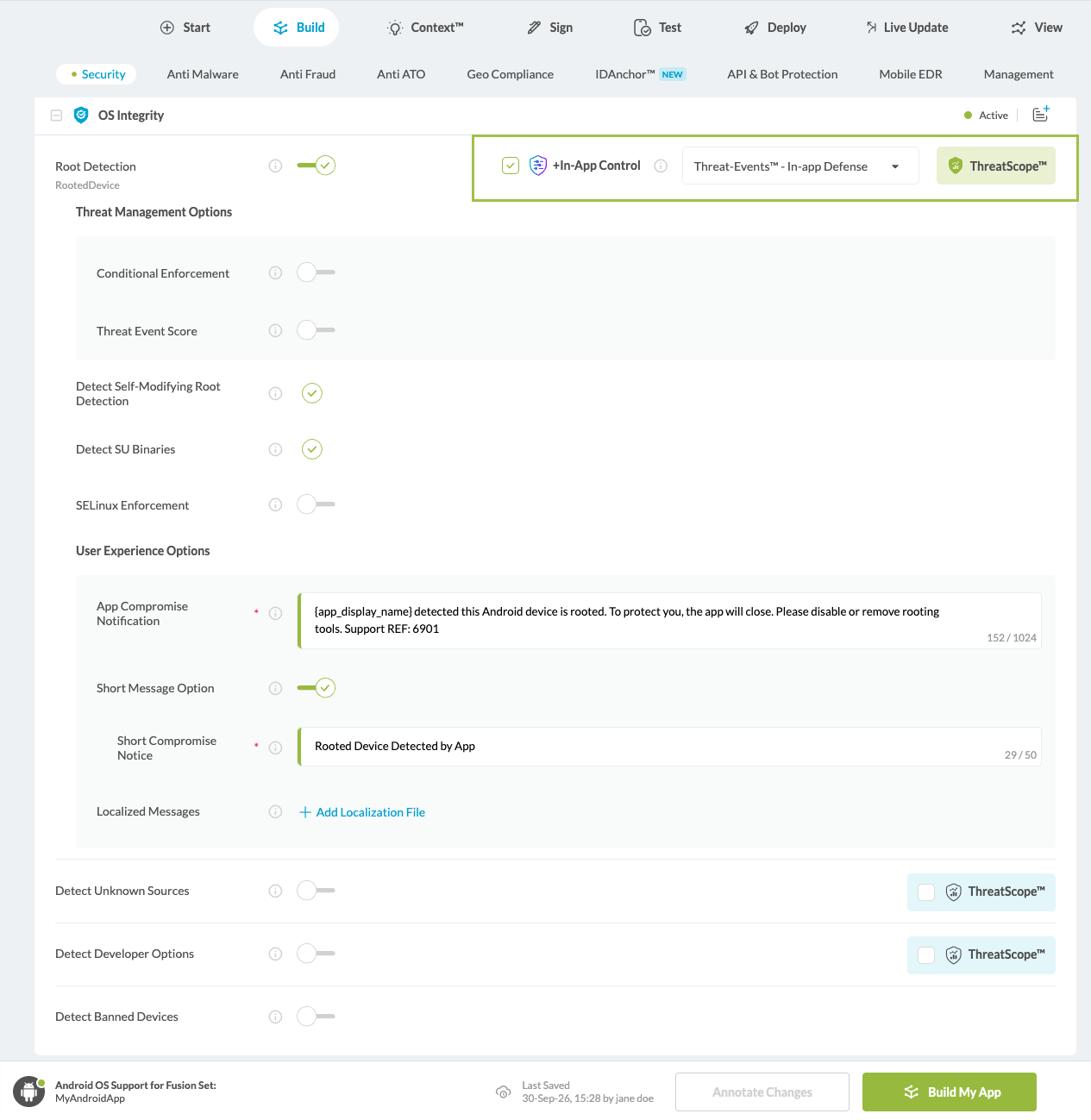
Note: The Threat Events available for simulation are determined by the protections and Threat-Events™ enabled in the selected build. If a protection is not enabled in the build, its corresponding Threat Event cannot be simulated. - Build the protected app.
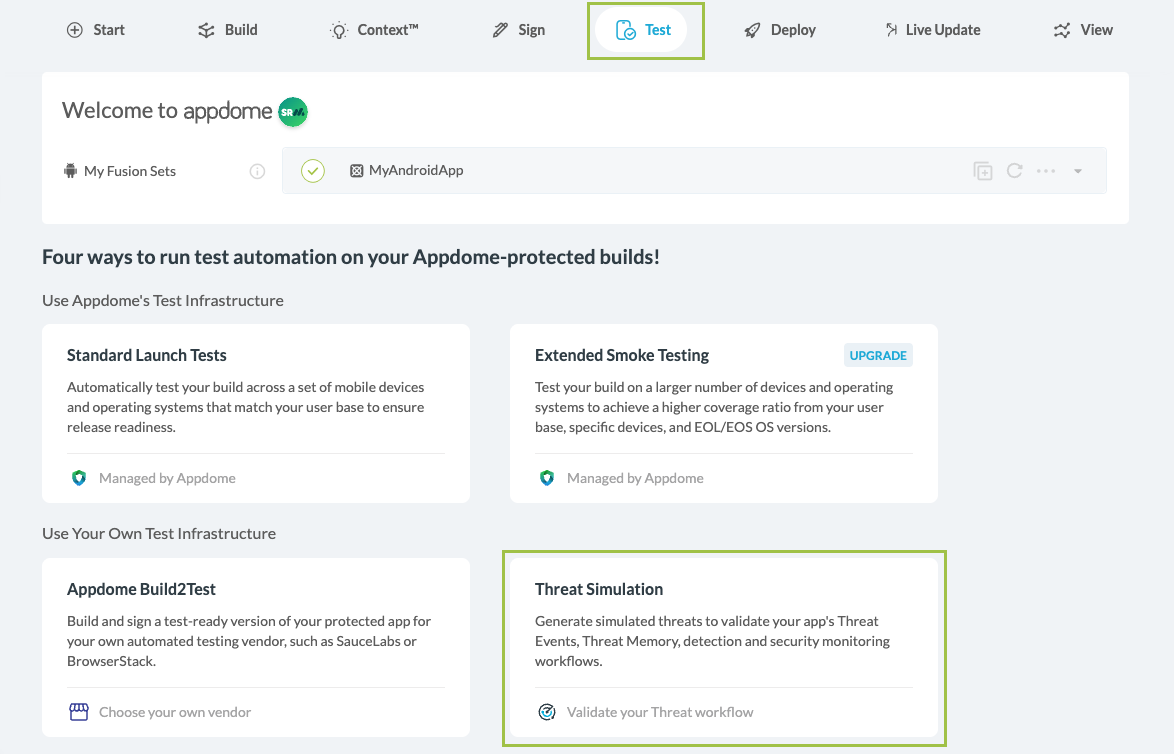
- Go to the Test tab
- Select Threat Simulation from the Appdome Test Laaunchpad.
Threat Simulation Mode Options
Threat Simulation provides two modes that determine how the configured Threat Events are triggered.
| One Session | One Session runs all configured Threat Events sequentially within a single app session.
Each event is triggered according to its configured delay, allowing multiple Threat Events to be simulated during the same session. |
| One Event Per Launch | One Event Per Launch triggers one configured Threat Event each time the app is launched.
The event is triggered after its configured delay. Subsequent events in the simulation are triggered on subsequent app launches. |
Threat Simulation Setup Options
Threat Simulation can be configured in two ways:
- Manual Setup – Select the mode, Threat Event(s), and delay directly in the Appdome interface.
- Configuration File – Upload a JSON file that defines the mode, Threat Event(s), and delays.
Manual Setup
To configure Threat Simulation manually:
- Select Manual Setup.
- Select One Session or One Event Per Launch.
- Select the Threat Event(s) to simulate.
- Set the Delay Sec for each event. The supported range is 1–60 seconds.
- Complete the required signing configuration.
- Click Run Threat Simulation.
The events available for selection are based on the Threat-Events™ enabled in the selected app build.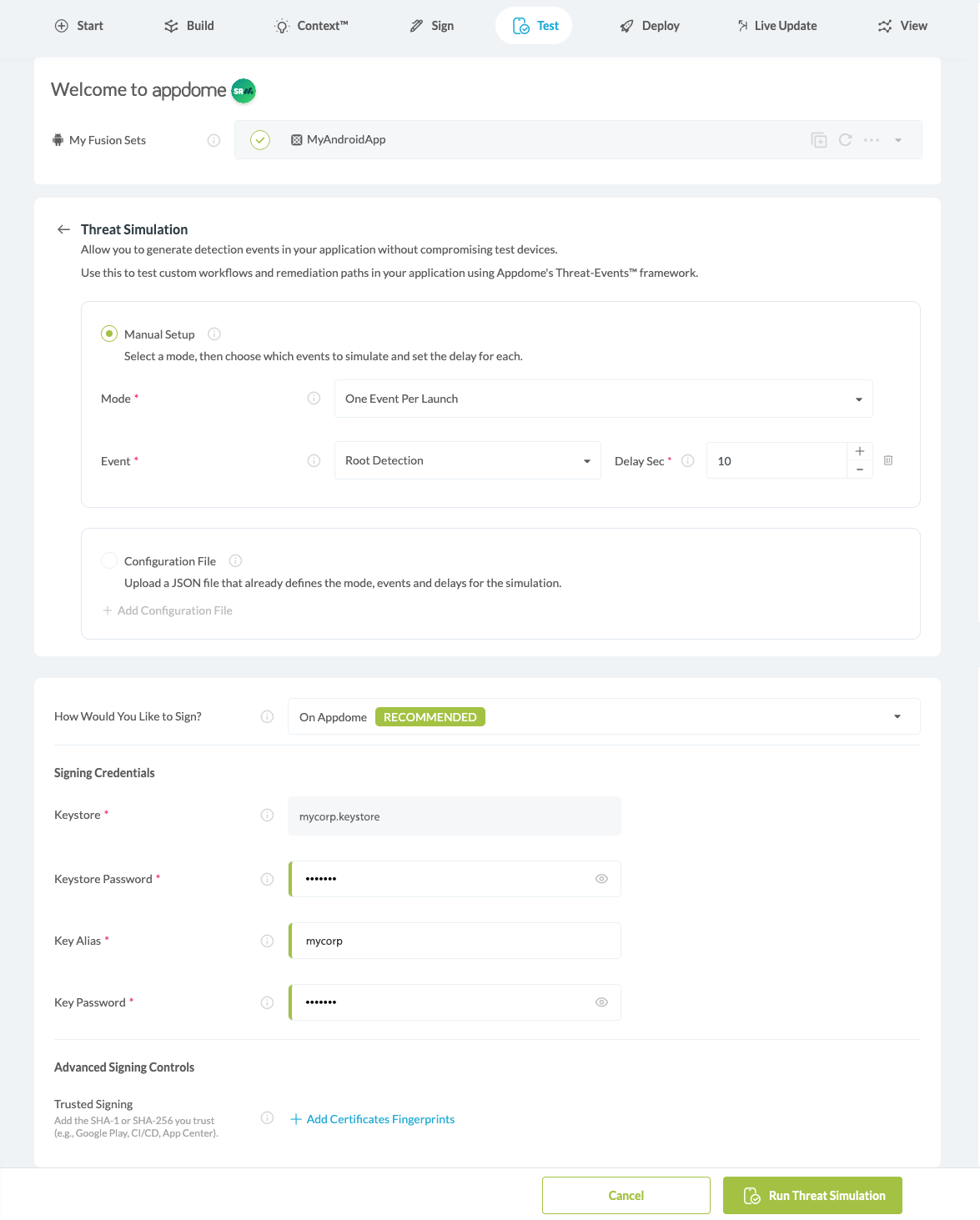
Configuration File
You can also configure Threat Simulation by uploading a JSON configuration file.
The configuration file defines the simulation mode, Threat Events to simulate, and the delay for each event.
Configuration Fields
| Field | Description |
mode |
"session" for One Session or "oneByOne" for One Event Per Launch. |
schedule |
An array containing the Threat Events to simulate. |
schedule[].event |
The Threat Event to simulate, such as RootedDevice or FridaDetected. Available events depend on the Threat-Events™ enabled in the selected build. |
schedule[].delaySec |
Delay before the event is triggered. Supported values are 1–60 seconds. In One Session, this is the delay between events. In One Event Per Launch, this is the delay after app launch before the event is triggered. |
Configuration File Structure
One Session
{
  "mode": "session",
  "schedule": [
    {
      "event": "RootedDevice",
      "delaySec": 10
    },
    {
      "event": "FridaDetected",
      "delaySec": 20
    },
    {
      "event": "GeoLocationMockByAppDetected",
      "delaySec": 30
    }
  ]
}
One Event Per Launch
{
  "mode": "oneByOne",
  "schedule": [
    {
      "event": "RootedDevice",
      "delaySec": 10
    },
    {
      "event": "FridaDetected",
      "delaySec": 20
    },
    {
      "event": "GeoLocationMockByAppDetected",
      "delaySec": 30
    }
  ]
}
Uploading a Configuration File
To use a configuration file:
- Select Configuration File.
- Upload the JSON configuration file.
- Complete the required signing configuration.
- Click Run Threat Simulation.
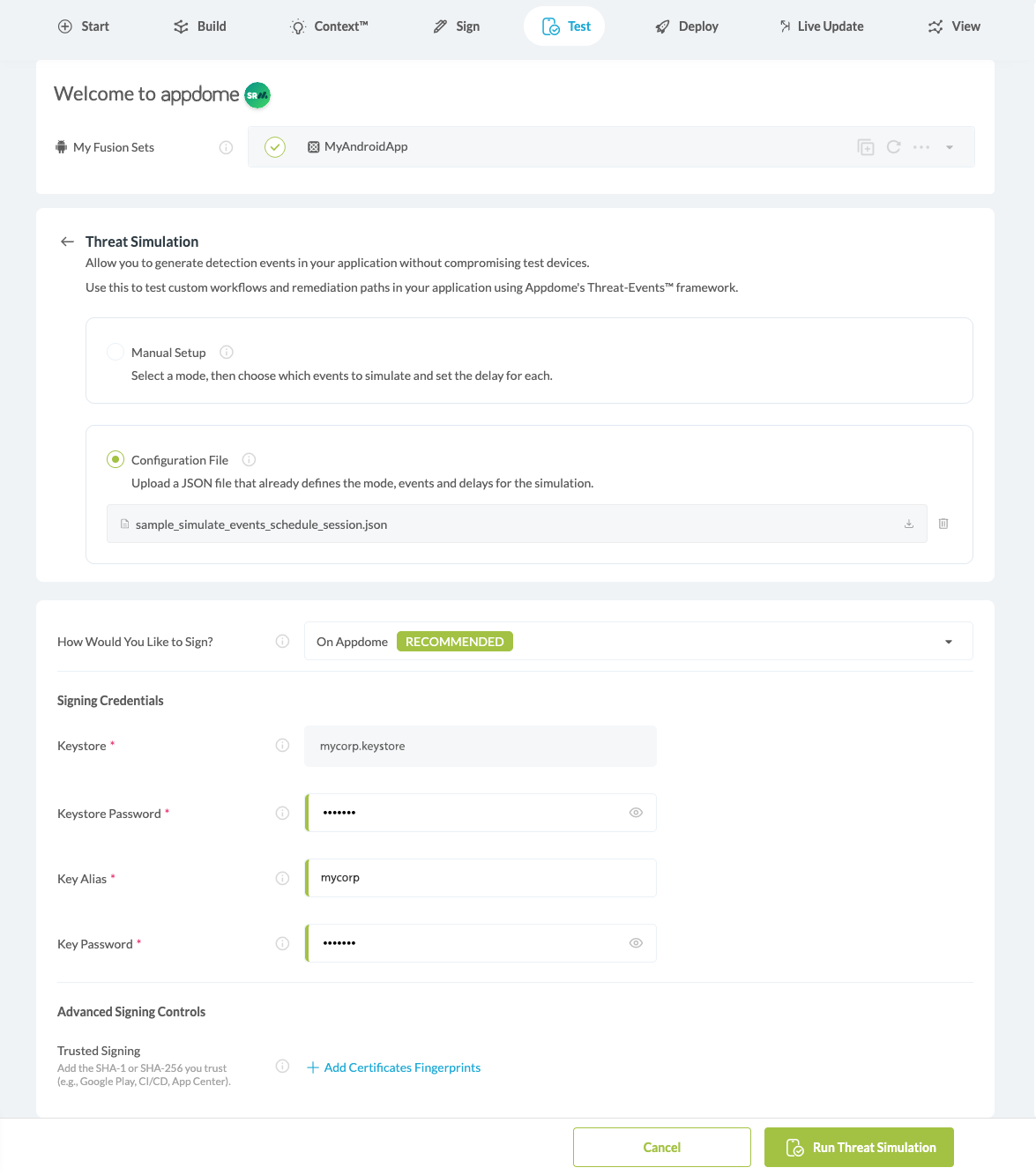
Appdome validates the configuration file before running the simulation.
Configuration File Validation
Every event in the schedule array must correspond to a protection with Threat-Events™ enabled in the selected build.
If any event does not meet this requirement, the entire configuration file fails validation and Appdome identifies the affected event:
Line {n}: event "{event}" requires "{protection}" to be enabled. Update the file and upload it again.Update the specified event and upload the file again. Appdome does not automatically modify invalid configuration files.
Unsupported Configuration Options
Custom per-event parameters are not currently supported.
Do not add a params object or event-specific parameters, such as device IDs or keyboard IDs, to the configuration file.
Related Articles:
- Understanding Appdome Test
- Using Appdome Automation Testing for iOS Apps
- Using Appdome Automation Testing for Android Apps
- Test Secured Mobile Apps
How Do I Learn More?
If you have any questions, please send them our way at support.appdome.com or via the chat window on the Appdome platform.
Thank you!
Thanks for visiting Appdome! Our mission is to secure every app on the planet by making mobile app security easy. We hope we’re living up to the mission with your project. If you don’t already have an account, you can sign up for free.