How to Sign Your Android App
A digital signature is a cryptographic mechanism used to confirm the identity of the app’s developer and ensure that the application has not been modified or tampered with. All Android applications must be digitally signed before they can be installed or distributed through app stores.
When Appdome’s security features are added to an app during the Build process, the app’s original signature is invalidated. As a result, the protected app must be re-signed before it can be deployed to devices. Appdome supports multiple signing workflows, allowing apps to be re-signed directly on Appdome, within a customer’s secure environment, or through Auto-DEV Private Signing for CI/CD use cases.
Trusted Signing Certificates
Appdome uses a Trusted Signing model to validate Android app signing based on authorized certificate fingerprints, rather than distribution-specific signing options. Customers explicitly define which signing certificates are trusted, and any app signed with one of these certificates is considered valid and will not trigger anti-tampering protections. This unified approach replaces previous toggle-based signing behavior and enables the same app build to be used consistently across production, testing, and enterprise distribution workflows.
Trusted Store Signing is an optional compatibility setting used to preserve existing store-based validation behavior. Most customers do not need to modify this setting unless instructed by Appdome Support.
Before You Begin
Ensure the following prerequisites are met:
-
Your app is built with Appdome’s features and is ready to be signed
-
You have the following:
-
Keystore file
-
Keystore password
-
Key alias
-
Key password
-
Learn how to generate a keystore and an upload key in Android Studio.
Additional requirements apply depending on the signing method:
-
Private Signing and Auto-DEV Private Signing require at least one SHA-1 or SHA-256 certificate fingerprint.
-
When using Sign on Appdome, a SHA-1 or SHA-256 certificate fingerprint is optional.
-
(Optional) Prepare annotations to help identify certificate usage (for example, store-level or CI/CD signing).
-
If no annotation is provided, Appdome may display a “Missing Annotation” warning with an orange icon (informational only)

Sign on Appdome – Step by Step:
- Select and APK/AAB app you’d like to sign (the app needs to complete the Build process with Appdome for you to be able to sign it)
- In the upper navigation bar, select Sign.
- Next to “How Would You Like to Sign?”, select On Appdome.
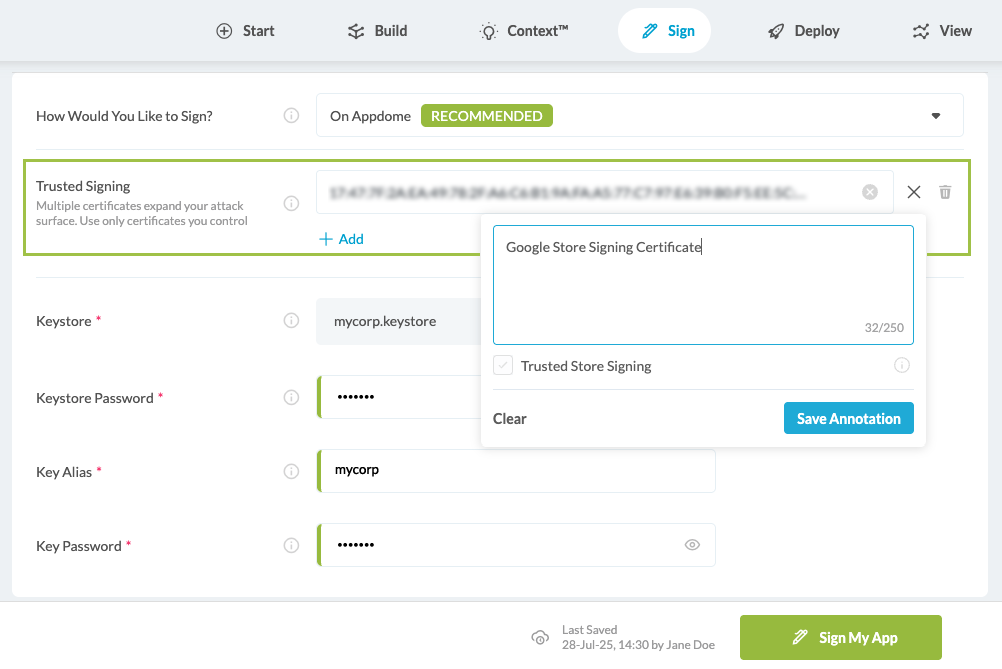
- Under Trusted Signing Certificates, add a SHA-1 or SHA-256 certificate fingerprint.
- This is required when the app will be re-signed by another signing authority (for example, Google Play).
- For more information, see the following Appdome knowledge base article.
-
(Optional) Add an Annotation to document certificate usage.
-
(Optional) Select the Trusted Store Signing checkbox, if instructed by Appdome Support.
-
Select Sign My App.
-
(Optional) In the pop-up message, select OK to save your signing credentials, or Skip to proceed without saving.
Appdome will now calculate a checksum of each component of your app’s current state. Once the signing is complete, continue to the next step to deploy your app.
Sign On Appdome:
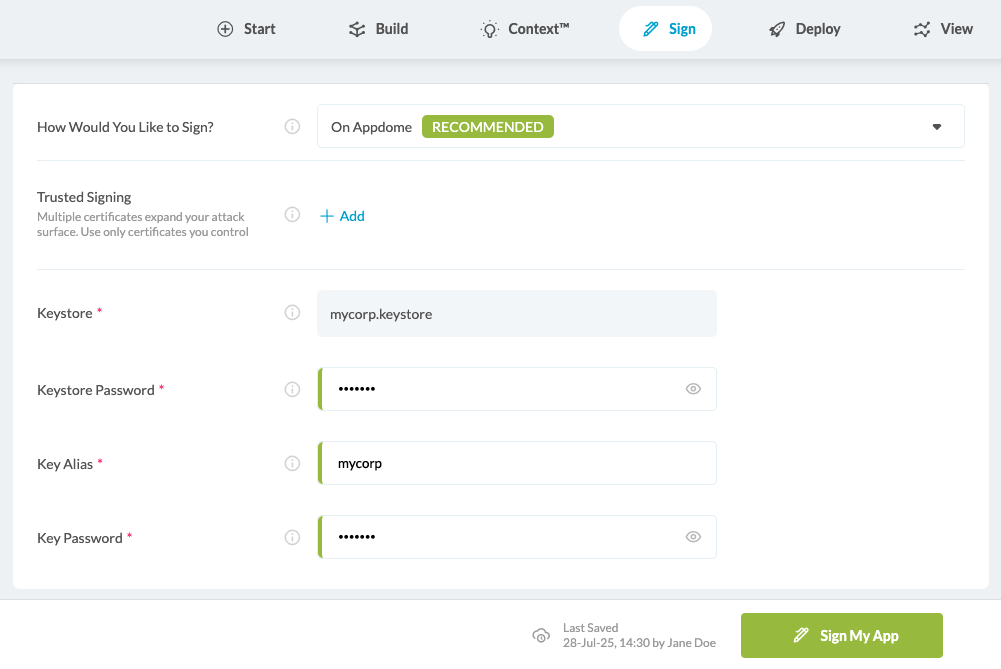
(Optional) Under Trusted Signing Certificates, click + to add a SHA-1 or SHA-256 certificate fingerprint:
Private Signing
You can sign the app in your trusted environment using private signing, described next.
Before You Begin
Ensure the following prerequisites are met:
-
Your app is built with Appdome’s features and is ready to be signed
-
Your SDK Build Tools version must be 35.0.0 or later.
-
This version includes required updates to
apksignerand supports 16KB ZIP alignment, which is required for properly packaging APKs for modern Android versions. -
Using older Build Tools or older alignment values (such as 4KB) may result in improperly signed APKs that fail to install or update on newer Android devices.
-
-
The Java version in your local environment is equal to or newer than the version used to generate your keystore
-
To verify, run the following command on your terminal:
java -version
-
-
You have access to your Android signing keystore
-
At least one SHA-1 or SHA-256 certificate fingerprint is available for Private Signing
1. Generate a Certificate Fingerprint
Local signing of the app may fail if the certificate fingerprint you provide doesn’t match its associated keystore, as Appdome validates signing integrity using Trusted Signing certificates.
To get the fingerprint, follow these steps:
Step by Step:
- On your workstation, run:
keytool -list -v -keystore <path_to_keystore> -storepass <store pass> -alias <alias>
Alternatively, use this command:
keytool -printcert -jarfile <apk/aab_file>
The SHA1 or the SHA256 of the signature will be marked inside the output. This is a public identifier that can also be extracted from the signed .apk. The output should look like this:
test-alias, Nov 20, 2017, PrivateKeyEntry,
Certificate fingerprint (SHA1):BE:D2:E3:17:9F:20:9A:F9:CF:55:E8:31:21:8C:7E:C7:7F:87:62:26
- Copy the fingerprint.
2. Seal The App in Appdome
Step by step:
- Select the APK or AAB you want to sign (the app must complete the Build process to be sealed).
- In the upper navigation bar, select Sign.
- Next to How Would You Like to Sign?, select Private Signing.
- Under Trusted Signing Certificates, click + to add a SHA-1 or SHA-256 certificate fingerprint
- (Optional) Add an Annotation to document certificate usage.
- (Optional) Select the Trusted Store Signing checkbox
- Select Sign Privately.
- In the pop-up message, select Continue with Private Signing.
- (Optional) Select the checkbox to save your signing credentials.
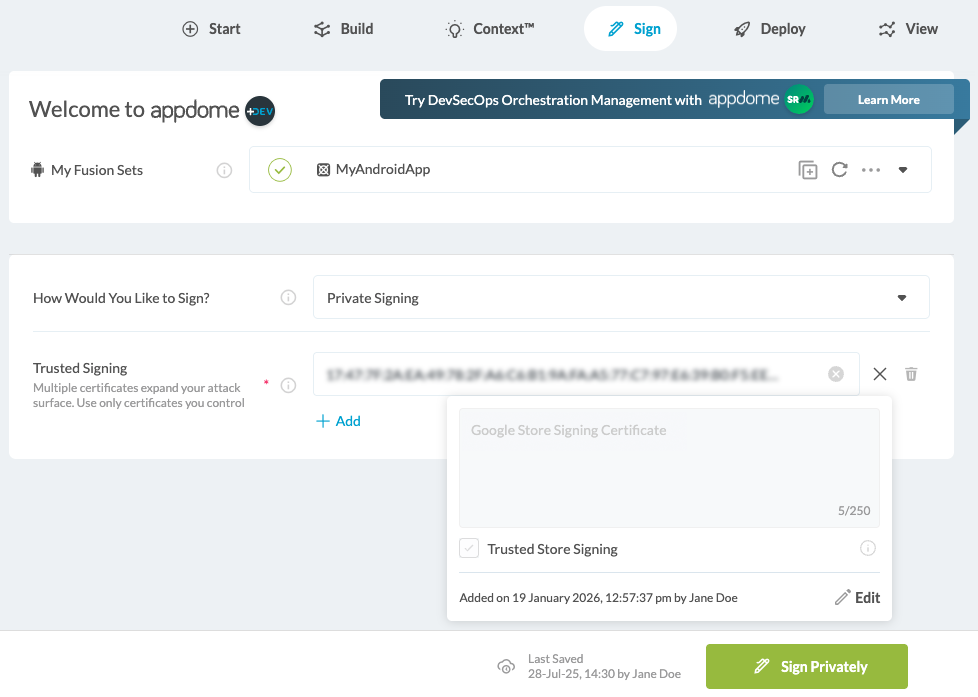
3. Sign the App Privately
Use the set of instructions below that matches your app type: APK or AAB.
Signing an APK App
Step by Step:
After downloading the built app from Appdome, you must align the APK using 16KB ZIP alignment before signing to ensure compatibility with modern Android packaging requirements. You can sign the app on your workstation by running:
zipalign -P 16 -f 4 <path_to_apk> <path_to_apk>-aligned.apk
mv <path_to_apk>-aligned.apk <path_to_apk>
apksigner sign --ks <path_to_keystore> --ks-pass pass:<store pass> --ks-key-alias <alias> --key-pass pass:<key pass> --v2-signing-enabled --v1-signing-enabled <path_to_apk>
After signing, your app is ready to deploy.
Signing an AAB App
Step by Step:
Once you have downloaded the Built app from Appdome, you can sign the app on your workstation by running:
jarsigner <path_to_AAB> -sigalg SHA256withRSA -digestalg SHA-256 -keystore <path_to_keystore> <alias> -storepass <store pass> -keypass <key pass> -signedjar signed_AAB.aab
After signing, your app is ready to deploy.
Auto-DEV Private Signing
Auto-DEV Private Signing allows you to seal the app in Appdome and complete signing automatically in your own environment using a local signing script. This workflow is designed for CI/CD pipelines and requires a trusted certificate fingerprint to validate signing integrity.
Before You Begin
Ensure the following prerequisites are met:
-
Your app is built with Appdome’s features and is ready to be signed
-
Your SDK Build Tools version must be 35.0.0 or later.
-
This version includes required updates to
apksigner(16KB alignment and ZIP alignment metadata) -
Using older versions may result in improperly signed APKs that fail to install or update
-
-
The Java version in your local environment is equal to or newer than the version used to generate your keystore
-
To verify, run the following command on your terminal:
java -version
-
-
You have access to your Android signing keystore
-
At least one SHA-1 or SHA-256 certificate fingerprint is available for Auto-Dev Private Signing
Environment Requirements
Auto-DEV Private Signing uses a local signing script and requires specific tools to be available in your environment.
macOS / Linux
-
Python 3.6 or later
-
keytool(JDK 1.8 or later) -
zipalign(Android SDK Build Tools 35.0.0 or later) -
apksigner(Android SDK Build Tools)
Windows
-
Windows Subsystem for Linux (WSL)
-
A Linux distribution supporting OpenJDK 8 (for example, Ubuntu)
-
Python 3.6 or later
Step by step:
- Extract the SHA-1 or SHA-256 certificate fingerprint from your signing keystore.
- Select the APK or AAB you want to sign (the app must complete the Build process).
- In the upper navigation bar, select Sign.
- Next to How Would You Like to Sign?, select Auto-DEV Private Signing.
- Under Trusted Signing Certificates, click + to add a SHA-1 or SHA-256 certificate fingerprint
- (Optional) Add an Annotation to document certificate usage.
- (Optional) Select the Trusted Store Signing checkbox
- Select Auto-DEV Sign Privately.
- In the pop-up message, select Continue with Private Signing.
- (Optional) Select the checkbox to save your signing credentials.
- Once sealing is complete, download the app and the generated signing script.
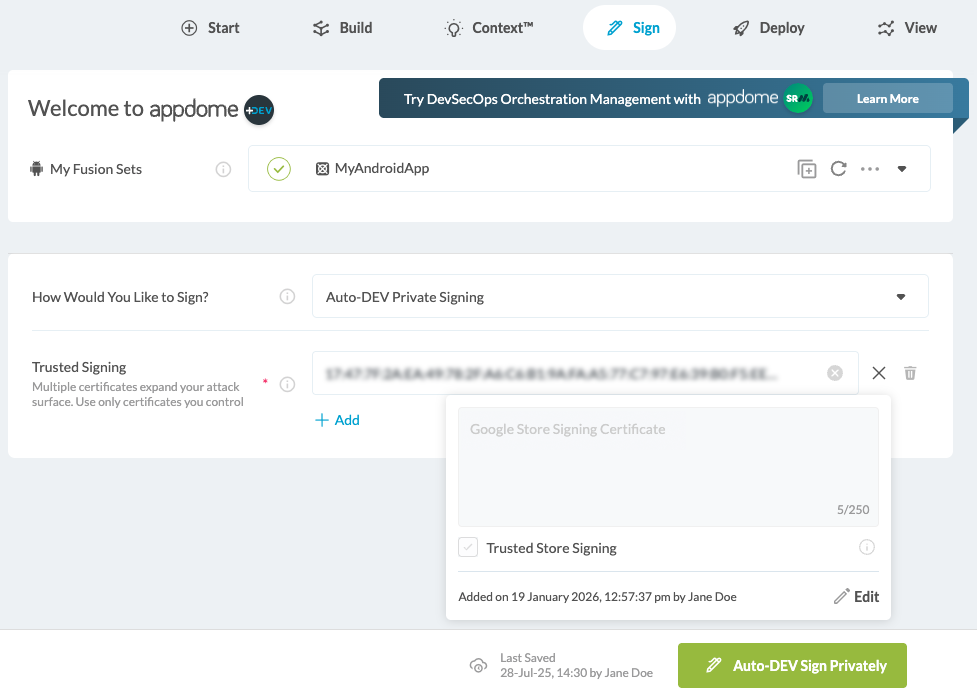
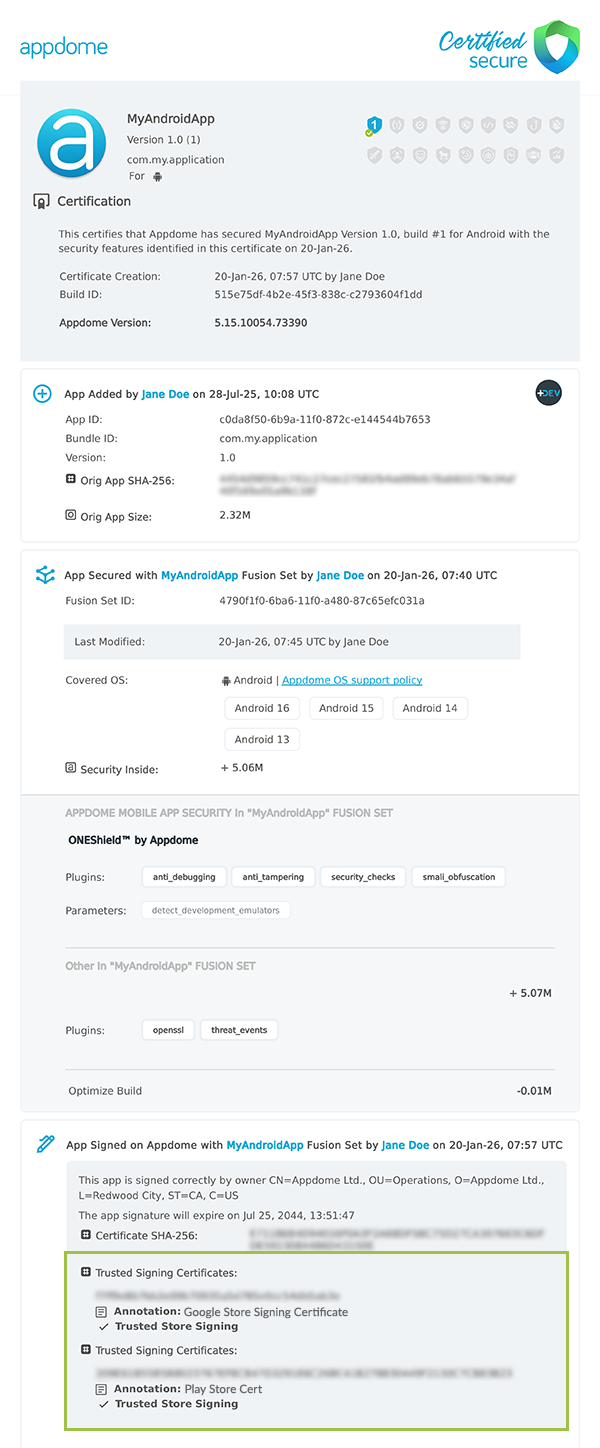
Post-Sign Indicator
After signing, Appdome displays signing and validation details to help verify that the app was signed using the expected certificates and configuration.
The following information may be displayed in the Certified Secure™ Certificate:
-
SHA-1 / SHA-256 certificate fingerprints
-
Annotation (if provided)
-
Trusted Store Signing indicator (if enabled)
How Do I Learn More?
If you have any questions, please send them our way at support.appdome.com or via the chat window on the Appdome platform.
Related Articles
- How to Sign Secured iOS Apps Using a local Appdome supplied script
- How to Code Sign Secured iOS Apps in DevSecOps Build System
- How to Sign Secured iOS Apps Using Codesign
Thank you!
Thanks for visiting Appdome! Our mission is to secure every app on the planet by making mobile app security easy.