Automatic Code Signing for Secured Android Apps on Appdome
All Android applications must be digitally signed before they can be installed or distributed. When an app is secured using Appdome, the original signature is invalidated during the Build process, and the app must be re-signed before deployment. This Knowledge Base explains how to sign secured Android apps directly on Appdome, without using Android Studio.
Why Sign Secured Android Apps Without Android Studio on Appdome
Appdome’s no-code mobile security platform enables developers, DevSecOps teams, and security professionals to secure and sign Android apps without SDKs or code changes. After an app is built on Appdome, it can be signed using Appdome’s built-in signing workflow or through private signing methods, depending on deployment requirements.
Signing on Appdome supports all Android app types, including native Android apps, hybrid apps, and non-native apps built using frameworks such as MAUI, Xamarin, Cordova, React Native, Ionic, and more. This provides a simple and consistent way to prepare secured Android apps for deployment across production, testing, and enterprise distribution workflows while maintaining full compatibility with Appdome’s runtime protections.
Trusted Signing Certificates
Appdome uses a Trusted Signing model to validate signing integrity based on authorized certificate fingerprints, rather than distribution-specific signing behavior. Customers explicitly define which signing certificates are trusted, and any app signed with one of these certificates is considered valid and will not trigger anti-tampering protections.
This unified model replaces previous toggle-based signing behavior and enables consistent signing across production, testing, and enterprise distribution workflows.
Prerequisites for Signing Secured Android Apps Without Android Studio
In order to sign your Android app, you’ll need a valid signing certificate stored in the Android development environment. To use your certificate, you’ll need access to the following.
- Appdome account
- Appdome built mobile app.
- Keystore – This should be the same keystore file used to sign your Android app when distributing it via Google Play.
- Keystore Password – The password used to unlock your keystore.
- Key Alias – The name you assigned to your keystore.
- Key Password – This is the specific password defined for your signing key.
For more information and a detailed manual on how to create Signing Credentials, please read this knowledge base article.
To learn more about the different signing options for secured Android apps, please read How to Sign your Android App.
Easy Steps to Sign Secured Android Apps Without Android Studio
Please follow these step-by-step instructions on how to sign Android apps without Android Studio.
Navigate to the Sign tab of the Appdome workflow and follow these steps:
- Select and APK/AAB app you’d like to sign (the app needs to complete the Build process with Appdome for you to be able to sign it)
- In the upper navigation bar, select Sign.
- Next to “How Would You Like to Sign?”, select On Appdome.
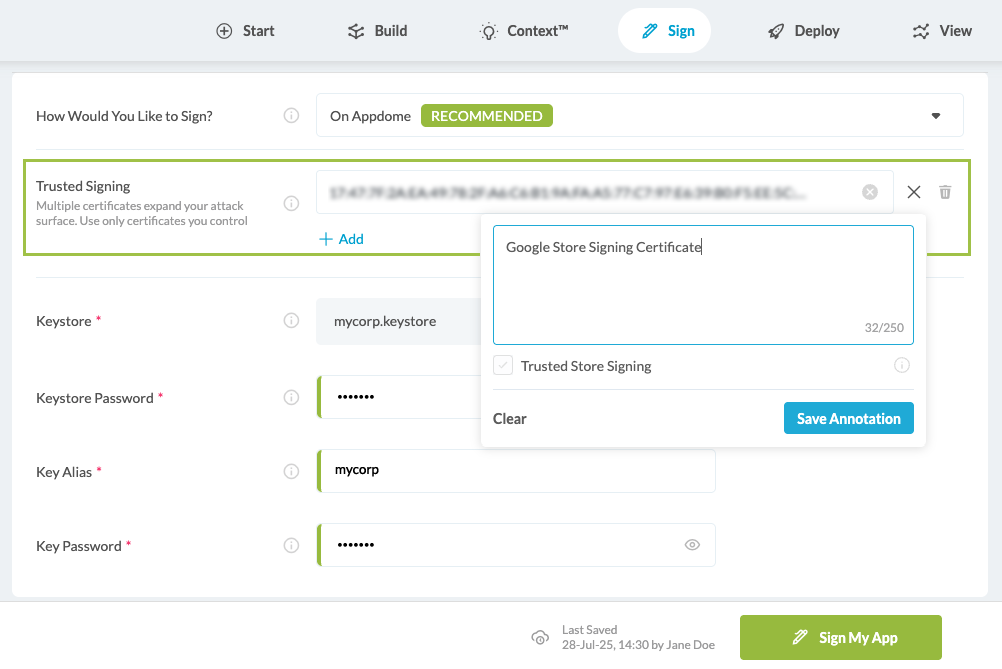
- Under Trusted Signing Certificates, add a SHA-1 or SHA-256 certificate fingerprint.
- This is required when the app will be re-signed by another signing authority (for example, Google Play).
- For more information, see the following Appdome knowledge base article.
-
(Optional) Add an Annotation to document certificate usage.
-
(Optional) Select the Trusted Store Signing checkbox, if instructed by Appdome Support.
-
Select Sign My App.
-
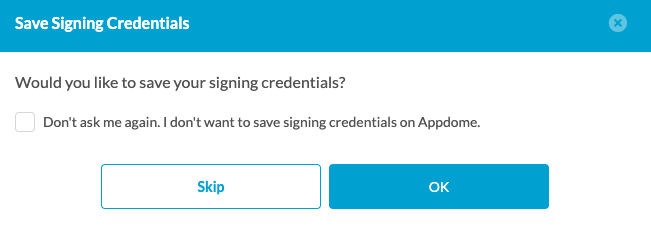
(Optional) In the pop-up message, select OK to save your signing credentials, or Skip to proceed without saving.
- (Optional) In the pop-up message, select OK to save your signing credentials. Otherwise, select Skip. You can remove the credentials at any time by clicking Remove Signing Credentials.
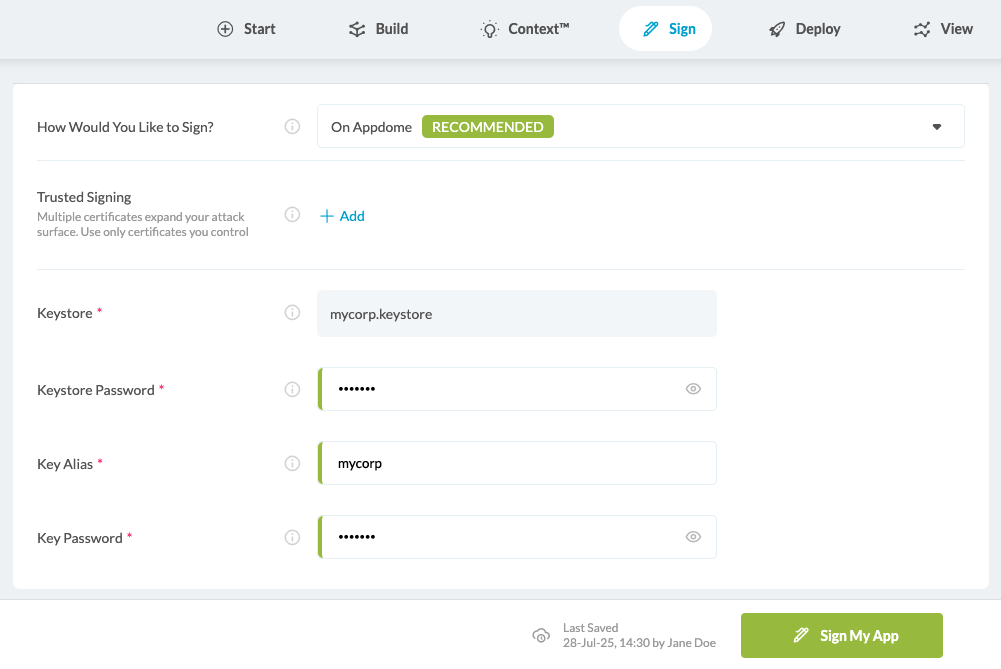
(Optional) Under Trusted Signing Certificates, click + to add a SHA-1 or SHA-256 certificate fingerprint:
Optional: Save or Remove Signing Credentials
Appdome allows saving signing credentials to streamline future signing processes.
Additionally, if the signing credentials are no longer needed or need to be updated, they can be removed directly from the Sign Tab by clicking the Remove Signing Credentials button.
When you click Sign My App, Appdome analyzes the fused app’s components and calculates a checksum that represents the exact state of each component within the app. Embedding the checksum combined with your signing credentials into the app’s components will ensure that the app can’t be modified or tampered with once the signing is complete.
To learn more about Appdome’s Checksum Validation, see our Running a Checksum Validation of Android & iOS Apps knowledge base article.
Congratulations!
You’ve now signed your Appdome Fused app, and it’s ready to deploy.
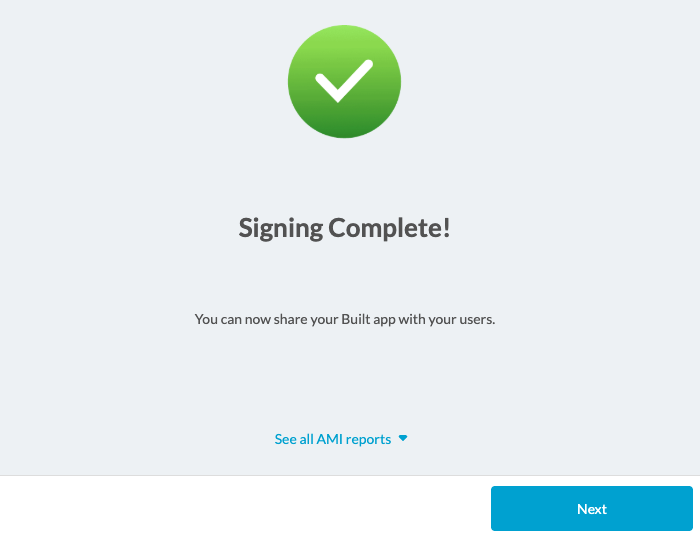
After Securing Android Apps Without Android Studio on Appdome
Deploy the Appdome Built App to a Mobile Device
Once you have signed your Appdome Built app, you can download it and deploy it using your distribution method of choice. For more information on deploying your Appdome-Fused apps, see our How to Auto Publish Secured Android & iOS Apps to App Store Knowledge Base article.
How Do I Learn More?
If you have any questions, please send them our way at support.appdome.com or via the chat window on the Appdome platform.
Related Articles:
- How to Auto Publish Secured Android & iOS Apps to app stores
- Running a Checksum Validation of Android & iOS Apps
- How to Prevent Code Tampering in Android & iOS Apps
Thank you!
Thanks for visiting Appdome! Our mission is to secure every app on the planet by making mobile app security easy. We hope we’re living up to the mission with your project. If you don’t already have an account, you can sign up for free.