How to Code Sign Secured Android App with SHA Fingerprint Google Cert in DevSecOps Build System
Some Android apps are distributed through Google Play, where Google applies the final app signing using its own signing certificate. In these cases, the signing certificate must be trusted in the app by using the SHA-1 or SHA-256 fingerprint of the Google Play signing certificate.
This article explains how to extract the required SHA fingerprint from Google Play and use it with Appdome’s Trusted Signing model. Trusted Signing allows Appdome to validate app integrity based on authorized signing certificates, regardless of where the app is signed. When signing on Appdome for Google Play, the Google SHA fingerprint is required. When using Private Signing / Auto-DEV Private Signing, both the Google signing certificate fingerprint and the local keystore fingerprint must be trusted.
How to sign apps on Google Play
Appdome is a mobile security platform that allows users to secure Android and iOS apps using a no-code, click-to-add interface. When an app is protected with Appdome, it must be re-signed before distribution.
To distribute an Appdome-protected app through Google Play, you must extract the SHA-1 or SHA-256 fingerprint of the Google Play app signing certificate and add it to Appdome’s Trusted Signing configuration. This allows Appdome to recognize Google-signed builds as trusted and prevents runtime integrity violations when Google applies its signing process.
When using Sign on Appdome for Google Play distribution, the Google Play signing certificate fingerprint must be trusted. When using Private Signing / Auto-DEV Private Signing, both the Google Play signing certificate fingerprint and the local signing keystore fingerprint must be trusted to preserve Appdome’s anti-tampering protections.
Prerequisites
- Appdome account
- Android App
- Application uploaded to Google PlayStore
- Signing Credentials
How to Extract a SHA-1 or SHA-256 Fingerprint from the Google Play Signing Certificate
For Internal Testing and App Releases
After logging into Google Play, you can extract a SHA-1 or SHA-256 certificate fingerprint and copy that into Appdome when signing on Appdome or Private Signing:
Navigate to the Google Play Console and log in (or access Google Play from an Android device)
- Choose the application you are signing
- Go to Setup –> App Signing
- Copy/Download the SHA-1 or SHA-256 certificate fingerprint from the App signing certificate section.
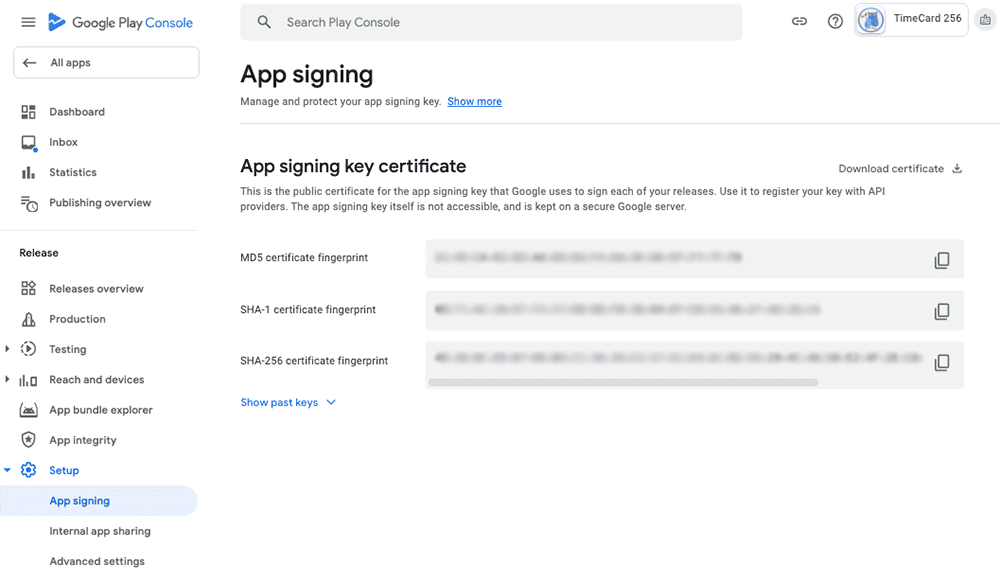
This app signing certificate (SHA-1 or SHA-256) is the fingerprint of the final signing certificate that will be distributed via Google Play. Insert this value while signing or private signing on Appdome.
For Internal App Sharing
After logging into Google Play, you can extract an SHA-1 or SHA-256 certificate fingerprint and copy that into Appdome when signing on Appdome or Private Signing:
Navigate to the Google Play Console and log in (or access Google Play from an Android device)
- Choose the application you are signing
- Go to Setup –> Internal App Sharing
- Copy/Download the SHA-1 or SHA-256 certificate fingerprint from the App certificate section.
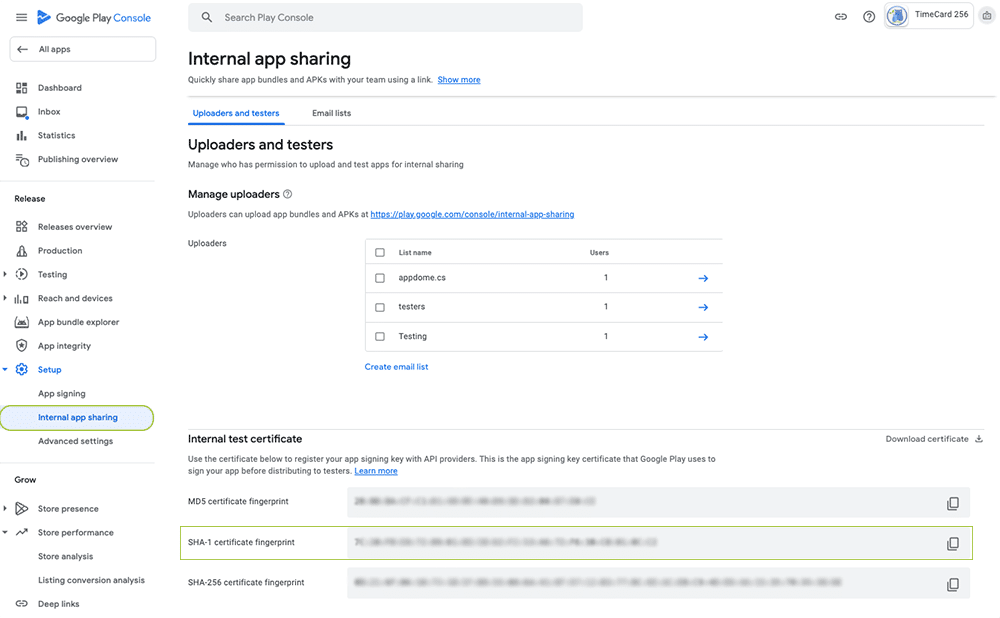
This app signing certificate (SHA-1 or SHA-256) is the fingerprint of the signing certificate that will be used for the app’s internal sharing. Insert this value while signing or private signing on Appdome.
Step by step instructions to Sign Secured Android App with SHA Fingerprint Google Certificate
Follow these step-by-step instructions to Sign a Secured Android App with SHA Fingerprint Google Cert.
- Select and APK/AAB app you’d like to sign (the app needs to complete the Build process with Appdome for you to be able to sign it)
- In the upper navigation bar, select Sign.
- Next to “How Would You Like to Sign?”, select On Appdome / Private Signing /Auto-DEV Private Signing.
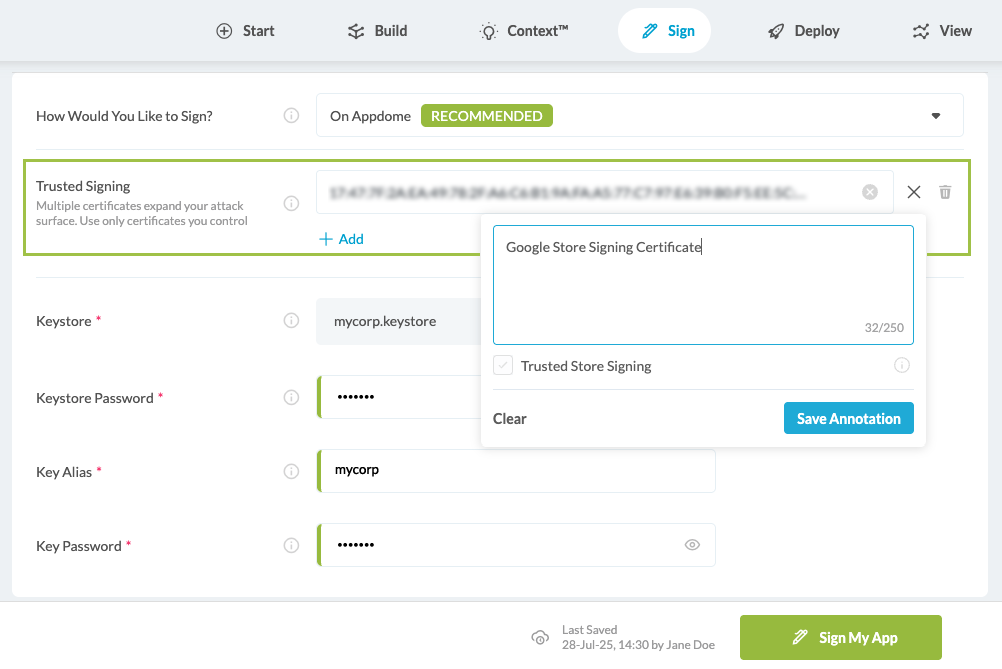
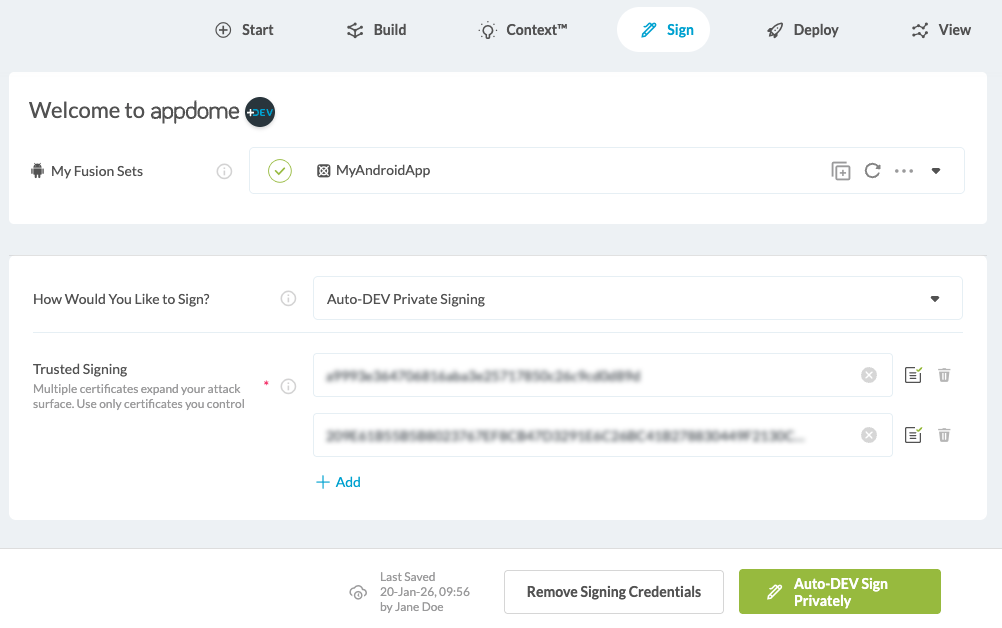
- Under Trusted Signing Certificates, click + to add a SHA-1 or SHA-256 certificate fingerprint.
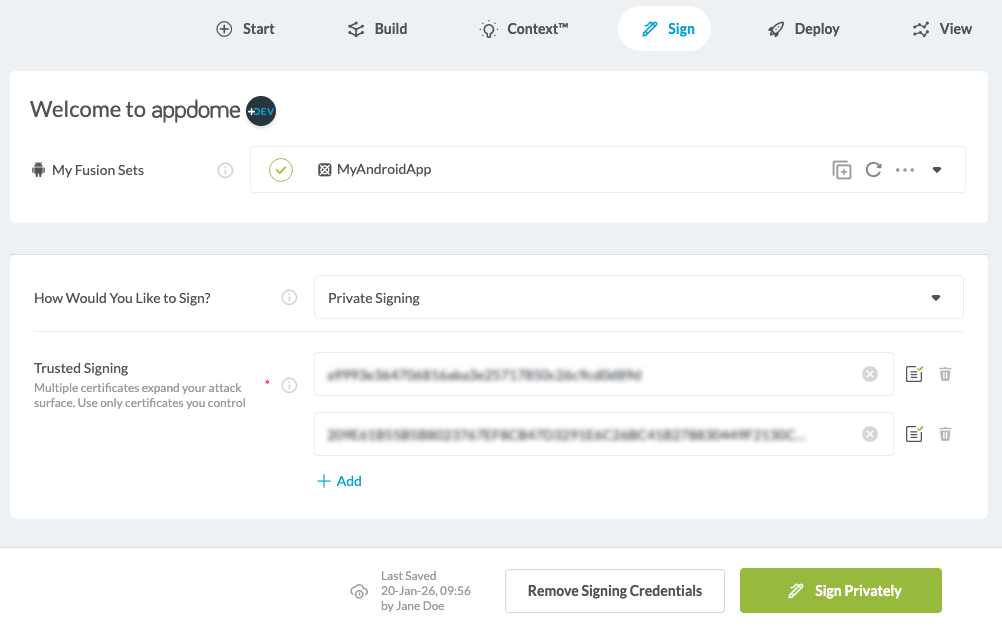
- When using Private Signing /Auto-DEV Private Signing, both the Google signing certificate fingerprint and the local keystore fingerprint must be trusted.
- (Optional) Add an Annotation to document certificate usage.
- Select the Trusted Store Signing checkbox
- Select Sign My App.
- (Optional) In the pop-up message, select OK to save your signing credentials. Otherwise, select Skip. You can remove the credentials at any time by clicking Remove Signing Credentials.
Below is the screenshot with detailed instructions for signing on to Appdome and signing in privately.
Sign on Appdome:
Private signing:
Auto-DEV Private Signing:
Appdome requires this value because several Anti-Tampering techniques within Appdome ONEShield rely on the final signature certificate fingerprint to protect the application and verify that it has not been re-signed by an attacker or otherwise tampered with.
How Do I Learn More?
If you have any questions, please send them our way at support.appdome.com or via the chat window on the Appdome platform.
Related Articles:
- Automated App Signing of Secured Android & iOS Apps on Appdome
- How to Enforce SHA-256 Digest in Android & iOS Apps
- How to Trust Google Play Store Tests with Appdome-Protected Android Applications
Thank you!
Thanks for visiting Appdome! Our mission is to secure every app on the planet by making mobile app security easy. We hope we’re living up to the mission with your project.