How to Gather the Relevant Info from Crashlytics When Reporting a Crash
What is Crashlytics?
Crashlytics is a real-time crash reporting tool from Firebase (Google) that helps mobile developers monitor and resolve stability issues in Android and iOS apps. It captures detailed crash data, including stack traces, logs, and device context, enabling developers to pinpoint the exact source of a crash. By grouping similar crashes together, Crashlytics streamlines debugging and prioritization. Developers can add custom logs and keys to gain deeper insight into user actions and app state at the time of the crash. Integrated alerts and dashboards provide immediate visibility into issues, helping teams act quickly and efficiently. With support for tools like Slack and Jira, Crashlytics fits into modern development workflows and ensures that problems are detected and addressed before they impact a wider user base. Its ease of use and powerful analytics make it an essential part of maintaining high app quality, reducing churn, and delivering a smooth, reliable user experience.
How Appdome Works With Crashlytics
For apps secured or enhanced with Appdome, Crashlytics provides important details—like stack traces, device and OS info, and build IDs—that make it easier to understand and resolve issues. Sharing this information helps Appdome support quickly investigate and fix problems. This article shows how to use Crashlytics to gather the key details needed for Appdome to resolve a reported issue.
1. Collect Information About the Issue from Crashlytics
Step by Step:
- In the Crashlytics main dashboard, click Filter on the top left, and select the relevant issue type (Crashes or ANRs), then click Apply.
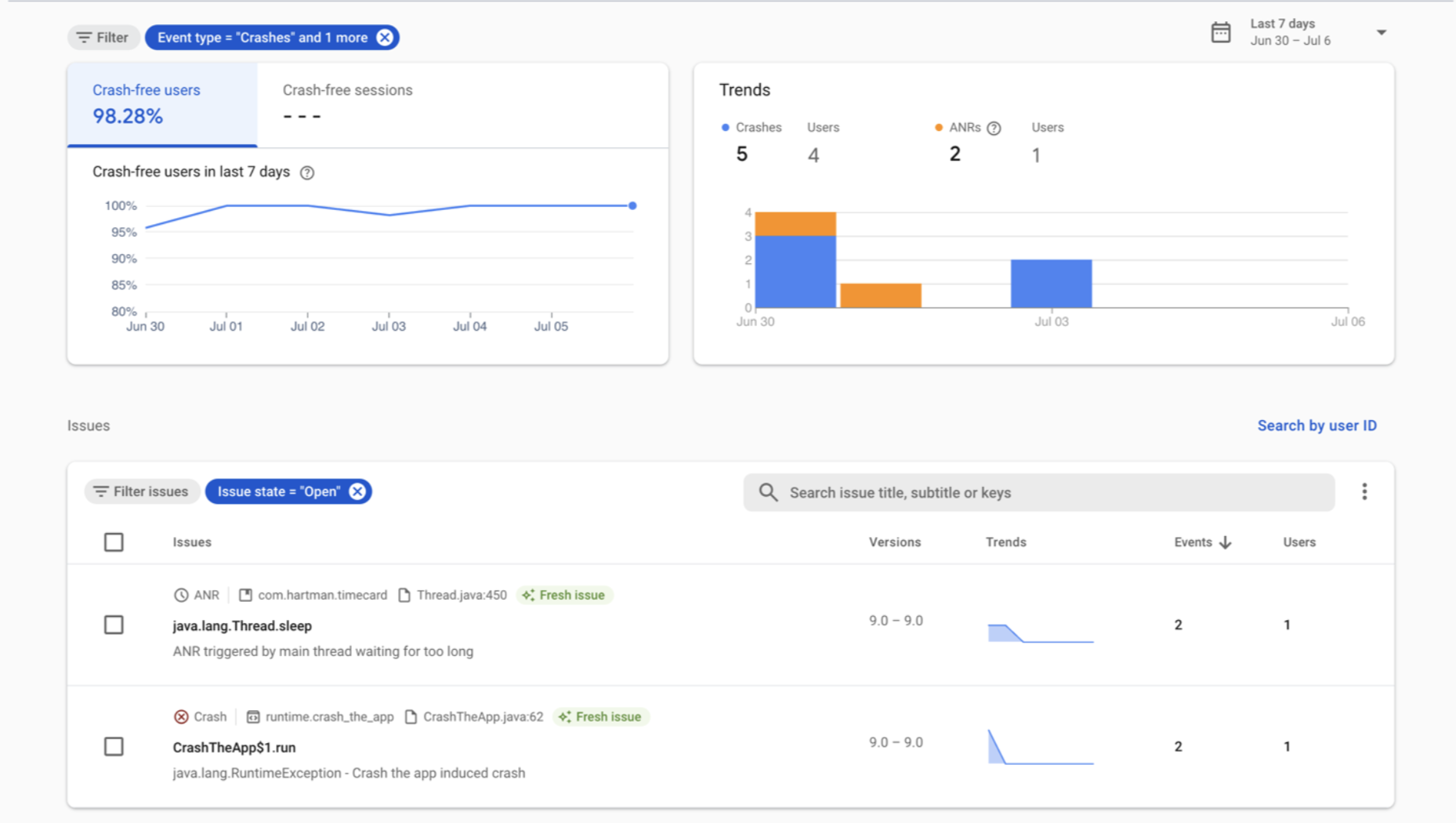
- The relevant results will be displayed in the main dashboard under “Issues”. The number of events and users affected per issue will appear to the right. Click the relevant issue to investigate it further.
- In the relevant Issue’s display, you can view the following details; (see explanations for the numbered items below the screenshots):
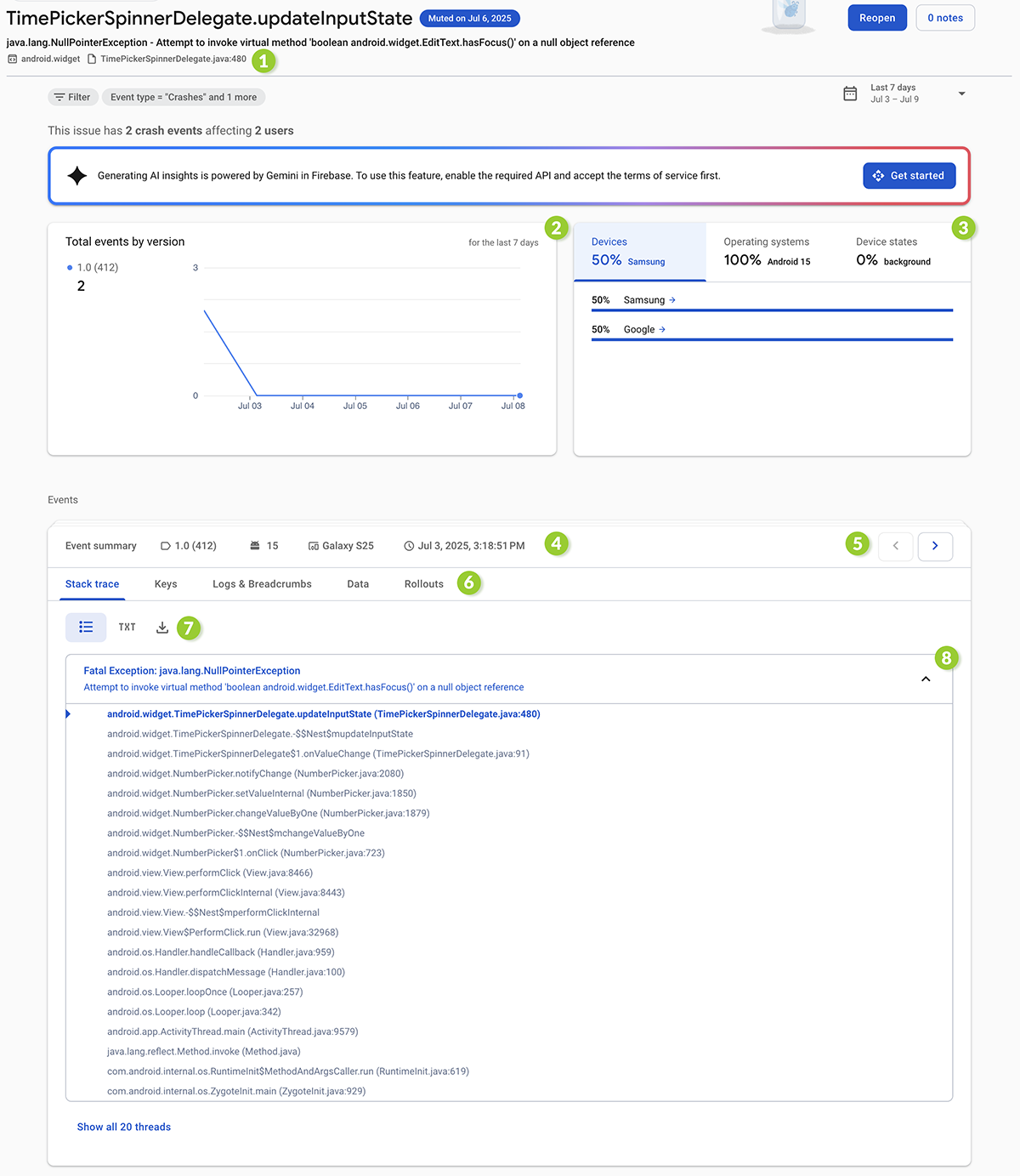
-
- Issue Name. Shows the issue’s type and signature.
- Breakdown by Version and Time.
- Impacted Devices and Android OS affected.
- Event Summary. Each instance of the crash is considered an event.
- Toggle Events. Use the arrows to navigate between events under the same issue. All events will have the same crash log.
- Stack Trace tab. Refer here to review the error trace.
- Download Stack Trace. Click to download the issue’s log in text format.
- Stack Trace Content. Detailing the cause and flow of the crash.
2. Prepare and Send the Relevant Details to Appdome
To help us resolve the issue and understand the impacted users, include the following details in your crash/ANR report:
- Click the Download Stack Trace icon (refer to 7 above) to generate a text format of the stack trace.
- Take a screenshot of the issue’s row in the main dashboard (refer back to step 1). For example:

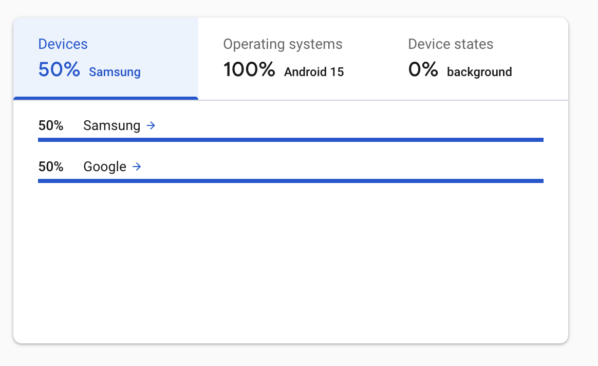
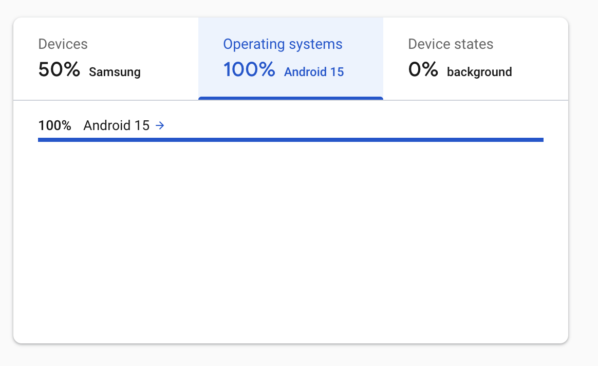
- Take a screenshot of the affected manufacturers and OS. For example:
Related Articles
- Extracting the device logs from your Android device
- Extracting the device logs from your iOS device
- App Compromise Notification
How Do I Learn More?
If you have any questions, please send them our way at support.appdome.com or via the chat window on the Appdome platform.
Thank you!
Thanks for visiting Appdome! Our mission is to secure every app on the planet by making mobile app security easy. We hope we’re living up to the mission with your project.