Appdome Diagnostic Logs for Troubleshooting Secured Apps
When troubleshooting issues on Appdome-secured apps, the diagnostic logs from your device will allow our technical team to better understand and resolve the issue at hand. This knowledge base article explains how to use Appdome Diagnostic Logs for troubleshooting secured apps. We strongly suggest not to turn it on without contacting us first as this might affect your application performance.
Appdome Auto Diagnostics Logs for Troubleshooting Secured Apps
Appdome’s no-code mobile app security platform offers mobile developers, DevSec, and security professionals a convenient and reliable way to protect Android and iOS apps without coding. When a user clicks “Build My App,” Appdome leverages a microservice architecture filled with 1000s of security plugins, and an adaptive code generation engine that matches the correct required plugins to the development environment, frameworks, and methods in each app.
Using Appdome, there are no development or coding prerequisites to build secured apps. There is no SDK and no library to manually code or implement in the app. The Appdome technology adds the relevant standards, frameworks, stores, and logic to the app automatically, with no manual development work at all.
Users can build their apps with diagnostic logs turned on and use Appdome Diagnostics Logs for troubleshooting their secured apps.
To safeguard the integrity of Appdome’s protection mechanisms, all diagnostic logs are encrypted, rendering them indecipherable to unauthorized parties. When submitted to our support team, we securely decrypt and analyze them to swiftly diagnose and resolve any issues.
Prerequisites for using Appdome Diagnostic Logs
In order to extract diagnostic app logs from your device, you’ll need:
- Appdome account (Check with Appdome Support to verify your account can enable diagnostic logs)
- Mobile App (.ipa for iOS, or .apk or .aab for Android)
How to Use Appdome Diagnostic Logs for Troubleshooting Secured Apps
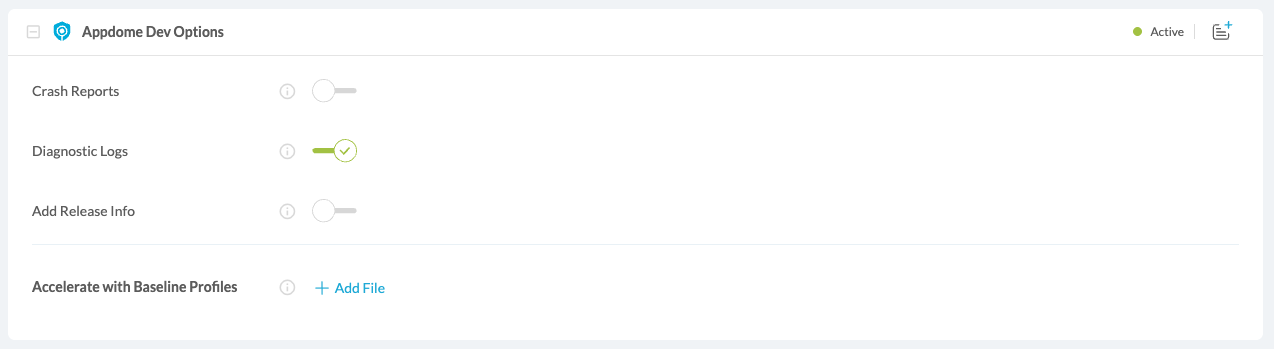
When configuring your Fused app with Appdome you’ll find the troubleshooting section at the very bottom of the page.
Activate the Diagnostic Logs toggle, then continue Building your app.
The Diagnostic Logs toggle adds diagnostic logging to your device console log. You can use Xcode, Android Debug Bridge, or other computer programs to view the logs.
How to Sign & Publish Secured Mobile Apps Built on Appdome
After successfully securing your app by using Appdome, there are several available options to complete your project, depending on your app lifecycle or workflow. These include:
- Customizing, Configuring & Branding Secure Mobile Apps.
- Deploying/Publishing Secure mobile apps to Public or Private app stores.
- Releasing Secured Android & iOS Apps built on Appdome.
Related Articles
- Extracting the device logs from your Android device
- Extracting the device logs from your iOS device
- App Compromise Notification
How Do I Learn More?
If you have any questions, please send them our way at support.appdome.com or via the chat window on the Appdome platform.
Thank you!
Thanks for visiting Appdome! Our mission is to secure every app on the planet by making mobile app security easy. We hope we’re living up to the mission with your project.