How to Apply Certificate Pinning to Specific Domains in iOS, Android apps Using AI
Learn how to apply certificate pinning to specific domains in Android and iOS apps.
When you build Appdome Certificate Pinning into mobile apps, you can specify the domains on which you wish to use certificate pinning.
What is Certificate Pinning?
Certificate Pinning is a security technique where trusted SSL/TLS certificates are embedded into a mobile app to ensure it only connects to pre-defined, trusted servers. By validating certificates during the TLS/SSL handshake, certificate pinning mitigates the risk of man-in-the-middle (MitM) attacks, where attackers use compromised or fraudulent certificates to intercept communications. This prevents apps from connecting to malicious servers and safeguards sensitive data.
Attackers commonly target mobile apps by manipulating DNS, public certificate authorities, or session data to insert altered certificates. Implementing certificate pinning during development ensures secure app-server communication, protecting app data, and ensuring compliance with standards such as OWASP MASVS and PCI-DSS.
How Appdome Protects Mobile Apps With Certificate Pinning
Appdome’s dynamic Certificate Pinning plugin for Android/iOS embeds trusted certificates securely inside the app, encrypting and protecting them with Appdome’s ONEShield™ app shielding (RASP) technology. During the TLS/SSL handshake, the plugin validates certificates, session states, and Certificate Authorities (CAs) to detect mismatches or modifications. If a compromised certificate is detected, the connection is blocked before attackers can intercept or manipulate communications. Developers can pin certificates for specific domains or use wildcard values to secure multiple endpoints, ensuring trusted app-server communication and preventing MitM attacks.
Prerequisites
Here’s what you need to build secured apps with Secure Certificate Pinning
- Appdome account (If you don’t have an Appdome account, create a free Appdome account here)
- Mobile App (.ipa for iOS, or .apk or .aab for Android)
- Signing Credentials (e.g., signing certificates and provisioning profile)
Secure Certificate Pinning Profiles:
Appdome offers the following mutually exclusive pinning schemes (pinning profiles) to implement Certificate Pinning in any iOS or Android app:
- Chain Evaluation – Verifies the full chain of trust using the Root and Intermediate Certificates uploaded to Appdome. Only intermediate and leaf certificates that chain back to the uploaded certificates are trusted, effectively locking the chain of trust. Any mismatch triggers a security event.
-
Certificate format: PEM (Base64) or DER
-
Required certificates: Root + Intermediate or Root + Leaf
-
Multiple certificates: Upload all required certificates in a single
.zipfile -
Do not use: Certificate bundle files (multiple certificates in a single file)
-
- Strict Evaluation – Verifies the exact fingerprint of the server (leaf) certificate against the certificate returned by the server. This is equivalent to leaf certificate pinning. Any mismatch triggers a security event.
-
Certificate format: PEM (Base64) or DER
-
Required certificates: Leaf (server) certificate only
-
Multiple certificates: Upload all required certificates in a single
.zipfile (if using multiple endpoints) -
Do not use: Root or intermediate certificates
-
- Root Evaluation – Verifies that the root CA returned by the server for the specified domain (FQDN) matches the Root CA certificate uploaded to Appdome. This approach allows intermediate and leaf certificates to change without requiring updates to the app. Any mismatch triggers a security event.
-
Certificate format: PEM (Base64) or DER
-
Required certificates: Root certificate only
-
Multiple certificates: Upload all required certificates in a single
.zipfile (if applicable) -
Do not use: Intermediate or leaf certificates
-
- Public Key Evaluation – Verifies the public key of the server certificate. This allows certificate renewal without impacting trust, as long as the new certificate uses the same public key.
- Certificate format: PEM (Base64) or DER
- Required certificates: Server certificate (leaf) containing the public key
- Multiple certificates: Upload all required certificates in a single
.zipfile (if applicable) - Do not use: Root or intermediate certificates only (must include the server certificate with the public key)
- No Pinning – Appdome does not enforce certificate pinning. Certificate validation falls back to the operating system’s default verification process.
After selecting a pinning scheme, upload the required certificate(s) (Root CA, Intermediate, or server/leaf certificate) as a file or ZIP archive (.cer, .crt, .pem, .der, .zip). Multiple certificates can be included to support certificate rotation and ensure continuity of service while maintaining protection against Man-in-the-Middle (MitM) attacks.
Follow These Easy Steps to Use Secure Certificate Pinning in Android & iOS apps
Please follow these easy steps to add Secure Certificate Pinning to any iOS and Android app using Appdome.
- Upload an Android or iOS App to Appdome’s no code security platform (.apk, .aab, or .ipa)
- In the Build Tab, under Security, expand Secure Communication, switch ON Secure Certificate Pinning
- Enter a Service Domain
- Select a Pinning Scheme
- Add Certificate(s)
- Click Build My App
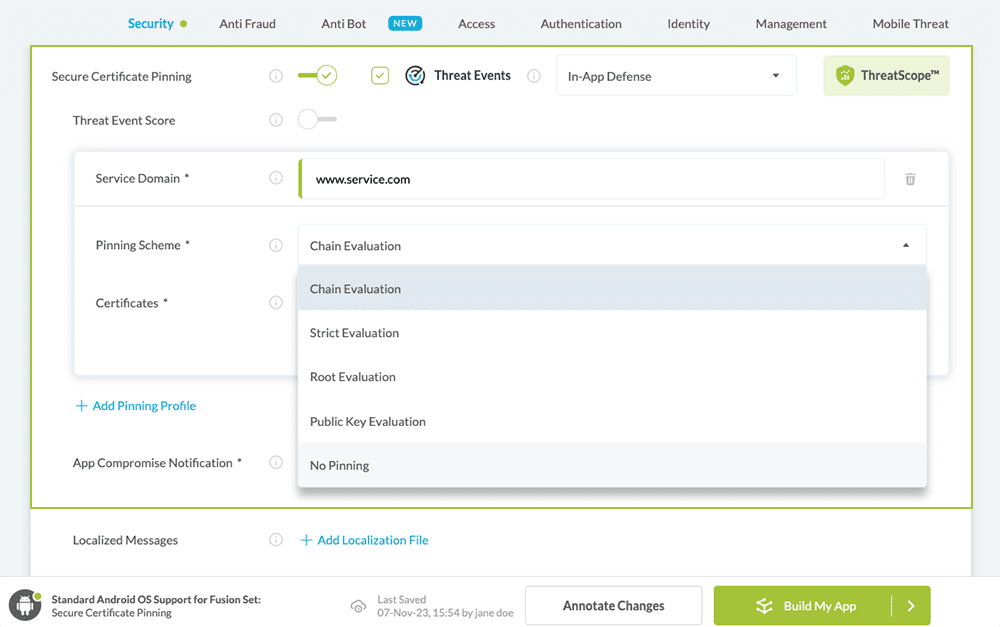
Optional Settings:
- Threat Events
- Certificate Pinning Mismatch Message
Congratulations! You now have a mobile app secured with Certificate Pinning.

Appdome’s no-code mobile app security platform offers mobile developers, DevSec, and security professionals a convenient and reliable way to protect Android and iOS apps with Secure Certificate Pinning. When an Appdome user clicks “Build My App,” Appdome leverages a microservice architecture filled with 1000s of security plugins, and an adaptive code generation engine that matches the correct required plugins to the development environment, frameworks, and methods in each app.
No Coding Dependency
How to Sign & Publish Secured Mobile Apps Built on Appdome
After successfully securing your app using Appdome, there are several available options to complete your project, depending on your app lifecycle or workflow. These include:
- Signing Secure iOS and Android apps
- Customizing, Configuring & Branding Secure Mobile Apps
- Deploying/Publishing Secure mobile apps to Public or Private app stores
Or, see this quick reference Releasing Secured Android & iOS Apps built on Appdome.
Related Articles:
- Mobile MitM Attacks Explained
- How to Enforce Minimum TLS Version, Prevent TLS/SSL Attacks in Android & iOS Apps
- How to Use Trusted Root Certificates, Prevent MitM Attacks in Android & iOS Apps
How to Learn More
Check out the comprehensive KB on Secure Communication to learn more detail about securing mobile data in transit.
You might want to check-out additional ways in which you can further secure your application’s communications like enforcing the TLS version, cipher suites, and certificate roles.
To zoom out on this topic, visit Appdome for Mobile App Security on our website.
If you have any questions, please send them our way at support@appdome.com or via the chat window on the Appdome platform.
Or request a demo at any time.
Thank you!
Thanks for visiting Appdome! Our mission is to secure every app on the planet by making mobile app security easy. We hope we’re living up to the mission with your project. If you don’t already have an account, you can sign up for free.