How to Encrypt Assets in Android Apps Using AI
Important:
The Encrypt Assets protection has reached EOS/EOL. We invite you to use Encrypt Resource for Android, which provides the same functionality.
What Is Encrypting Assets in Android Apps?
Encrypting mobile application assets involves securing the various components essential to an app’s functionality, such as images, videos, audio, UI elements, and data files. These assets often contain sensitive information, proprietary algorithms, or important configuration data, making them attractive targets for malicious actors. Without encryption, attackers can reverse-engineer the app, extract or alter its assets, and potentially introduce vulnerabilities or steal intellectual property. Assets stored in the app’s files system—such as media, configuration, and localization files—are particularly vulnerable if not encrypted, which could lead to unauthorized access, tampering, or even a compromised user experience. Asset encryption safeguards against unauthorized access, aligning with data protection standards and ensuring app functionality is not compromised, especially for media-rich apps or those handling sensitive user information. This aligns with best practices for safeguarding intellectual property and maintaining compliance with industry security standards like OWASP MASVS.
How Appdome Protects Android Apps with Asset Encryption?
Appdome’s dynamic Encrypt Assets plugin encrypts all assets stored in the application’s asset folder, including images, audio, video files, configuration data, and UI elements. By applying AES 256 encryption, Appdome ensures that these assets cannot be accessed, modified, or extracted by unauthorized parties. The encrypted assets remain secure throughout the app’s lifecycle, preventing reverse engineering, tampering, or intellectual property theft. Appdome’s encryption process is seamless and works without requiring developers to change the code, offering strong protection while maintaining the app’s performance and functionality.
Prerequisites for Using Appdome’s Encrypt Assets Plugins:
To use Appdome’s mobile app security build system to Encrypt Assets , you’ll need:
- Appdome account (create a free Appdome account here)
- A license for Encrypt Assets
- Mobile App (.apk or .aab for Android)
- Signing Credentials (see Signing Secure Android apps and Signing Secure iOS apps)
How to Implement Encrypt Assets in Android Apps Using Appdome
On Appdome, follow these 3 simple steps to create self-defending Android Apps that Encrypt Assets without an SDK or gateway:
-
-
Designate the Mobile App to be protected.
-
Upload an app via the Appdome Mobile Defense platform GUI or via Appdome’s DEV-API or CI/CD Plugins.
-
Android Formats: .apk or .aab
-
Encrypt Assets is compatible with: Java, JS, C++, C#, Kotlin, Flutter, React Native, Unity, Xamarin, Cordova and other Android apps.
-
-
Select the defense: Encrypt Assets.
-
Create and name the Fusion Set (security template) that will contain the Encrypt Assets feature as shown below:
 Figure 1: Fusion Set that will contain the Encrypt Assets feature
-
Follow the steps in Sections 2.2-2.2.2 of this article to add the Encrypt Assets feature to your Fusion Set via the Appdome Console.
-
When you select the Encrypt Assets you’ll notice that the Fusion Set you created in step 2.1 now bears the icon of the protection category that contains Encrypt Assets.

Figure 2: Fusion Set that displays the newly added Encrypt Assets protection
Note: Annotating the Fusion Set to identify the protection(s) selected is optional only (not mandatory). -
Open the Fusion Set Detail Summary by clicking the “…” symbol on the far-right corner of the Fusion Set. Copy the Fusion Set ID from the Fusion Set Detail Summary (as shown below):
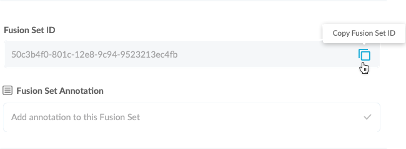
Figure 3: Fusion Set Detail Summary
-
Follow the instructions below to use the Fusion Set ID inside any standard mobile DevOps or CI/CD toolkit like Bitrise, Jenkins, Travis, Team City, Circle CI or other system:
-
Refer to the Appdome API Reference Guide for API building instructions.
-
Look for sample APIs in Appdome’s GitHub Repository.
-
-
-
Add the Encrypt Assets feature to your security template.
-
-
Navigate to Build > Security tab > TOTALData™ Encryption section in the Appdome Console.
-
-
-
Toggle On Encrypt Assets.
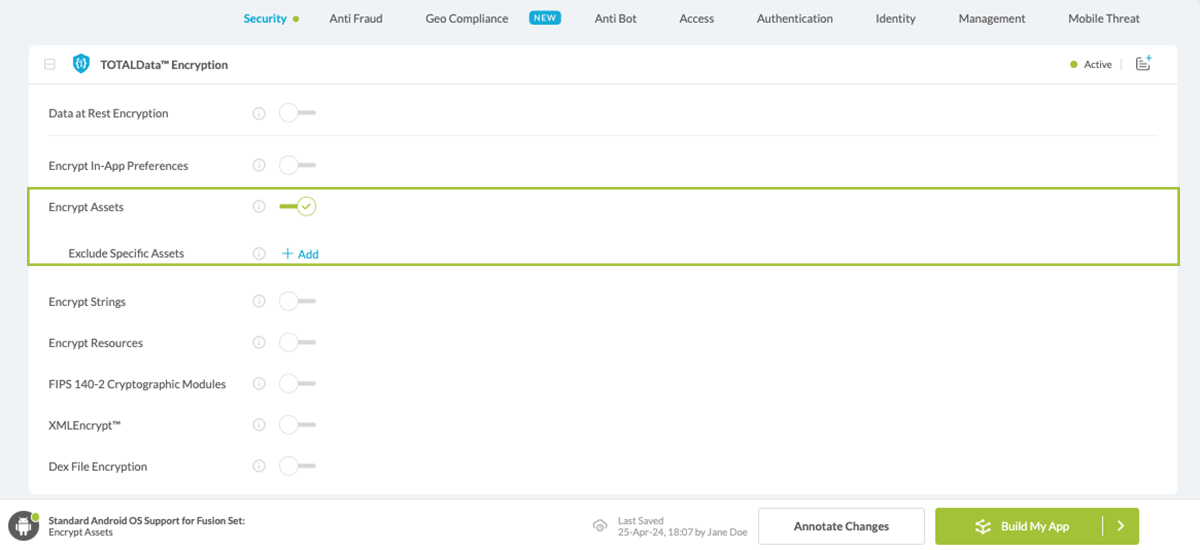
Figure 4: Selecting Encrypt Assets
-
Congratulations! The Encrypt Assets protection is now added to the mobile app -
-
-
Certify the Encrypt Assets feature in Android Apps
After building Encrypt Assets, Appdome generates a Certified Secure™ certificate to guarantee that the Encrypt Assets protection has been added and is protecting the app. To verify that the Encrypt Assets protection has been added to the mobile app, locate the protection in the Certified Secure™ certificate as shown below:
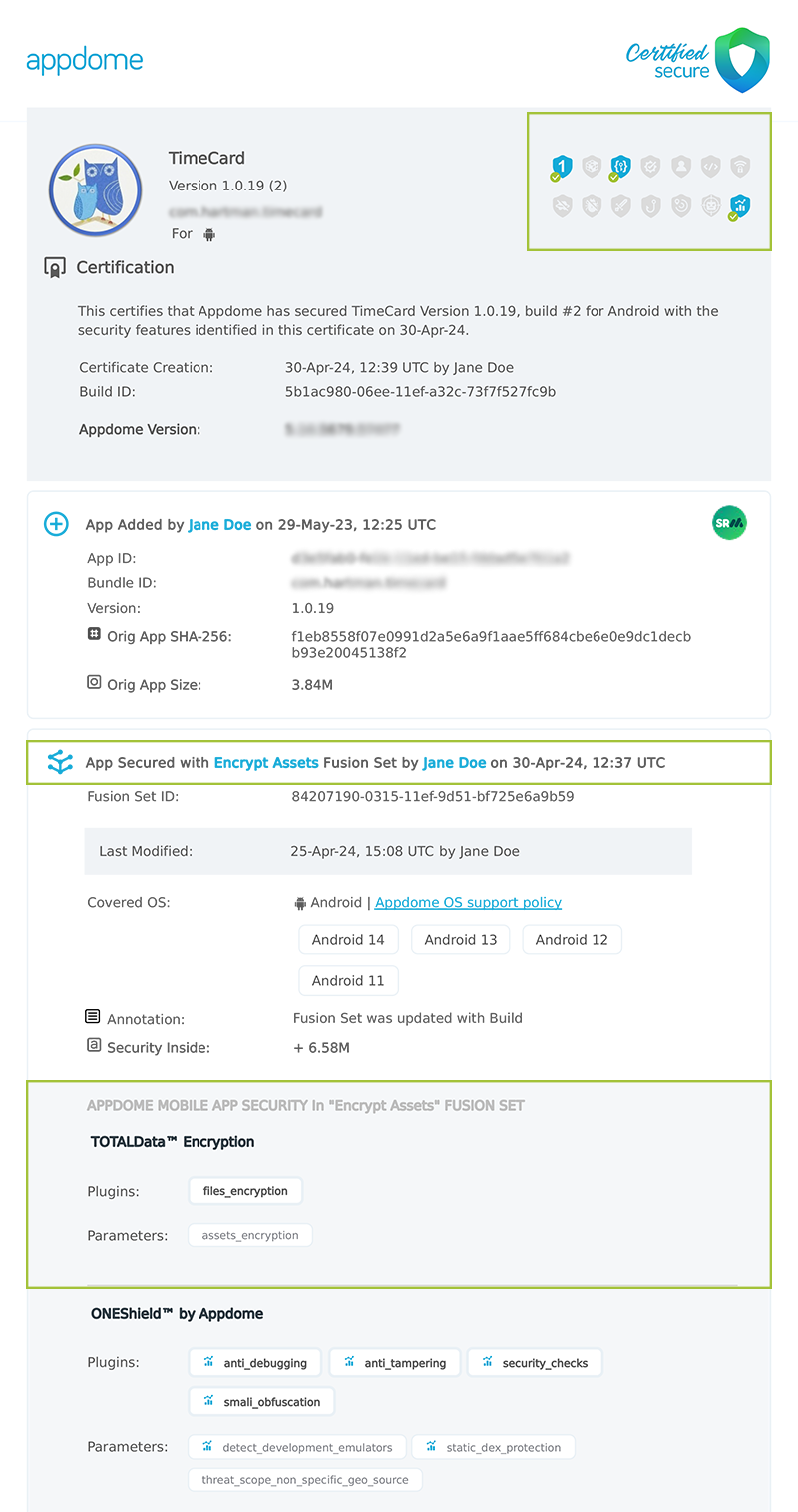
Figure 5: Certified Secure™ certificate
Each Certified Secure™ certificate provides DevOps and DevSecOps organizations the entire workflow summary, audit trail of each build, and proof of protection that Encrypt Assets has been added to each Android app. Certified Secure provides instant and in-line DevSecOps compliance certification that Encrypt Assets and other mobile app security features are in each build of the mobile app.
Using Appdome, there are no development or coding prerequisites to build secured Android Apps by using Encrypt Assets. There is no SDK and no library to code or implement in the app and no gateway to deploy in your network. All protections are built into each app and the resulting app is self-defending and self-protecting.
Releasing and Publishing Mobile Apps with Encrypt Assets
After successfully securing your app by using Appdome, there are several available options to complete your project, depending on your app lifecycle or workflow. These include:
- Customizing, Configuring & Branding Secure Mobile Apps.
- Deploying/Publishing Secure mobile apps to Public or Private app stores.
- Releasing Secured Android & iOS Apps built on Appdome.
Related Articles:
How to Encrypt Resources in Android Apps
How to Encrypt Strings.xml in Android Apps
How to Encrypt Java Class Files (.dex) in Android Apps
How Do I Learn More?
If you have any questions, please send them our way at support.appdome.com or via the chat window on the Appdome platform.
Thank you!
Thanks for visiting Appdome! Our mission is to secure every app on the planet by making mobile app security easy. We hope we’re living up to the mission with your project.