Creating and Managing a Team in Appdome
Working as a team in Appdome lets you assign specific roles and responsibilities to different members—one can build the app, another can sign it, and a third can review or test it. By creating a team in Appdome, you can control access, manage entitlements, and maintain full visibility into team activities and app progress from a central dashboard.
To use Appdome for Teams, you’ll need an Appdome Ideal-GO or Higher account.
Create a Team
Step by Step:
- Log in to your Appdome account.
- Hover over the left sidebar to extend it. Then, select Workspace, and Personal Workspace.
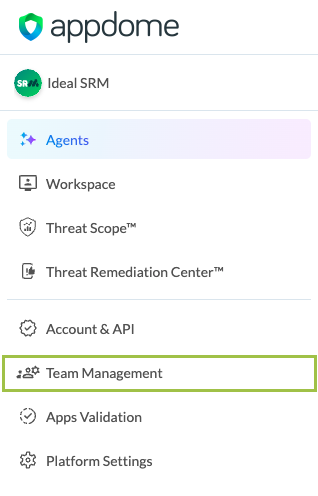
- Click + Create New Team.

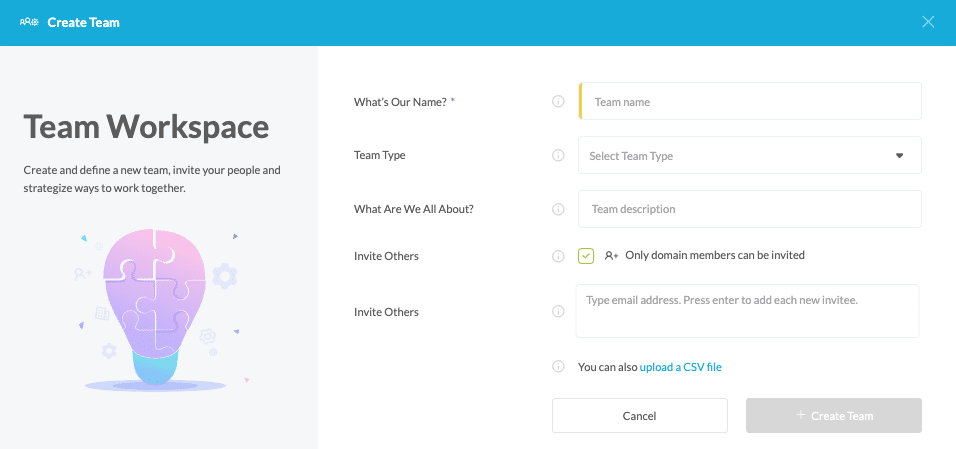
- Fill in the requested details.
- You can upload a CSV file containing the names of team members and their entitlements, and roles.
Editing and Managing Teams
After creating a team, you can modify, edit, and manage it on Appdome, including:
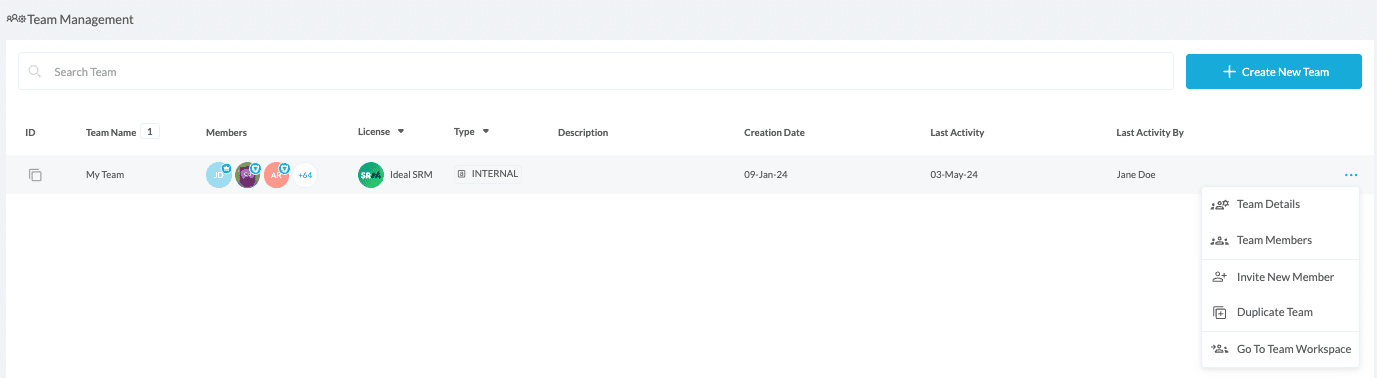
- View Team Details
- Edit the team name and description.
- View Team Type, Team ID, and Fusion Set Naming Policy.
- Request to delete a team.
- View Team Members
- View a team member’s name, role, and last activity
- Remove a specific team member
- Edit and add a member’s entitlements.
- Invite New Member
- Duplicate Team
- Invite all existing members of your current team to your new team.
- Add fusion sets from your existing team to your new team.
- Navigate to the Team Workspace
Step by Step:
- Log in to your Appdome account.
- Hover over the left sidebar to extend it. Then, select Team Management from the left side menu.
- Select a team from the list and click … next to the relevant team’s name, then select the relevant option from the dropdown menu.
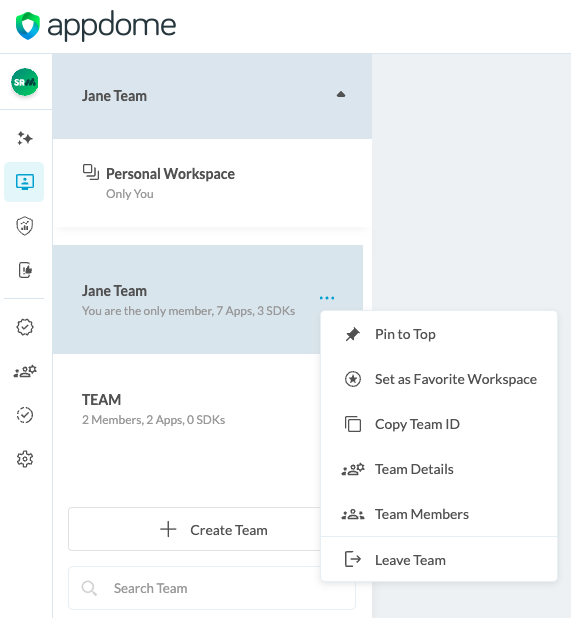
- Set a team as Favorite Workspace: If you have multiple teams, you can click the star icon to add a specific team to your favorites and pin it to the top of the list.
Every time you log into Appdome’s UI – The Team’s workspace will automatically open. - Pin to Top: For easier access to your most used Team workspaces, you can select Pin to Top from the menu. You can pin up to 3 workspaces.
Next steps
After you have created your team, follow these steps to complete your mobile integration project.
1. Upload a Mobile App to Your Team
Once the team is created, you can add apps to it. Click Add App at the top left of the screen.
2. Build the App
After you have added a mobile app to your team account, you can start choosing and enabling various Appdome security features to be added to your app.
3. Add Context™ to the Appdome-Fused App (Optional)
You can brand the app, including adding a favicon to denote the new service added to the app.
4. Sign the Appdome Fused App
In order to deploy an Appdome Fused app, it must be signed. Signing an iOS app and Signing an Android app is easy using Appdome. Alternatively, you can use Private Signing, download your unsigned app, and sign locally using your own signing methods.
5. Deploy the Appdome-Fused App to a Mobile Device
Once you have signed your Appdome-Fused app, you can download and deploy it using your distribution method of choice.
Congratulations! – Enjoy collaborating with Appdome for Teams!
Related Articles:
- How to Add Team Members with Entitlements and Roles from CSV in DevSecOps Build System
- How to Release Mobile App Security Templates between Teams
- How to Use Team Entitlements & Roles in Mobile DevSecOps Build System
If you have any questions, please send them our way at support.appdome.com or via the chat window on the Appdome platform.
Thank you!
Thanks for visiting Appdome! Our mission is to secure every app on the planet by making mobile app security easy. We hope we’re living up to the mission with your project.