How to Integrate Appdome and AzureAD with OAuth2.0 Login
This guide explains how to integrate Appdome with Microsoft Azure AD. The configuration will allow IT to control employee access to apps and devices, ensuring only authorized users can work with Appdome’s mobile security tools and protecting sensitive data and operations. To integrate Appdome and Azure AD with OAuth 2.0 Login, Appdome requires the following permissions:
- User. Read
- profile
Also, Appdome extracts the following information from Azure:
- First Name
- Surname
- Job title
- Mobile phone number
- Company Name
- ISO Country Code
- Profile image
Integrating Appdome with Microsoft Azure AD
Before You Begin:
- Contact Appdome Support team to activate “Enable Third Party Authentication” and select “Microsoft Office 365”.
- The Admin user on Appdome must log in to the Appdome platform and authenticate via Azure AD (Microsoft Entra) to provide consent in accordance with their organization’s policy.
Note: The user performing this action must have one of the following roles in the Azure/Entra tenant:- Application Administrator
- Application Owner
- Cloud Application Administrator.
Once consent is granted, continue to the steps below.
Step by Step:
- Go to Microsoft Azure and navigate to the Enterprise Applications service.
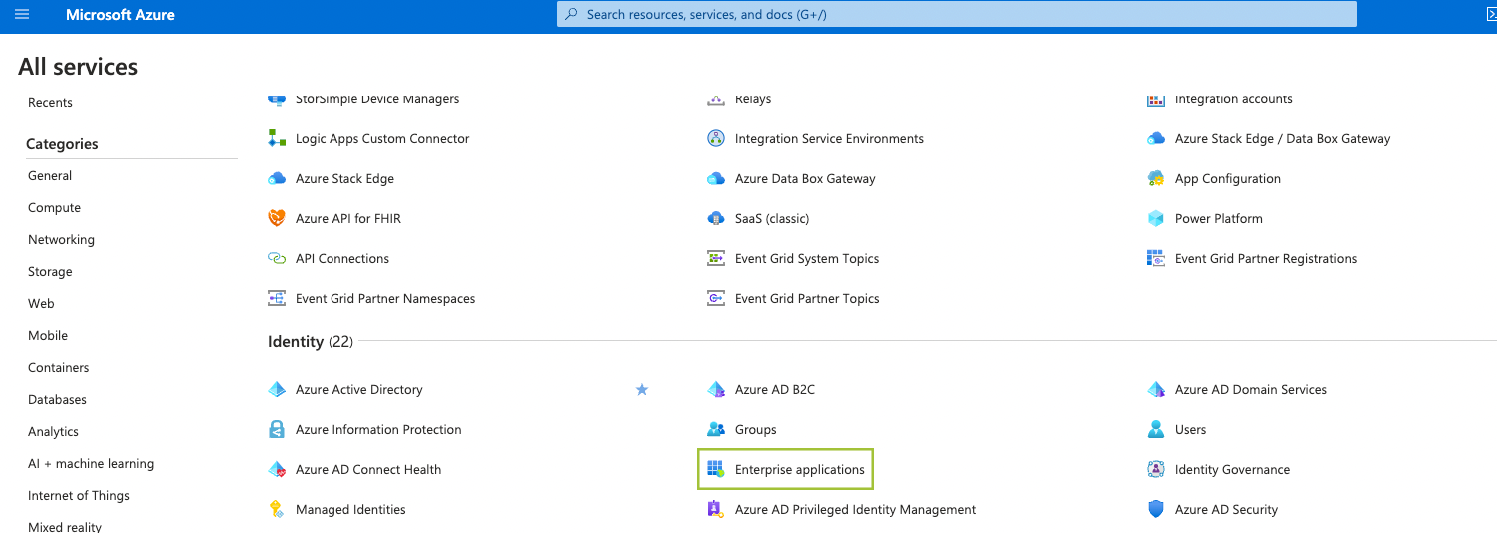
- Within the Enterprise Application service, search for the object ID: 27db11d5-92d4-4f26-879f-fd047be62053
- Add your Appdome-protected application.
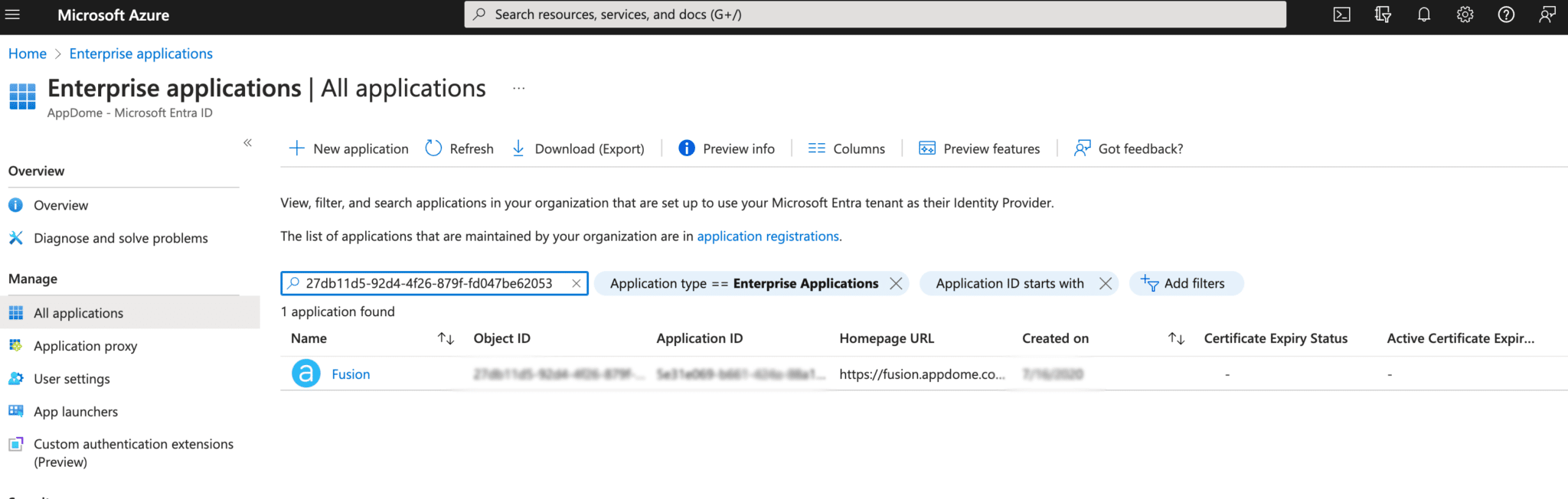
- Navigate to the Permissions tab.
- Click on application registration to access API permissions.
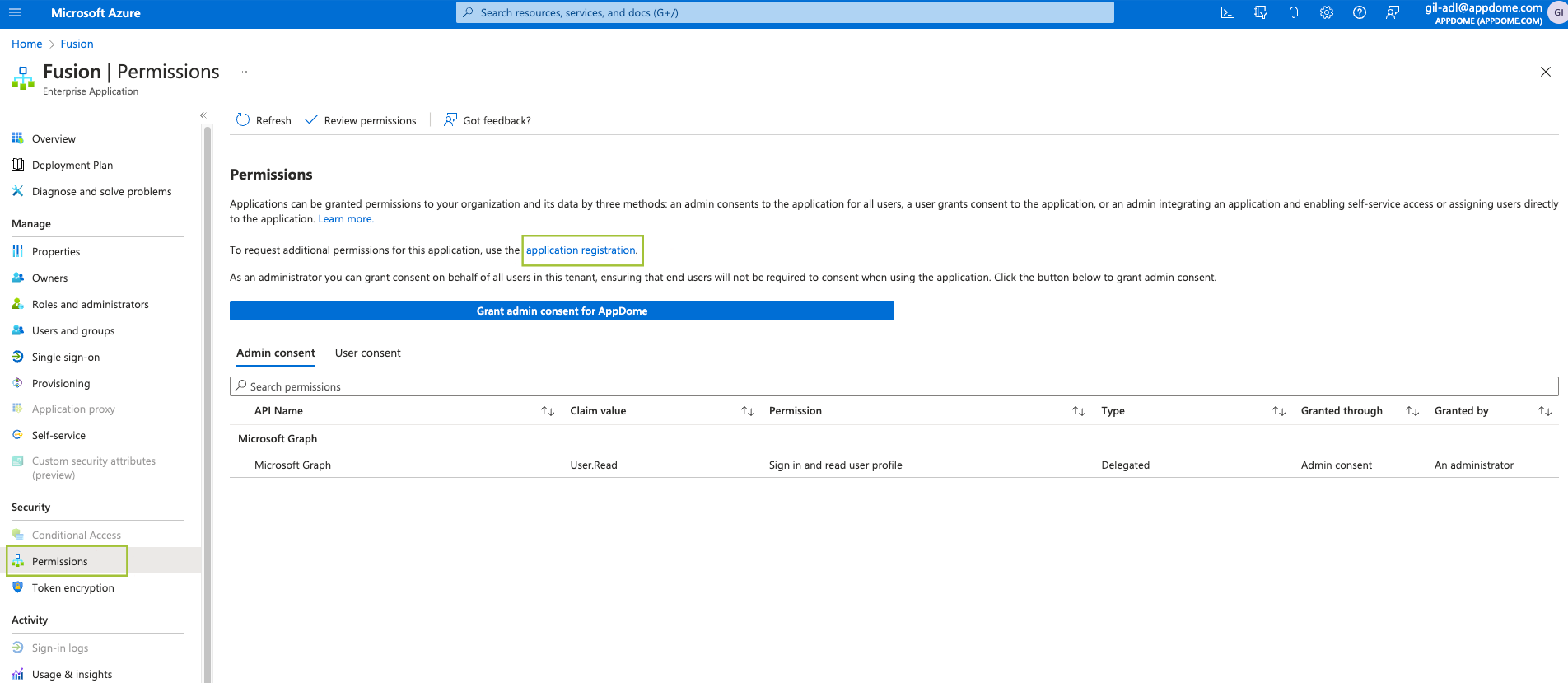
- Within the API permissions section, grant the following permissions to the application:
- User.Read
- Profile
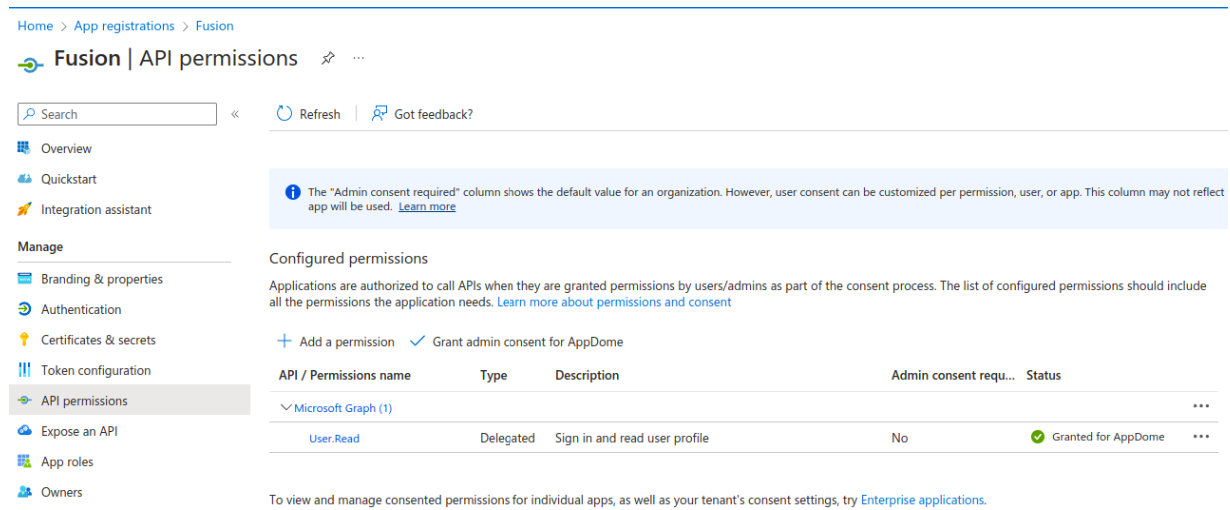
- Navigate back to the Permissions tab.
The granted permissions list is displayed. - Optionally, click Grant admin consent for AppDome to grant consent to all users in your organization when logging into Appdome.
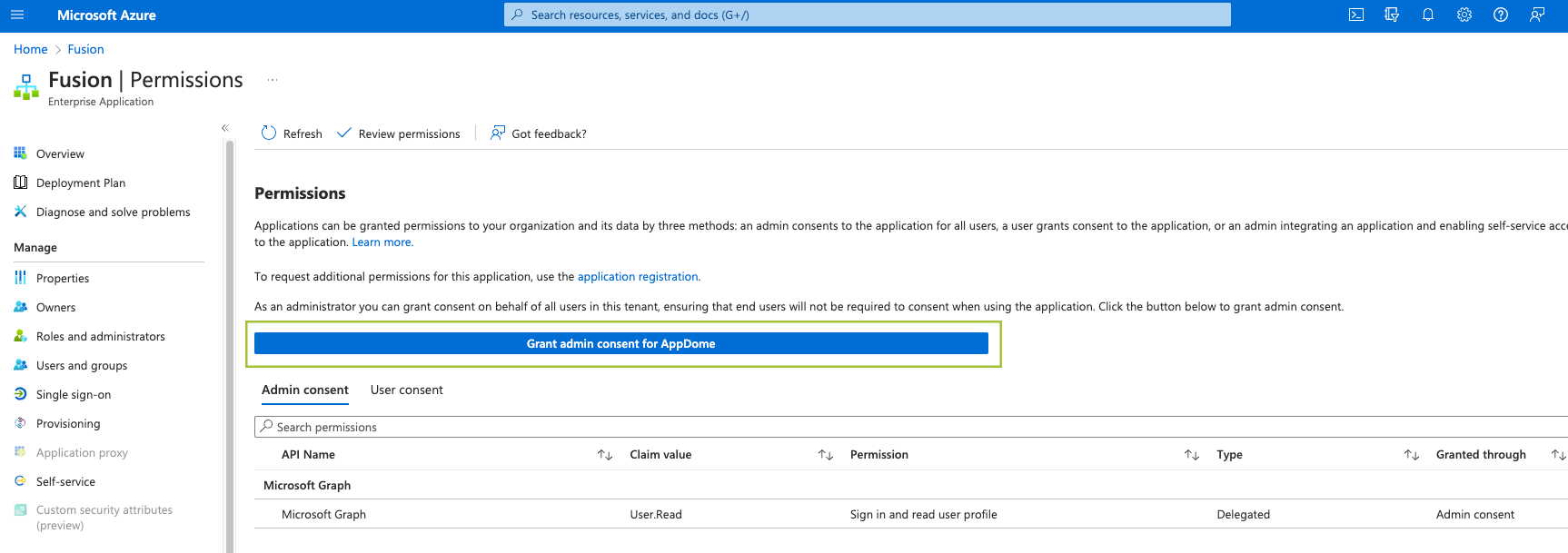
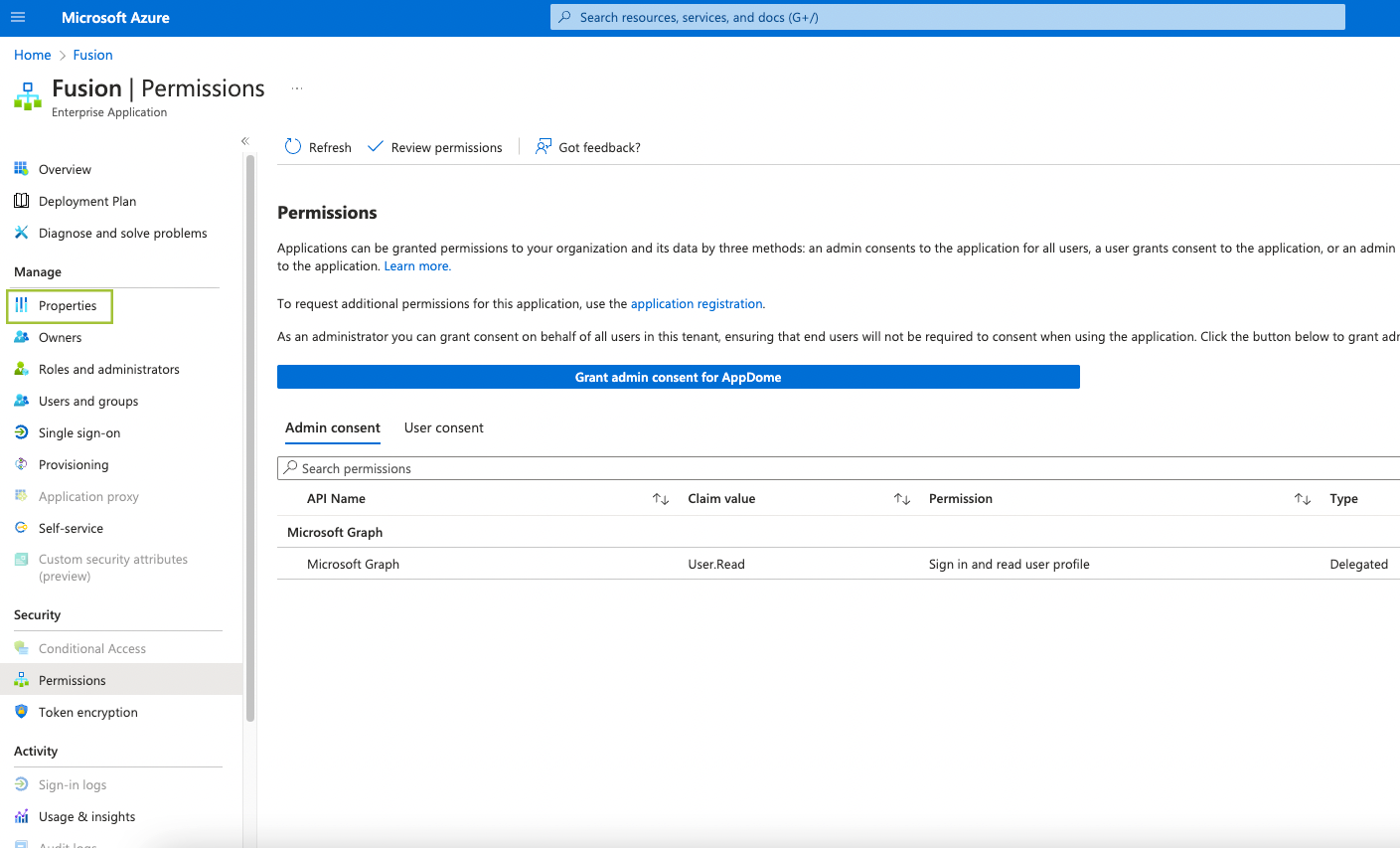
- Navigate to the Properties tab.
- Toggle on Enabled for users to sign in? to activate the integration.
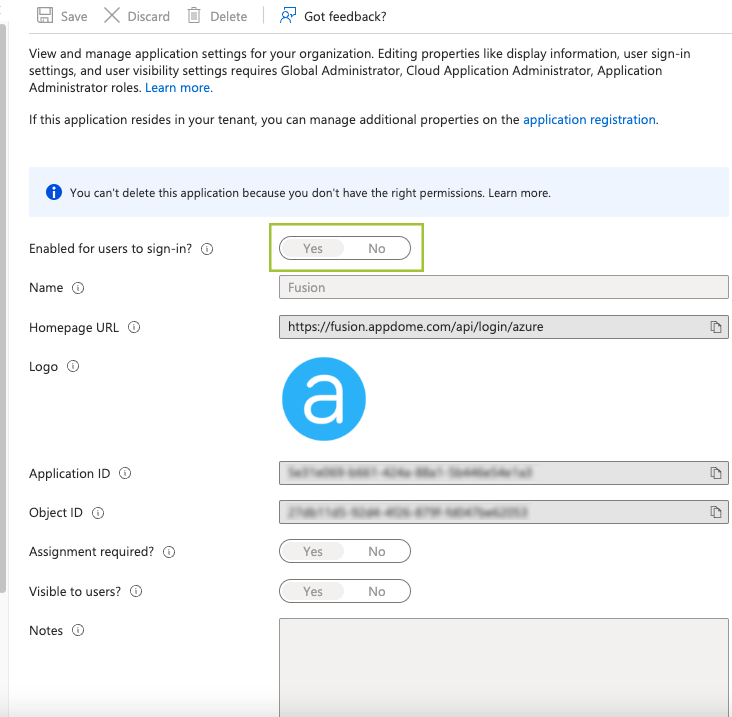
- Toggle on Assignment Required if you would like to provide access only to employees who are registered to Appdome’s platform.
Note: If this setting is toggled off (disabled), any user within your company with a Microsoft account could log in to Appdome’s platform.
Note: It is possible to create a group and allow all users inside the group to log in. For more information, contact Appdome Support.
Related Articles:
- How to use Appdome build-2secure in Azure Pipelines
- How to Make Mobile Apps Work with Azure AD Authentication
- How to Build mobile apps with SSO using Microsoft Azure AD
How Do I Learn More
If you have any questions, please send them our way at support.appdome.com or via the chat window on the Appdome platform.
Thank you!
Thanks for visiting Appdome! Our mission is to secure every app on the planet by making mobile app security easy. We hope we’re living up to the mission with your project.