Setting Up Roles in a Team in Appdome
By default, all team members in Appdome can manage team settings, such as adding or removing members, changing entitlements, editing the team name and description, and more. However, you may want to assign different permission levels so that some members manage advanced settings while others focus solely on building or signing apps without altering team properties. Learn below how to set up user roles in Appdome: Leader or Member.
As a leader:
You can perform the following actions:
- Edit entitlements for all team members.
- Add members.
- Remove members.
- Change the team’s name and description.
- Enforce naming policy on the team fusion sets
- Enforce your organization’s domain verification on all team members.
- Edit the role of each team member.
- Request to delete a team.
- Leave the team.
As a member:
You can perform the following actions:
- View your entitlements.
- View the roles of each team member.
- View the team’s details.
- Leave the team.
Before You Begin
To set roles in Appdome’s Teams , you’ll need:
Step by Step:
- Log in to your Appdome account.
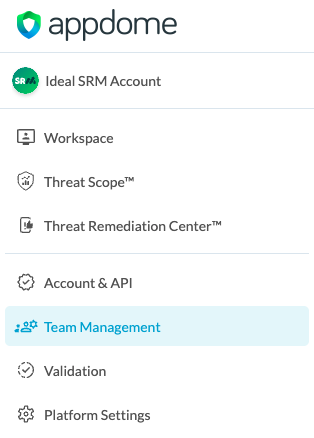
- Hover over the left sidebar to extend it. Then, select Team Management.
- Select a team from the list and click … next to the relevant team’s name and select Team Members.
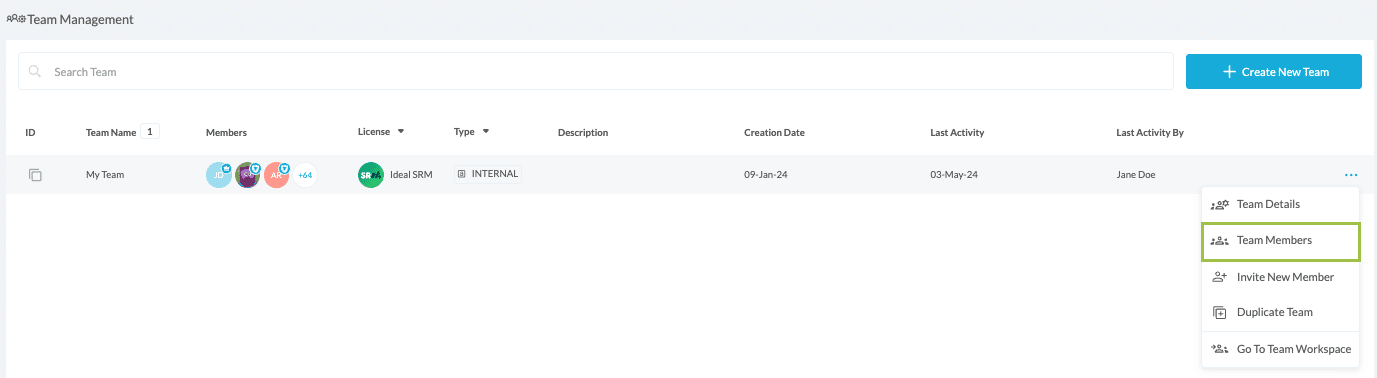
- Select the relevant member and click Edit Member.

- Edit as required: Select a role for each team member; Leader or Member and edit the member’s Entitlements.
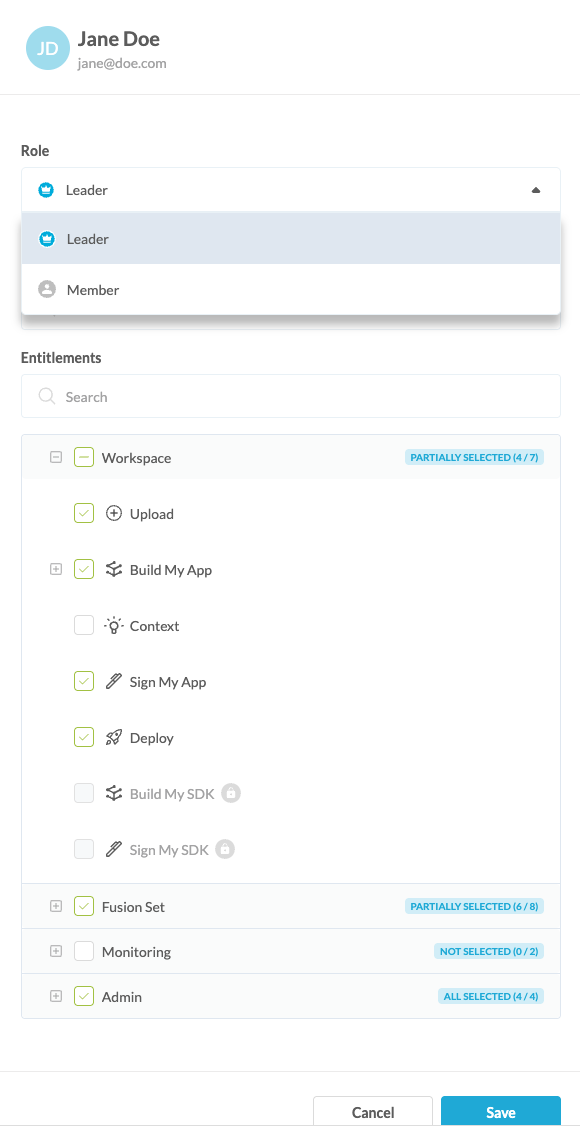
- Click Save.
Related Articles
- Freeze Fusion Set
- How to Manage Fusion Set Security Templates iOS/Android
- How to Create and Manage Appdome Mobile App Protection Templates for Android & iOS Apps
- How to Create Teams in Mobile DevSecOps Build System to Accelerate Delivery
If you have any questions, please send them our way at support.appdome.com or via the chat window on the Appdome platform.
Thank you!
Thanks for visiting Appdome! Our mission is to secure every app on the planet by making mobile app security easy. We hope we’re living up to the mission with your project.