
ThreatScope Mobile XTM - Using Standard Views
What is ThreatScope Mobile XTM?
ThreatScope Mobile XTM provides visibility on the actual attacks and threats that an Appdome-protected app faces when released to production. The data in the dashboard updates every hour, which means that security teams can track in real-time how attacks evolve and react quickly to emerging trends. There are no requirements or prerequisites needed, no API integrations are required from the operation teams, and no code changes are needed from the mobile development teams in order for attacks and threats that a protected app faces to appear in the dashboard. Learn more about ThreatScope Mobile XTM.
Using Standard Views
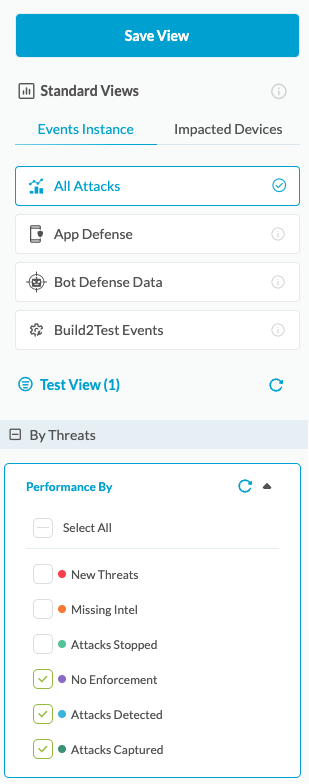
The Standard Views menu on the left side panel allows you to easily filter and create custom views of the Threat Scope data.
With the custom views and by using the Advanced Filters, security teams can zoom in on specific aspects of the threat data. Whether it’s a particular app, a specific time frame, or a geographic region, Standard Views enable granular analysis, which is essential for identifying patterns and trends in the mobile threats apps are facing.
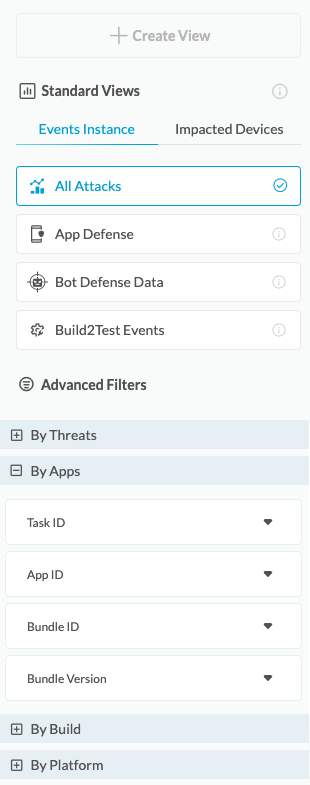
1. Select the data display option – Either by Event Instances or Impacted Devices.

Events Instance: Displays the data for all occurring events – each event instance is counted individually and the accumulated data is presented.
Impacted Devices: Summarizes the number of unique devices any event occurred on. If one specific device experiences a certain event a number of times, it will still be counted as one device.
2. Select the data displayed from one of the following categories:

All Attacks – Displays all accumulated data by the number of individual events. If a specific device experiences several events of the same type, all events will be counted.

App Defense – Displays all Appdome detections whether or not they are enforced on the client app or sent to the client app via Threat Events.

Bot Defense Data – Access complete payload data from Appdome’s MobileBOT™ Defense (MBD) solution for insights on mobile infrastructure. Correlating and validating real attacks can detect and prevent attacks like credential stuffing and DDoS.

Build2Test Events – This function summarizes the Threat Events data only for apps built with the Build-to-Test feature. These apps are built specifically for testing via third-party vendors.
Learn more about Appdome’s Build-to-Test
3. Filter the data
You can filter the data using each one of the following filters; you can combine filters to create unique Standard Views and gain further insight on the events your Appdome-built apps are facing.
The filters that can be used for controlling the displayed data are:
- By Threats
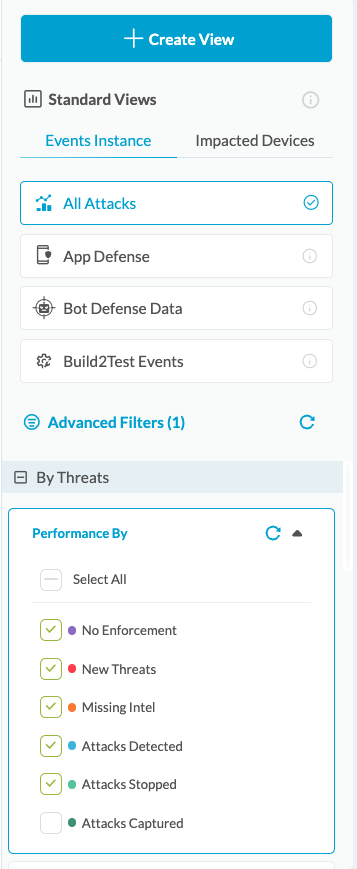
- Performance By – The type of defense implemented in Threat Events.
- Event Type – The name of the protection on FAC.
- Reason Code – The Threat/Attack user-facing code from the mobile device. The reason code is used in the “ThreatScopeTM User Remediation Center” to understand the specific events or metadata that triggered the threat. Customer support organizations can use this information to instruct the mobile user on how to remediate the threat and return to using the mobile app.
- By Apps
- Task ID – The unique Build ID of the apps Appdome build.
- App ID – The unique ID for a protected app on FAC.
- Bundle ID – The app’s identifier is listed in the AndroidManifest.xml or Info.plist file.
- Bundle Version – The Specific version number of an app.
- By Build
- Team Type – The type of the team that ran the app builds.
- Account Name – The name of the account plus the team type.
- Fusion Set Name – The name of the fusion set to which the protected app is subscribed.
- Fusion Set ID – The ID of the fusion set to which the protected app is subscribed.
- By Platform
- Manufacturer – The device manufacturer associated with the detected attack.
- OS – The platform associated with the detected attack. Android / iOS
- OS Version – The OS Version associated with the detected attack.
- Country – For further information, see section Reviewing the geographical source of threats.
4. Create Custom Threat Views
When the data is filtered, you can save it by creating a view.
You can access your custom Threat Views via the main drop-down menu.
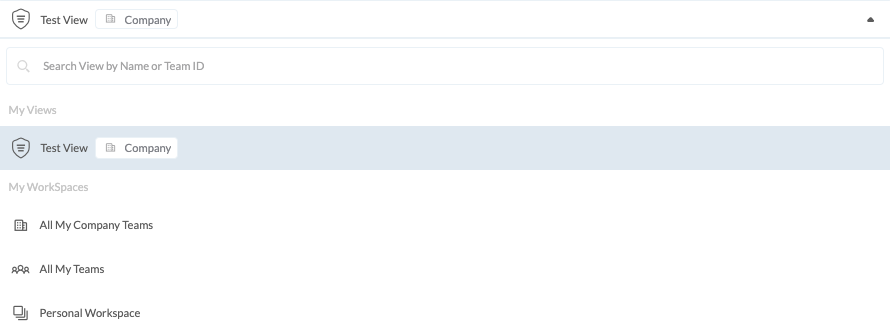
Custom Threat View options
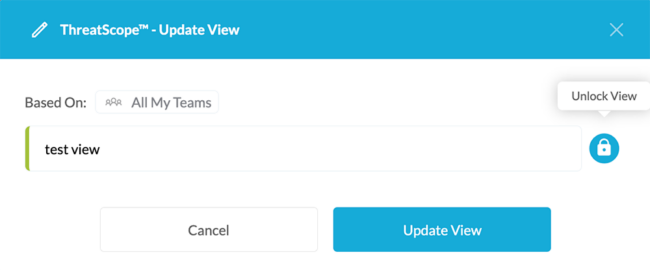
 Edit View Settings
Enables editing of the parameters of the Custom View.
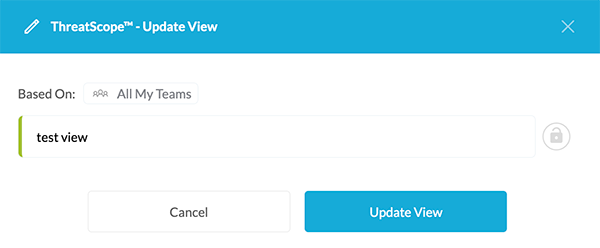
After editing, you’ll be able to update the current Custom Threat View by saving it.
You can also lock the Custom View to disable editing.
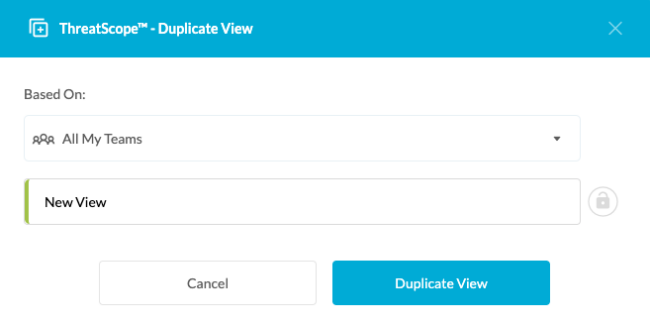
 Duplicate View
Enables duplication of the Custom Threat View. After duplication, you can edit the parameters of the new view.
 Set As Favorite
Set your Custom Threat View as a favorite.

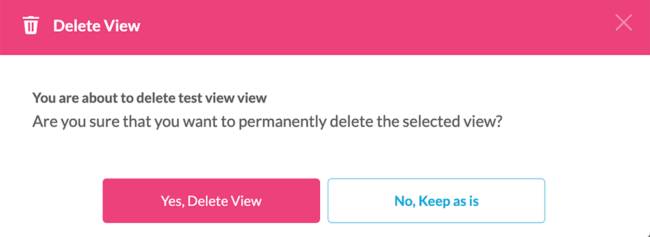
 Delete Threat View
Related Articles:
- Threat-Events™, In-App Threat Intelligence in Native iOS Apps
- How to Use ThreatScope™ User Remediation Center
- Understanding ThreatScope Mobile XTM Threat Views
If you have any questions, please send them our way at support.appdome.com or via the chat window on the Appdome platform.
Thank you!
Thanks for visiting Appdome! Our mission is to secure every app on the planet by making mobile app security easy. We hope we’re living up to the mission of your project.