Understanding ThreatScope Mobile XTM
Intro
ThreatScope Mobile XTM offers insight into the actual attacks and threats faced by Appdome-protected apps once they’re released into production. The dashboard’s data refreshes every hour, allowing security teams to monitor evolving attacks and swiftly respond to emerging trends in real-time. To ensure that threats faced by a protected app are displayed on the dashboard, there’s no need for prerequisites, API integrations by the Operations teams, or code changes by the mobile development teams.
Setting up Access to ThreatScope Dashboard
Access to a protected app’s threat data on the ThreatScope Dashboard is gated only to viewer accounts that meet the following conditions:
- The viewer account is licensed to access the ThreatScope Dashboard
Submit a request to Appdome support to activate the license for the accounts that should have access to threat data. - Threat data originates from teams of which the viewer is a member.
The team leader of each production team should configure the viewer account. For details, see the section Configuring the Viewer Account. - The viewer has the View ThreatScope entitlement in the team.
For more details, see the section Add View ThreatScope Entitlement to Members Account below.
Configuring the Viewer Account
To configure the viewer account, the team leader needs to:
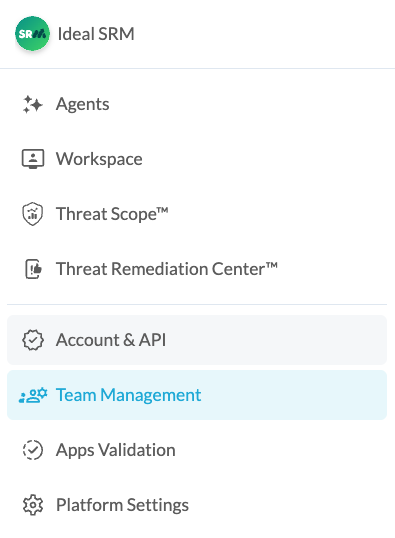
- Open the User Menu.
- Click on Team Management.
- Search for the relevant team.
- Review the team member list.
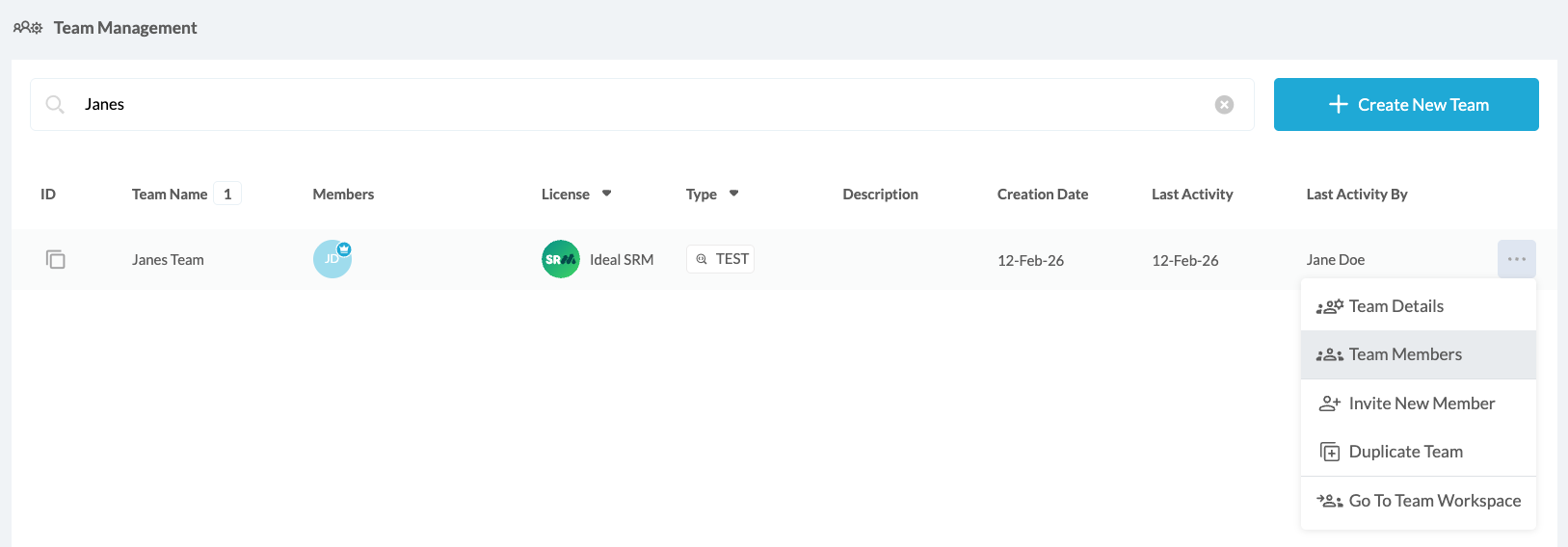
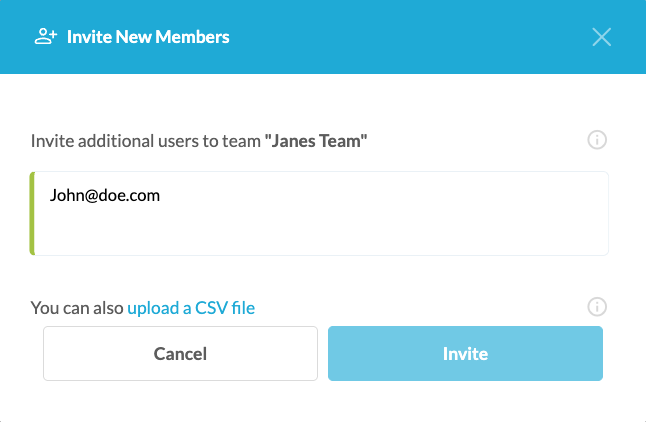
If the requested viewer’s account does not appear, invite the viewer by clicking the Invite New Member button.

- Type the viewer account’s name and hit enter. When done, click Invite.
- After the viewer accepts the invitation, proceed to the next step of adding the required entitlements to the team.
Add View ThreatScope Entitlement to Members Account
In order to add the View ThreatScope entitlement to a member’s account of a production team, the team leader should follow these steps:
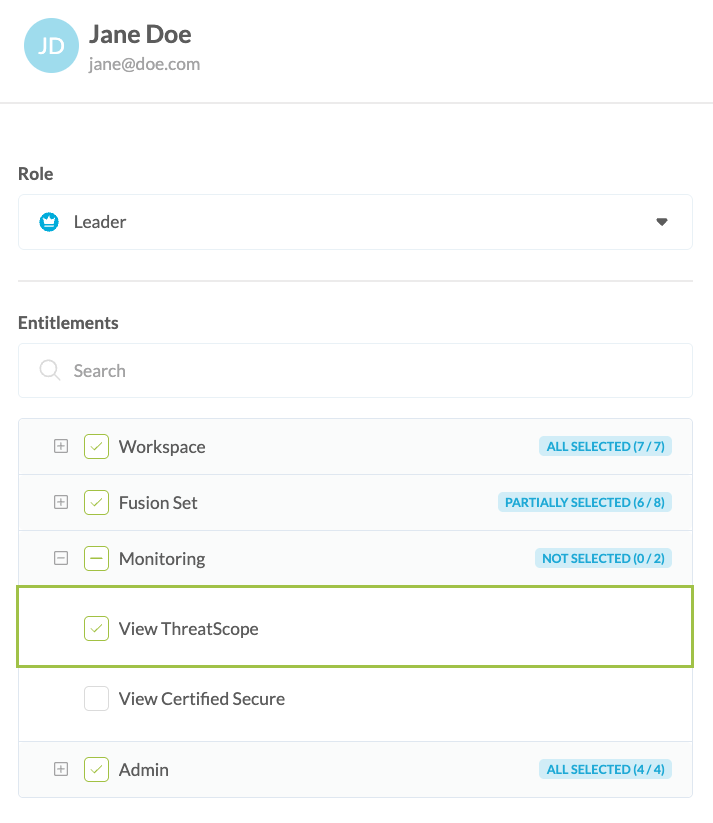
- Click on Team Management account in the user menu and click the button to add entitlements.
A list of the entitlements available for the account will be displayed. - Click the View ThreatScope entitlement.
Reviewing the Dashboard Structure
The dashboard allows you to perform the following tasks:
- Select the viewing scope
- Select the date range
- Review the geographical source of threats
- View all attacks
- Use the Implementation Stream widget
- Display top 10 defense breakdown
- View Attacks Breakdown
- Filter Missing Intelligence
- Review Implementation streams
Selecting the Viewing Scope
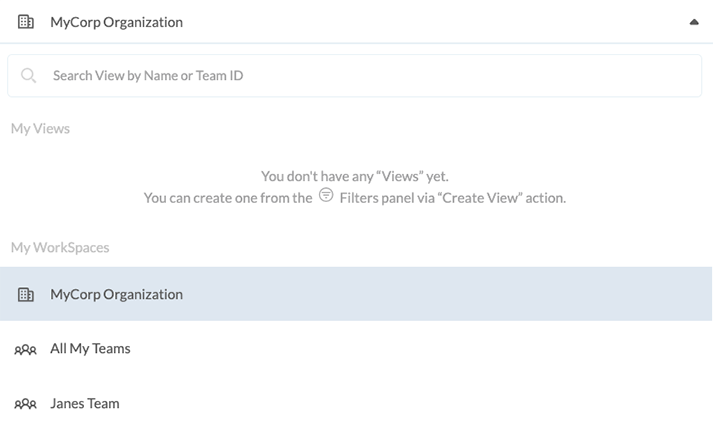
The dashboard viewer allows defining the scope of data items (threats) to be displayed from the following options:
- A specific team
View only threats associated with apps built by the selected team - A specific organization
When the user is a part of a Company and has ThreatScope entitlements - Personal workspace
The data for the apps that are uploaded and managed within the user’s personal workspace - All my teams
View threats associated with apps built by all teams that the ThreatScope viewer is entitled to access
Selecting the Date Range
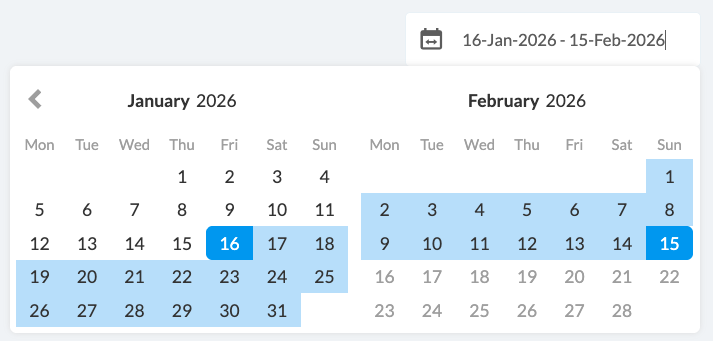
The Set Date Range section defines the date range of data items (threats) to be displayed. By default, the date range is set to the last 30 days, but this range can be extended.
My Apps
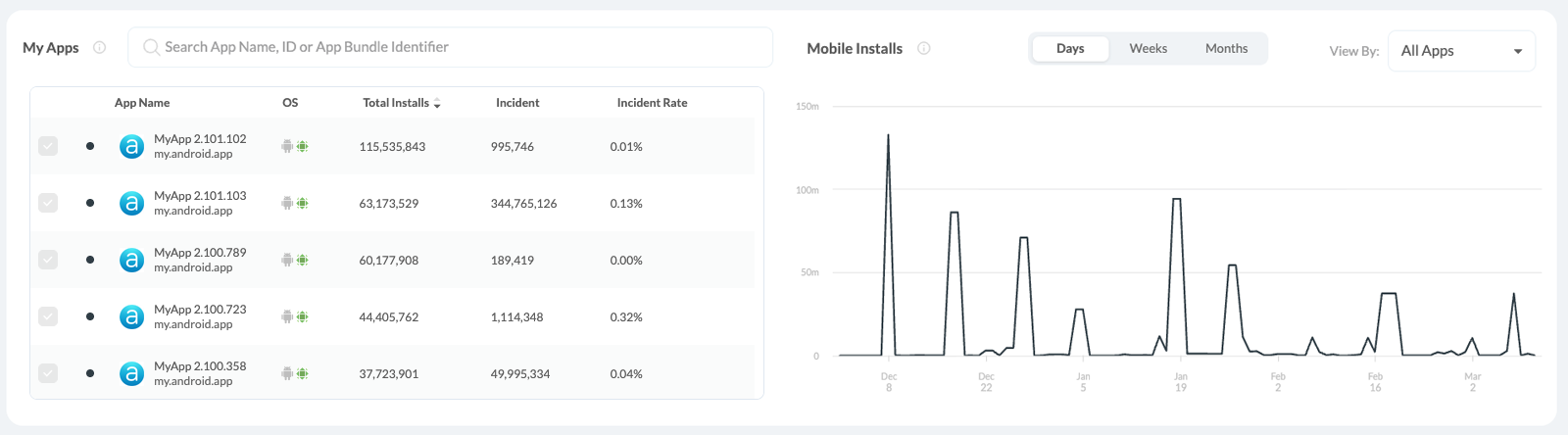
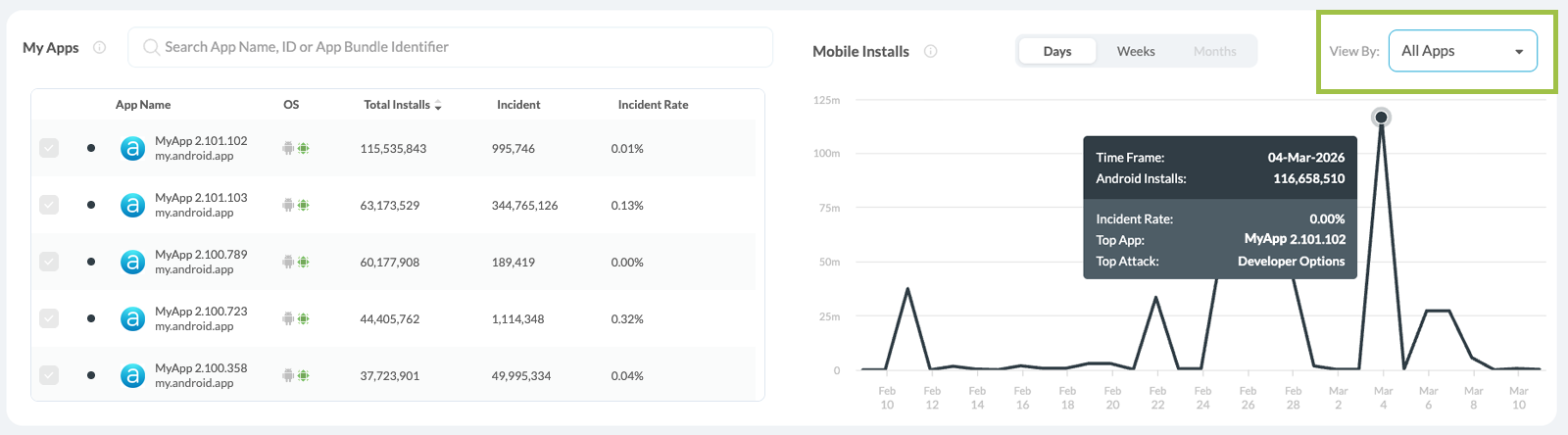
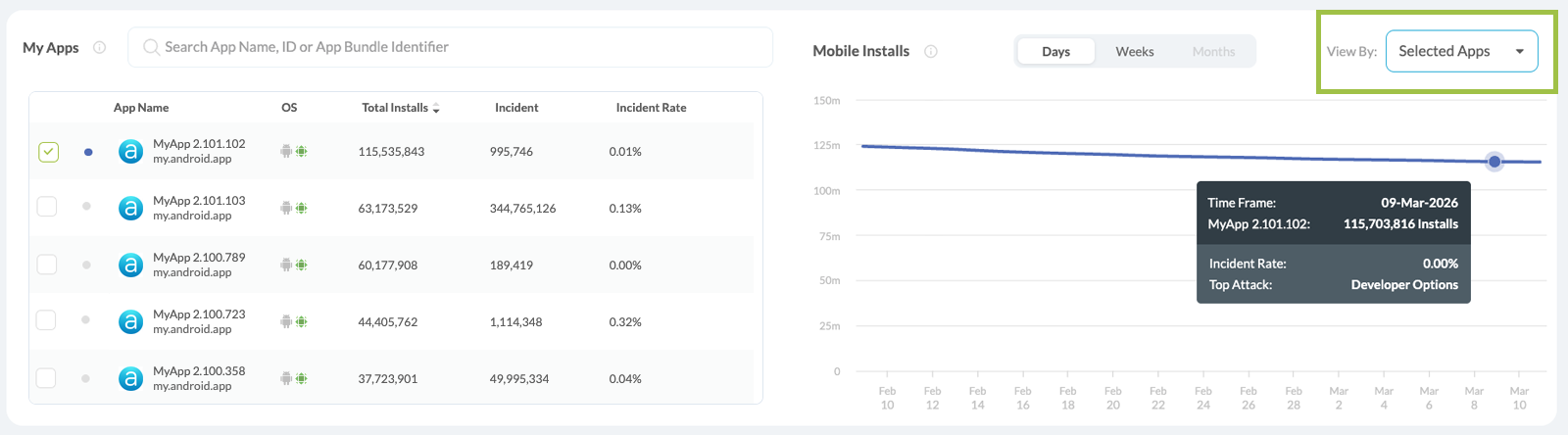
The My Apps panel lists your protected applications with OS, version, build date, total installs, and total Detected Threats.
You can explore the data in daily, weekly, or monthly views.
All Apps / Selected Apps Surface
Select the desired view from the tab on the top right side of the panel.
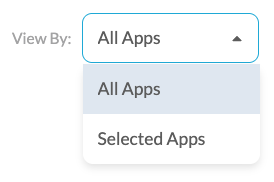
The All Apps Surface view displays the data for all of the downloaded apps over the selected time range, alongside their associated Detected Threats and incident rate.
The Selected Apps Surface view allows the user to select a specific app, visualizing threat trends and incident rate over the selected time range.
When hovering over a data point in either chart, a tooltip displays the app name, version, date, total installs or total Detected Threats for that day (depending on the selected view), and the incident rate.
Note: The incident rate is calculated based on installation and attack data.
Reviewing the geographical source of threats
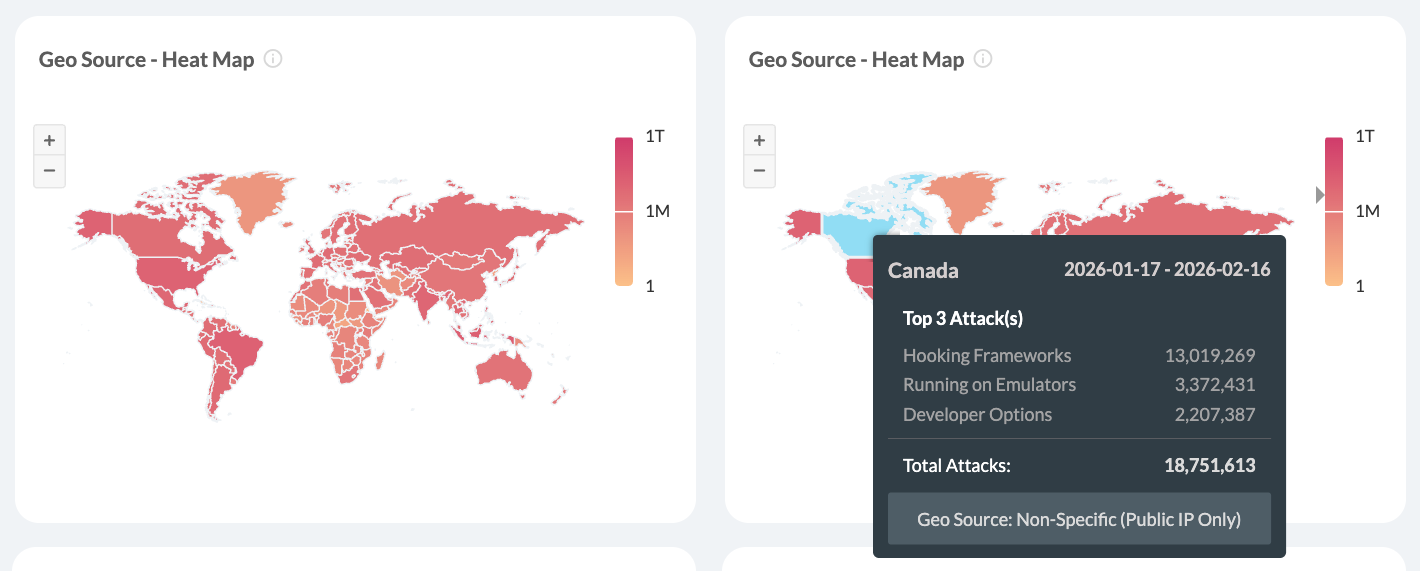
The GeoSource section displays a map that allows viewing the country from which the attacks originate.
Countries are colored based on the volume of threats detected in the region. For clarification, see the legend on the right.
Hover over the requested country to see a breakdown of the information by the following items:
- Country name
- Date Range
Only threats from the listed date range are aggregated. - Total attacks
The sum represents all attacks originating from the country over which the mouse hovers. - Top 3 Attacks
The top attacks for the selected country
To select one or more countries:
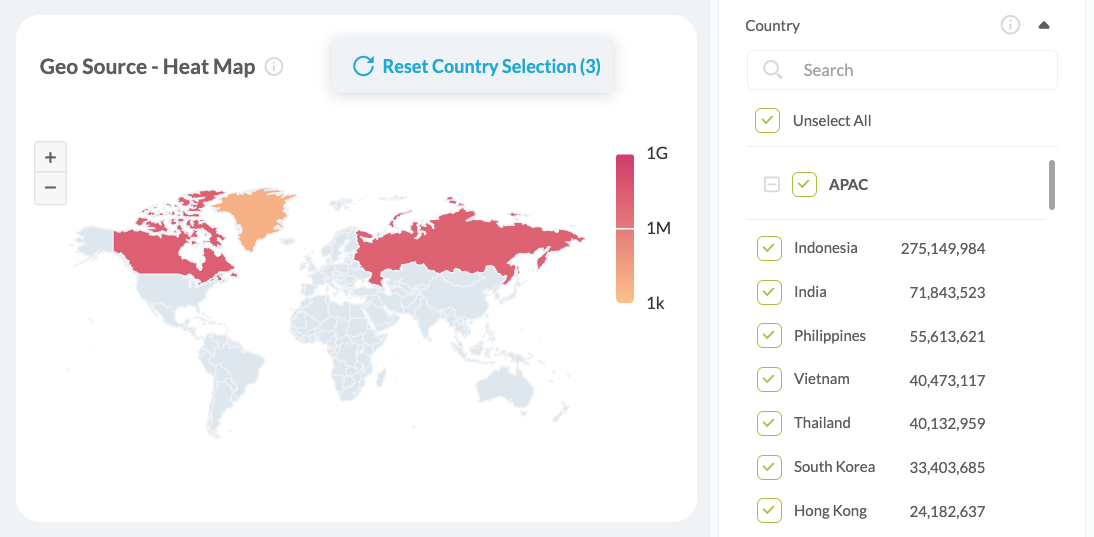
- To select a single country, click the requested country on the map or choose its corresponding checkbox on the left side filter menu.
To deselect a country, click the checkbox of the already selected country. - To select multiple countries, check the boxes next to each requested country or select them by clicking on them directly on the map display.
- To reset selection click Reset Country Selection on the top right side of the map display.
- All other ThreatScope displays will update according to the selected countries.
Types of Geography-based data input
The following types of geography-based data input exist:
- Non-specific
The default data input on Appdome relies on the public IP address captured from its analytics server to map the threat’s location. Given that attackers can mask their public IP using tools such as VPNs and proxies, this data is labeled as “non-specific,” namely because we cannot always pinpoint the precise source of an attack.
- Specific
In this case, the data input is the device’s location data (GPS). However, since accessing location data requires declaring specific permission in the app and user consent, this type of threat geo-source is not the default option and requires opting in when building the app on Appdome.
The app’s developer is responsible for adding the required location permissions and requesting user consent to access the device’s location since Appdome will not add location permissions to the protected app and trigger any access to location data without checking if the user has granted access to their location data.
What can be inferred from the data
- Ability to create a focus list of countries that generate the most attacks
Customers that have a web application firewall (WAF) in place can use this data stream to apply different security policies based on the threat landscape of the app and the app’s user base. - Visibility of how the threat types are distributed within a given country
This can enable tracking which vectors are used by different local and global actors.
Using the Implementation Streams widget
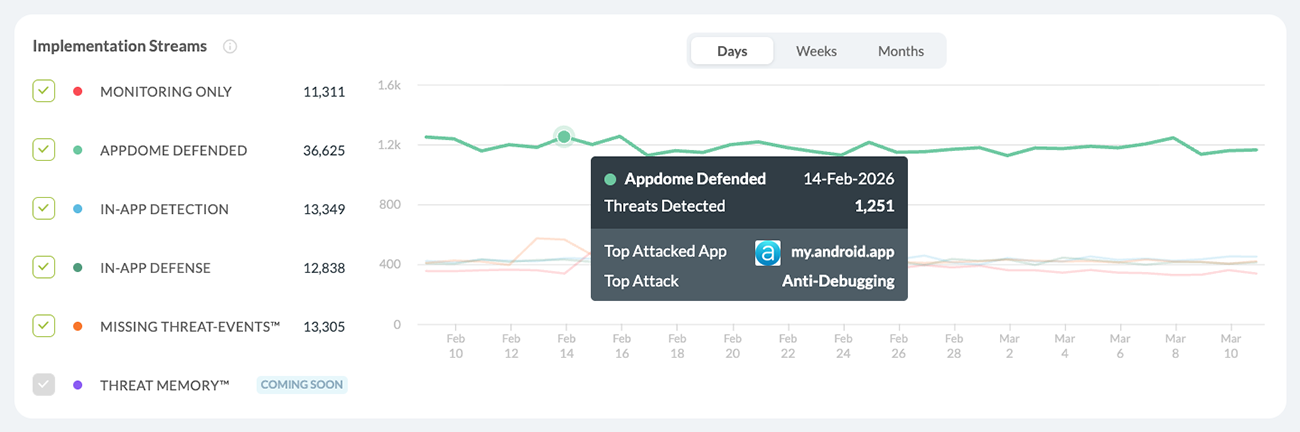
The Implementaion Streams Widget displays the distribution of attacks of the selected date range between the various Implementation streams.
What can be inferred from the data?
- Evaluate the risk level of released apps
By tracking blocked and app-enforced threats. - Compare intelligence gathered by released apps
With the actual volume of attacks and threats.
Filtering the display
Check any Implementation Stream checkmark to filter the display using the selected Implementation stream. You can adjust the filter to view one or multiple Implementation Streams. You can also apply filters using the left-side Standard Views menu.
In addition, you can filter the data by selecting one or more apps in the My Apps panel using the green checkmarks next to each app name. Selecting specific apps updates all ThreatScope widgets and charts to display data only for the chosen app(s).
When you apply a filter using the Implementation Stream widgets, the selected category is highlighted in color, and the unselected categories turn gray. This visual distinction helps you easily identify which filters are active while focusing on the data from the selected category.
Filtering Using Standard Views
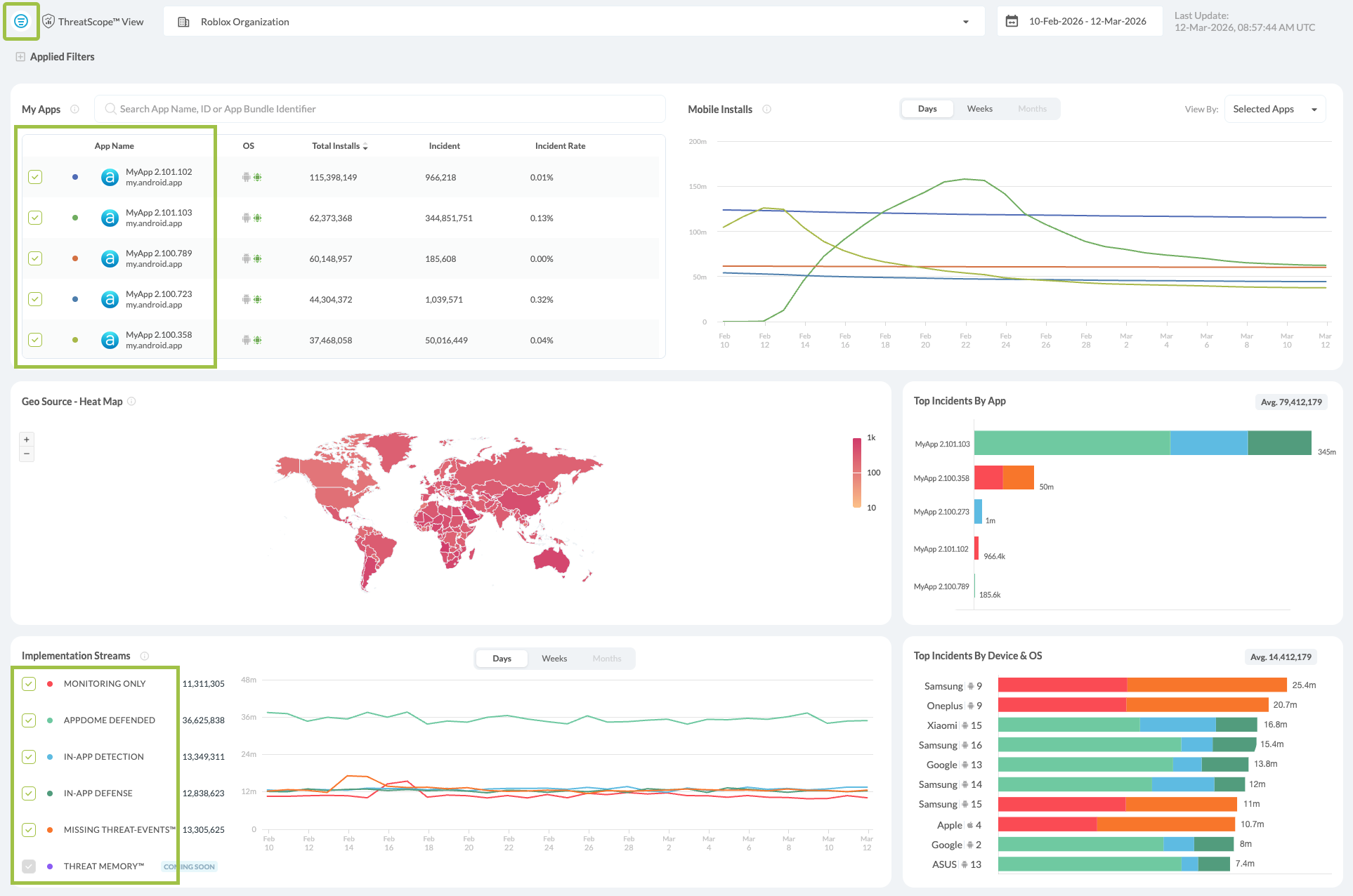
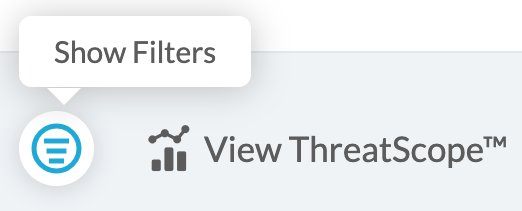
ThreatScope also allows filtering through the Standard Views panel, located on the left side of the display. Access the panel by clicking on the icon on the top left side.
Additional filtering options are available under Advanced Filters, including filtering by Threats, Apps, Build, and Platform.For detailed instructions on using Standard Views and Advanced Filters, refer to the dedicated filtering section of this article.
The filter is applied to the Geo Source and the Top 10 Defenses displays.
Displaying Top Incidents Breakdown
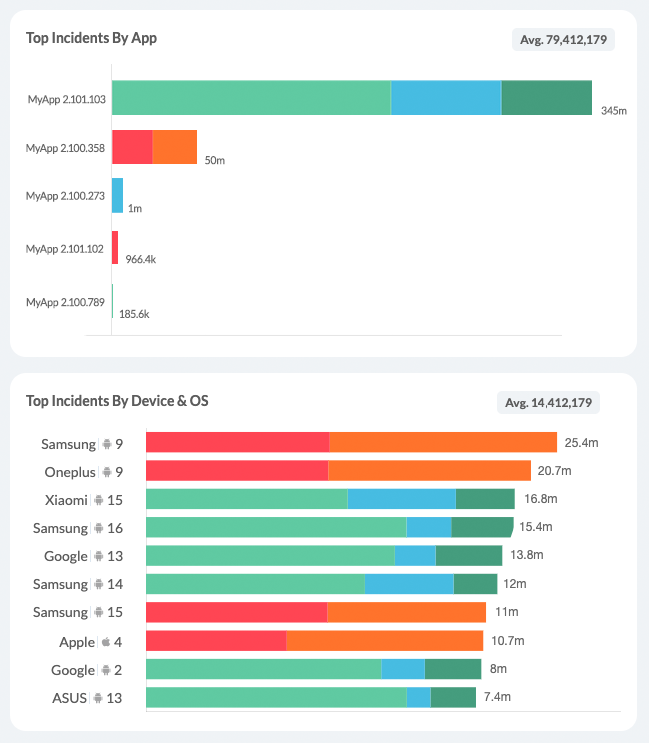
The Top Defenses section displays a breakdown of the top defenses by app, and by OS and manufacturer.
What can be inferred from the data?
The data displayed in this section allows for the generation of a list of the characteristics of the apps and devices that are most targeted by the attacks.
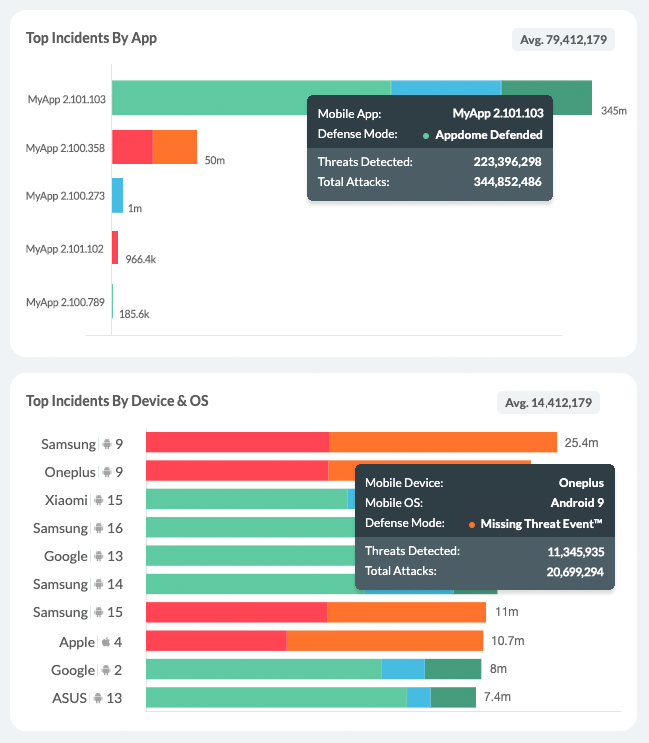
Hover over a graph line in any of the Top Incidents By App Breakdown tiles to display the following breakdown:
- Mobile App
The app in question. - Defense Mode
Appdome Defended/ In-App Detection / In-App Defense / Missing Threat Event / Monitoring Only. - Threats Detected
The number of threats detected under the selected Defense Mode. - Total Attacks
Total number of attacks on selected app.
Hover over a graph line in any of the Top Incidents By Device & OS Breakdown tiles to display the following breakdown:
- Mobile Device
The brand of the device used - Mobile OS
The OS version of said device - Defense Mode
Appdome Defended/ In-App Detection / In-App Defense / Missing Threat Event / Monitoring Only. - Threats Detected
The number of threats detected on the selected device type and Defense Mode. - Total Attacks
Total number of attacks on selected device type and OS.
Attack Surface Breakdown
The Attacks Breakdown displays the attacks divided by Threat type:
- Mobile Malware
- Social Engineering
- App Security
- Account Takeover
- Mobile Fraud
- BOT™ Defense
- Mobile Cheat
The default view, as shown below, displays the group with the most events. You can change the display by clicking on any of the other doughnut graphs to display the data breakdown for that group:
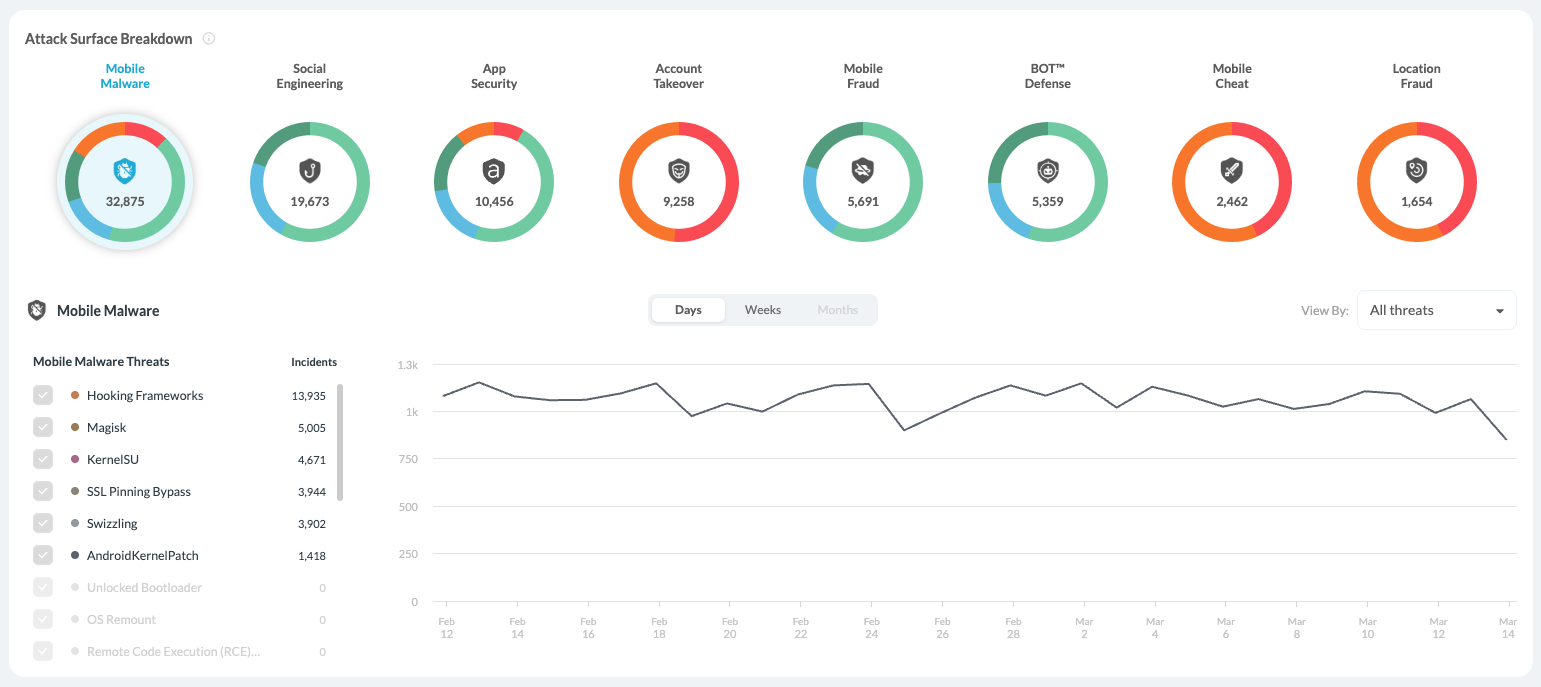
Display Options
Implementation Breakdown
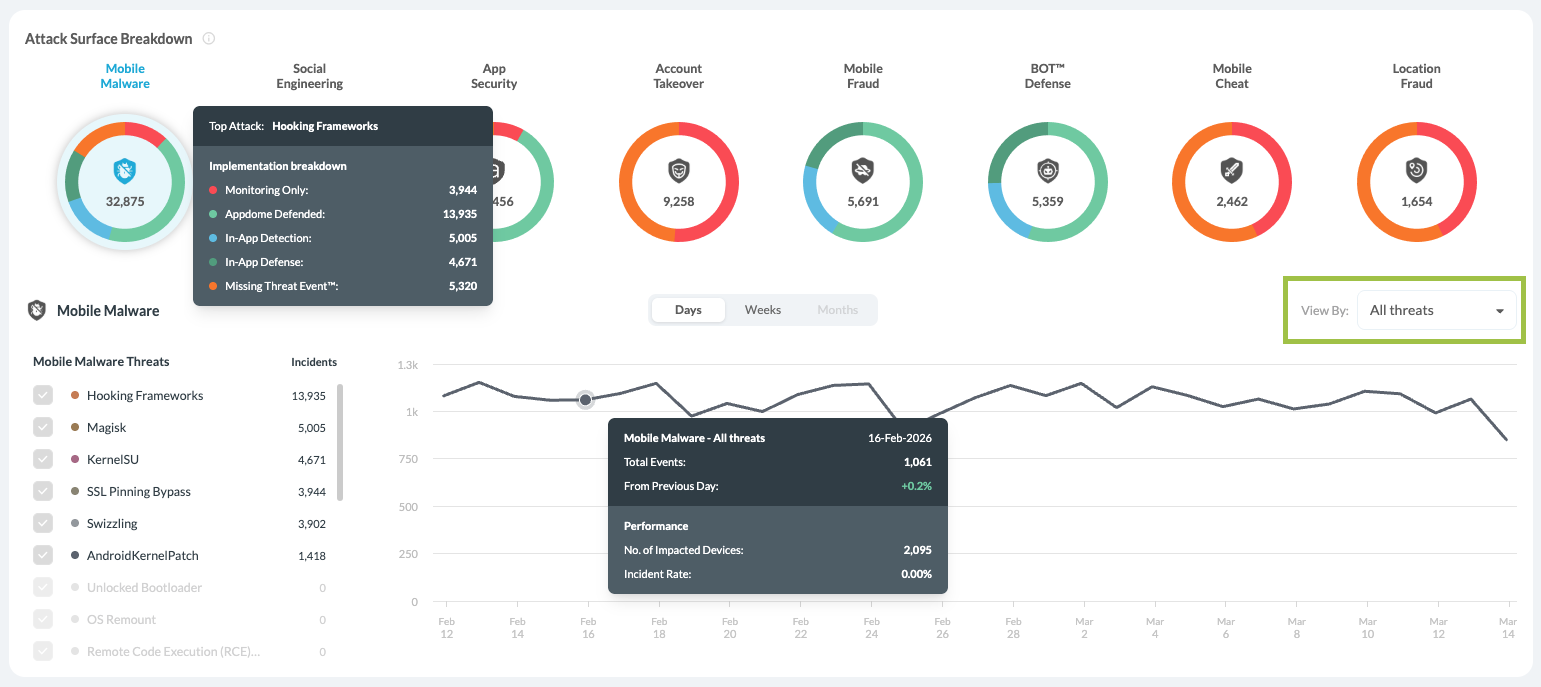
When hovering over each Threat Type graph, the tooltip displays the top attack and implementation breakdown details for the overall number of attacks.
- Appdome Defended
- In-App Detection
- In-App Defense
- Missing Threat Event
- Monitoring Only.
-
Total Events – Total number of detected threat events for the selected date
-
From Previous Day – Percentage change compared to the prior measurement period
-
Performance
- Number of Impacted Devices by the attack type on the specific day.
- Incident Rate – which is is calculated based on installation and attack data.
Impacted Devices
The Impacted Devices table provides a device-level view of security events detected in protected mobile applications. Each row represents a device where a threat event occurred within the selected time range, enabling security and DevSecOps teams to quickly identify affected devices and investigate incidents. Expanding a row reveals detailed device and event information to help teams understand what happened, when it occurred, and which application was affected.
Using this view, teams can quickly investigate threats and assess their real-world impact. The table allows users to:
-
Identify devices impacted by security threats
-
View when the threat event occurred
-
Review the associated Threat Code
-
Inspect device details such as manufacturer, model, and OS version
-
Track multiple threat events affecting the same device
Users can also search by manufacturer name, model, or device ID, and use Get Support to open the Support Agent with the Threat Code pre-filled for deeper analysis and remediation guidance.
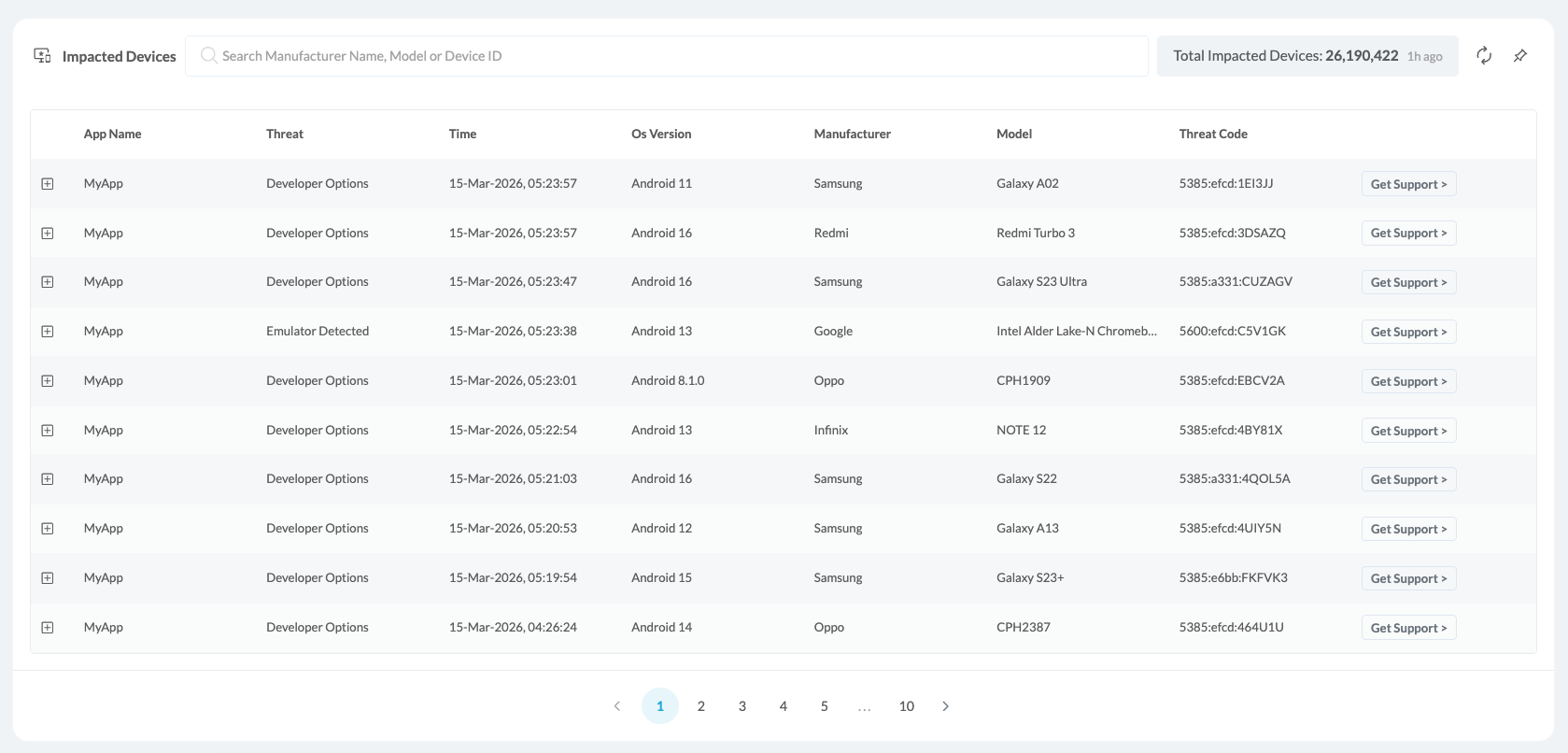
Key Data Points
The table includes several important fields to support investigation:
-
Device ID – Unique identifier for the impacted device
-
Threat Code – The specific threat detected on the device
-
Event Time – When the threat event occurred
-
Manufacturer & Model – Device hardware details
-
App Name / Version – The application where the threat was detected
You can also Refresh The Display or Pin To Top using the icons on the top right side of the table.
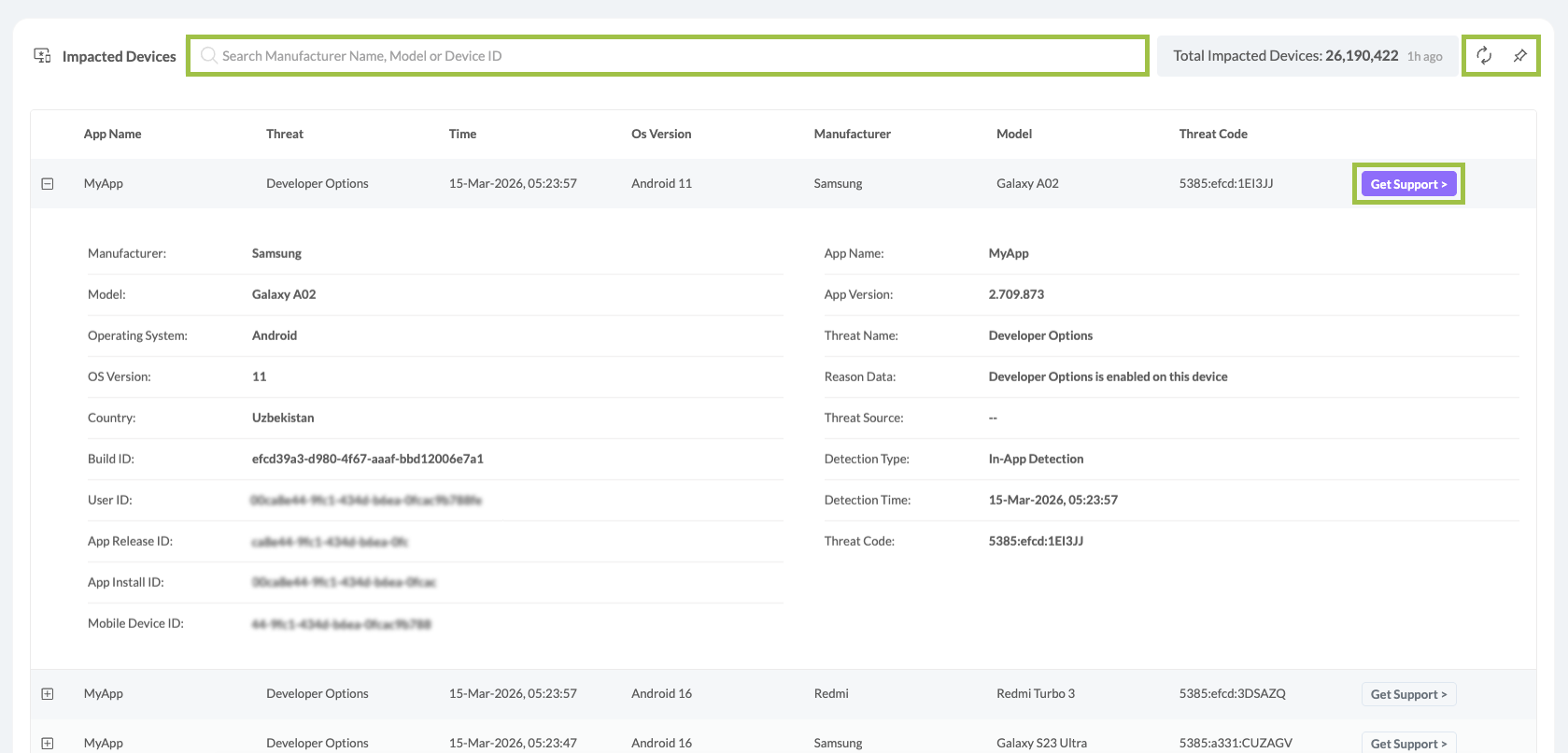
Integration with the Support Agent
The Impacted Devices table is designed to work together with the Support Agent.
Users can take the Threat Code from the table and enter it into the Support Agent to receive:
-
A detailed explanation of the threat
-
Recommended remediation steps
-
Additional context about how the attack works
This integration helps teams move from detection → investigation → remediation faster.
Filtering Threat Intelligence
Standard Views
Click on the Show Filters on icon on the top left corner to open it from the left side panel.
The Standard Views menu on the left side panel enables easy filtering and creation of custom views for the Threat Scope data.
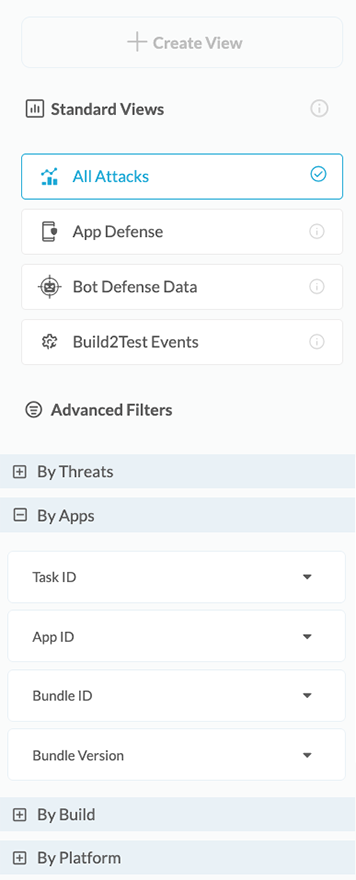
1. Select the Data displayed from one of the following categories

All Attacks – Displays all accumulated data by the number of individual events. If a specific device experiences several events of the same type, all events will be counted.

App Defense –Displays all Appdome detections whether or not they are enforced on the client app or sent to the client app via Threat Events.

Bot Defense Data—Access complete payload data from Appdome’s MobileBOT™ Defense (MBD) solution for insights on mobile infrastructure. Correlating and validating real attacks can detect and prevent attacks like credential stuffing and DDoS.

Build2Test Events—This function summarizes the Threat Events data only for apps built with the Build-to-Test feature. These apps are built specifically for testing via third-party vendors.
Learn more about Appdome’s Build-to-Test
2. Filter the data
You can filter the data using any of the following filters and combine them to create unique views, gaining deeper insights into the events your Appdome-built apps are facing.
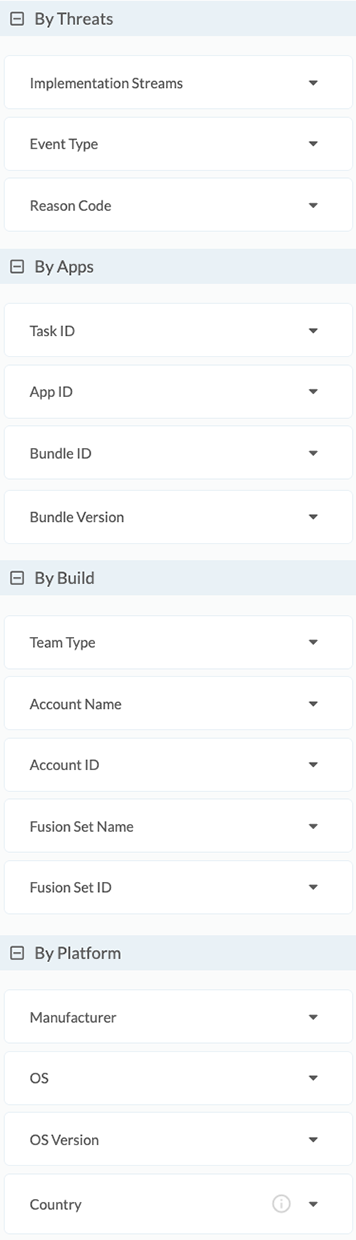
The filters that can be used for controlling the displayed data are:
- By Threats
- Performance By – The type of defense implemented in Threat Events.
- Event Type – The Type of Event that was triggered (By Appdome’s defense categories)
- By Apps
- Task ID – The unique ID of the task (upload/build/context/sign)
- App ID – The unique ID of the app.
- Bundle ID – The app’s identifier is listed in the AndroidManifest.xml or Info.plist file.
- Bundle Version – The app’s version number.
- By Build
- Team Type – The type of the team that ran the app builds.
- Account Name – The name of the account plus the team type.
- Account ID – The ID of the account.
- Fusion Set Name – The name of the fusion set to which the protected app is subscribed.
- Fusion Set ID – The ID of the fusion set to which the protected app is subscribed.
- By Platform
- Manufacturer – The device manufacturer associated with the detected attack.
- OS – The platform related to the detected attack.
- OS Version – The OS Version associated with the detected attack
- Country – A specific Geo Source.
3. Create View
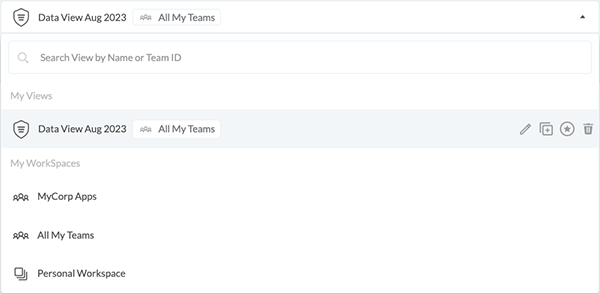
When the data is filtered, you can save it by creating a view.
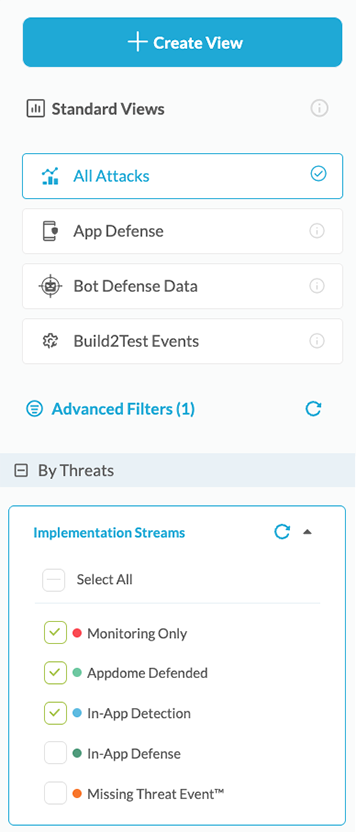
You can access your custom views via the main drop-down menu.
Learn more about Standard Views and creating custom Threat Views with ThreatScope.
Troubleshooting Access to ThreatScope Dashboard
This section provides troubleshooting information for resolving the following issues:
- Lack of the View ThreatScope entitlement.
- The viewer is a member of a team but does not have the View ThreatScope entitlement.
- The viewer is not a member of any team.
- The viewer or View ThreatScope entitlement was removed.
- If the viewer was a member of a team or had view entitlements, then the viewer was removed from the team or the view entitlement was removed.
Lack of the View ThreatScope entitlement
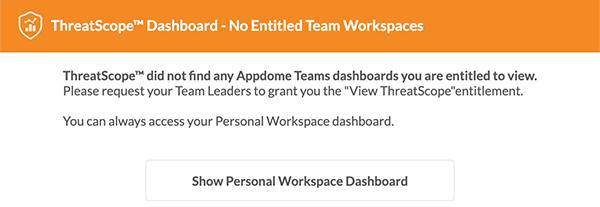
Cause:
The viewer attempted to access the ThreatScope dashboard, but while the viewer’s account is a member of at least one team, that team does not have View ThreatScope entitlement permissions.
Remediation:
Add the View ThreatScope entitlement to each team to give the viewer access to threat data. For additional information, see the section on Setting up access to ThreatScope Dashboard.
Viewer is not a member of any team
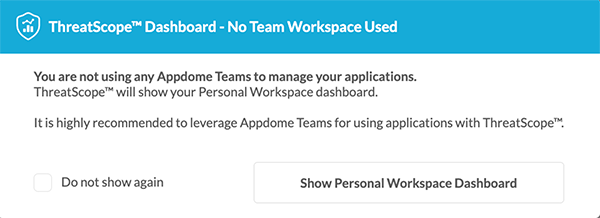
Cause:
The viewer tried to access the ThreatScope dashboard by using the All My Teams workspace, but the viewer’s account is not a member of any team.
Remediation:
Request the production team leader to invite the viewer’s account to join the team and add the View ThreatScope entitlement to each team so that the viewer can access the threat data. For further information, see the section Setting up access to the ThreatScope Dashboard.
A viewer or View ThreatScope entitlement was removed
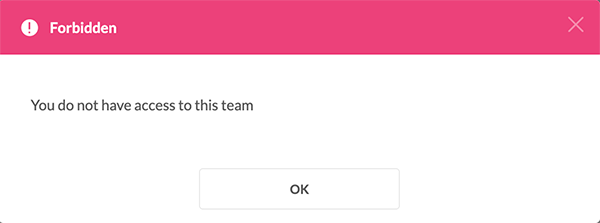
Cause:
The viewer tried to access a team in the ThreatScope dashboard; however, the viewer’s account was removed from that team, or the View ThreatScope entitlement was removed from the viewer’s account in that team.
Remediation:
Request the production team leader to invite the viewer’s account to join the team and add the View ThreatScope entitlement to each team so that the viewer can access the threat data. For further information, see the section Setting up access to ThreatScope Dashboard.
Related Articles
- How to use ThreatScope™ – Threat Dynamics
- Threat-Events™, In-App Threat Intelligence in Native iOS Apps
- How to Use ThreatScope™ User Remediation Center
- Understanding ThreatScope Views
How Do I Learn More?
If you have any questions, please send them our way at support.appdome.com or via the chat window on the Appdome platform.
Thank you!
Thanks for visiting Appdome! Our mission is to secure every app on the planet by making mobile app security easy. We hope we’re living up to the mission with your project.