
Setting Up Entitlements in a Team in Appdome
Team-member entitlements enable you to limit each teammate to a specific task within the Appdome workflow, including uploading apps, fusing one or more services, adding context, signing, or deploying the app. By confining users to particular tasks, you can prevent mistakes, ensuring that the right people are doing the right job.
To use Appdome’s Teams and Entitlements, ensure you have the following:
- Appdome account – IDEAL GO or higher.
- An Appdome Team.
- An Appdome account.
Team Entitlements
The available Entitlements are divided into the following categories:
Workspace
- Upload
- Build My App
- Security
- Anti Malware
- Anti Fraud
- Geo Compliance
- Build
- IDAnchor
- Anti Bot
- Mobile EDR
- Anti ATO
- Management
- Context
- Sign My App
- Test
- Deploy
- Build My SDK
- Sign My SDK
Fusion Set
- Edit Fusion Sets
- Certificates Update
- Accept Fusion Sets
- Freeze / Unfreeze Appdome Version
- Fusion Set Versioning
- Accordion Annotation
- Release Fusion Sets Into
- Download Fusion Set Overview
Monitoring
- View ThreatScope
- View Certified Secure
Administration
- Duplicate Team
- Delete App/SDK
- Copy Fused Builds Into
- Download Files From Fusion Sets
- Add / Remove Users
- Manage Entitlements
- Manage Roles
Team-Member Entitlements
Admin Lead
As an Admin Lead, you can perform the following actions:
- Manage team members, roles, and entitlements.
- Manage team settings.
- Access the Team Workspace.
- Create, update, and manage Fusion Sets.
- Perform build-related activities.
- Duplicate the team.
- Delete apps and SDKs.
- Copy fused builds between teams.
- Download files from Fusion Sets.
- Change your own role, provided at least one Admin Lead remains on the team.
- Leave the team, provided at least one Admin Lead remains on the team.
Team Lead
As a Team Lead, you can perform the following actions:
- Add and remove team members.
- Manage team assignments.
- Manage roles and entitlements.
- View the Team Workspace.
- Duplicate the team, if the entitlement is enabled.
Defense Lead
As a Defense Lead, you can perform the following actions:
- Access the Team Workspace.
- Create, update, and manage Fusion Sets.
- Perform build, context, and signing activities.
- View Certified Secure, if enabled.
- View ThreatScope, if enabled.
- Perform additional permitted actions based on assigned entitlements.
Member
As a Member, you can perform the following actions:
- Access the Team Workspace.
- Perform build, context, and signing activities based on assigned entitlements.
- View your assigned entitlements.
- View the roles of other team members.
- View the team’s details.
- Leave the team.
| Entitlement Area | Admin Lead | Team Lead | Defense Lead | Member |
| Workspace | All | View only | Build, Context & Sign activities | Based on assigned entitlements |
| Fusion Set | All | – | All | Based on assigned entitlements |
| Monitoring | All | – | Certified Secure by default; ThreatScope optional | Not enabled by default |
| Administration | All | Add / Remove Users, Manage Entitlements, Manage Roles; Duplicate Team optional | Not enabled by default | Not enabled by default |
Configure User Entitlements
Step by Step:
- Log in to your Appdome account.
- Hover over the left sidebar to extend it. Then, select Team Management.
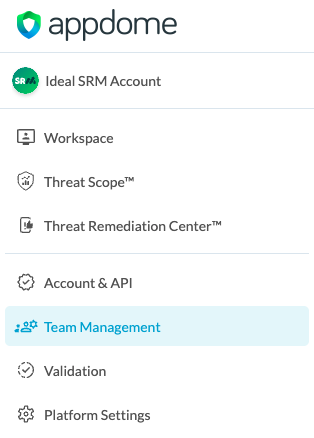
- Select the relevant team from the list and click on the drop-down menu on the right.
- From the dropdown menu, select Team Members. A list of all team members and their entitlements will open.
- Select a team from the list and click on the ‘edit’ next to the relevant team’s name.

- In the opening tab, under “Entitlements”, click Selected Entitlements.
- To add or remove an entitlement, tick or untick the relevant checkbox.
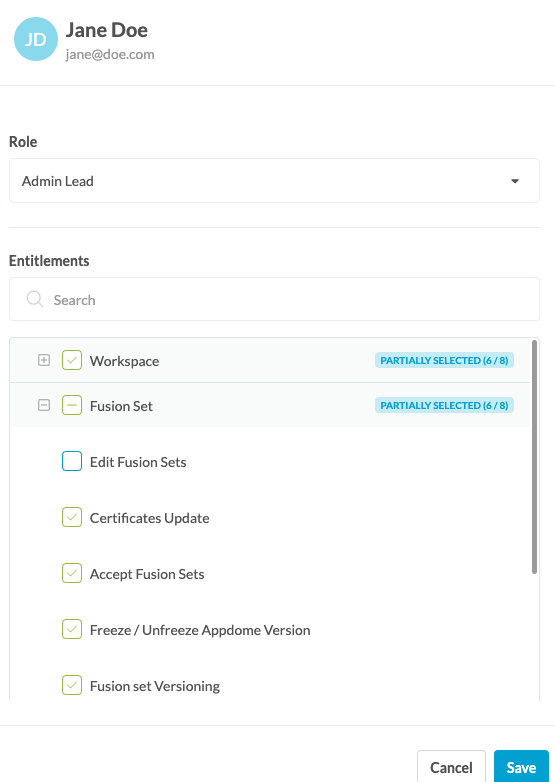
- Click Save.
Congratulations! Each member of your Appdome Team now has the entitlements necessary to complete their work on Appdome.
Related Articles:
- How to Add Team Members with Entitlements and Roles from CSV in DevSecOps Build System
- How to Release Mobile App Security Templates between Teams
- How to Use Team Entitlements & Roles in Mobile DevSecOps Build System
How Do I Learn More?
If you have any questions, please send them our way at support.appdome.com or via the chat window on the Appdome platform.
Thank you!