Thank you!
Thanks for visiting Appdome! Our mission is to secure every app on the planet by making mobile app security easy. We hope we’re living up to the mission with your project. If you don’t already have an account, you can sign up for free.

Appdome Live Update allows you to remotely update selected Appdome protection settings in live, already-deployed mobile applications without rebuilding or republishing the app.
Traditionally, changing protection policies or configuration values required creating a new app build and distributing it through the app stores. With Live Update, eligible settings can be updated remotely, allowing organizations to respond more quickly to changing security requirements, operational needs, and emerging threats while reducing release overhead.
Live Update must be enabled and licensed for your account and is available only for builds created with a supported Appdome Version. Updates are applied to a specific deployed build; builds created with unsupported Appdome Versions cannot be configured using Live Update.
Important: Live Update modifies only security protection configurations, general app configurations, and certificate-level settings. It does not modify the application’s UI or business logic, and it does not introduce a runtime dependency on Appdome services for the protections to operate.
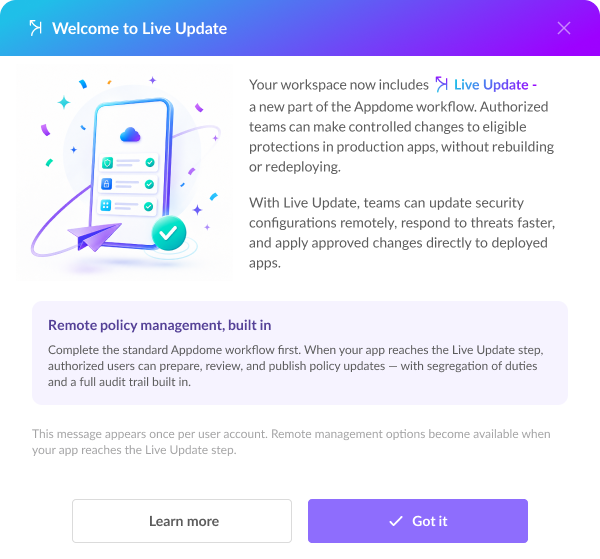
Use Live Update when you need to update supported Appdome configurations after your application has already been deployed.
Common scenarios include:
Many Appdome protections include configurable enforcement actions, detection behavior, and runtime policies. With Live Update, you can remotely adjust the enforcement posture of individual detection signals through the Defense Posture Management (DPM) grid without rebuilding or republishing the app.
For each signal included in the build, you can update:
The DPM grid displays only signals included in the original build’s Fusion Set. Signals that were not included at build time cannot be added using Live Update.
Note: On a Threat-Events™ build, you can change any In-App Policy value to any other available value. On a build without Threat-Events™, only Monitoring Only and Appdome Defended are available. Signals configured with Threat Memory™ are always read-only.
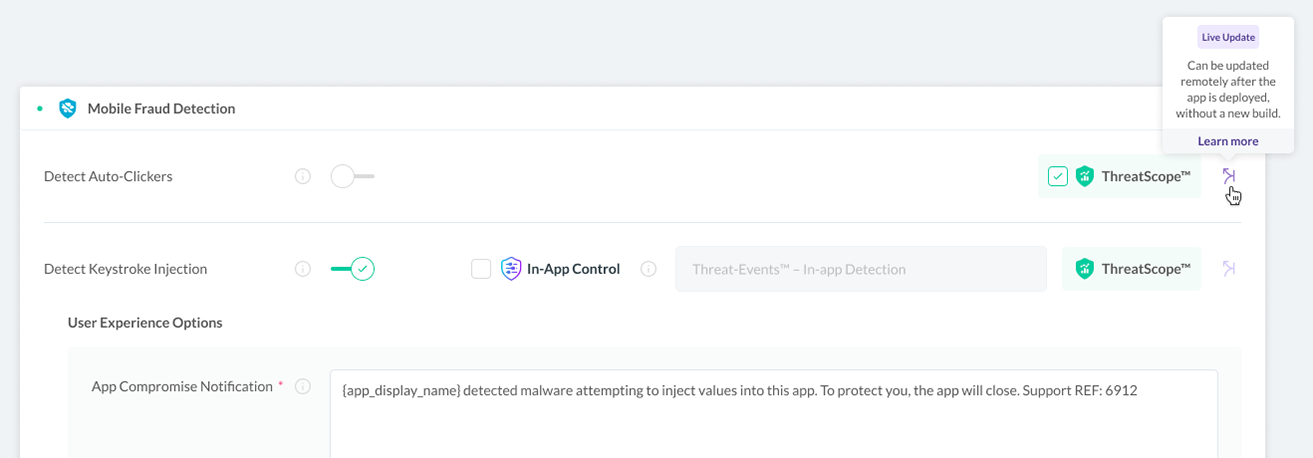
Some Appdome protections exchange security information with backend services through identifiers, headers, payloads, and other signaling mechanisms.
Live Update allows supported backend signaling configurations to be updated remotely, helping keep backend integrations aligned with changing business and security requirements.
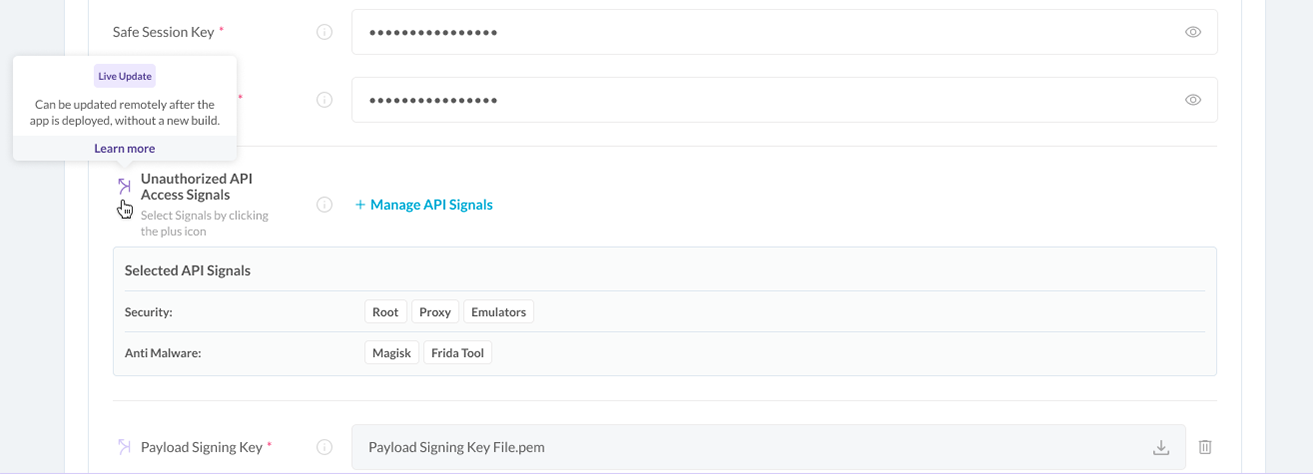
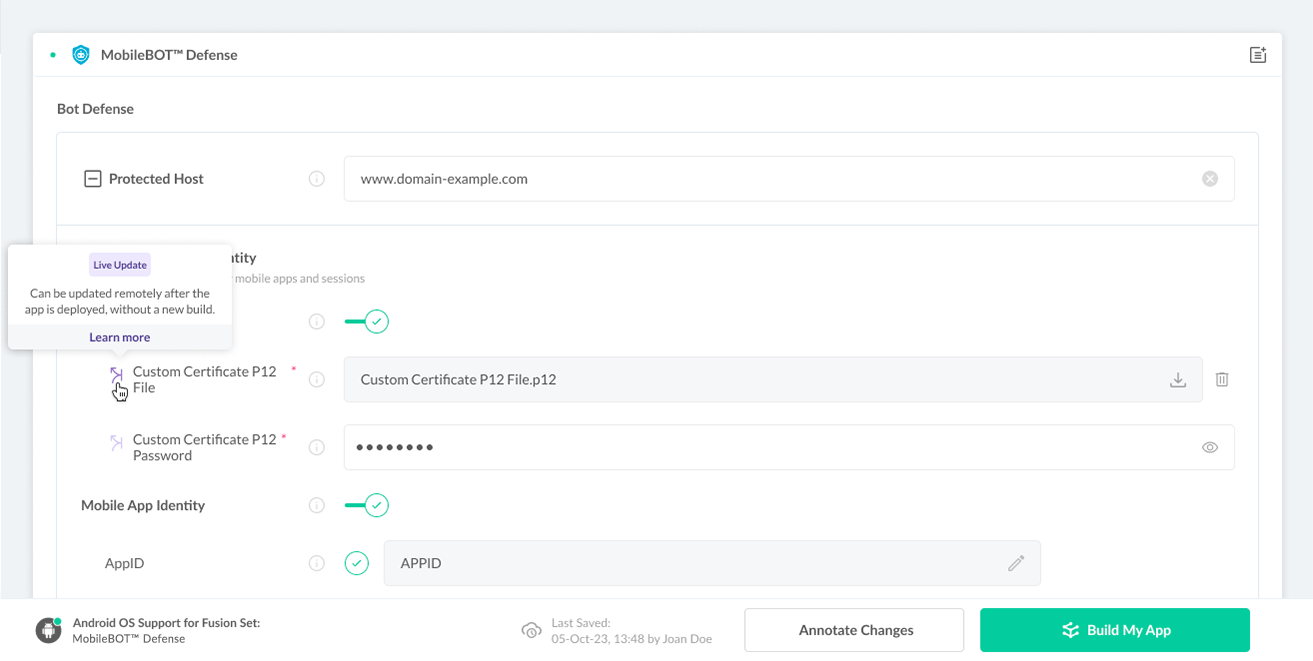
Policy Configurations include items such as certificates, cryptographic keys, secrets, hosts, APIs, and other supported configuration values used by Appdome protections.
When these values change, supported configurations can be updated through Live Update without rebuilding or redistributing the application.
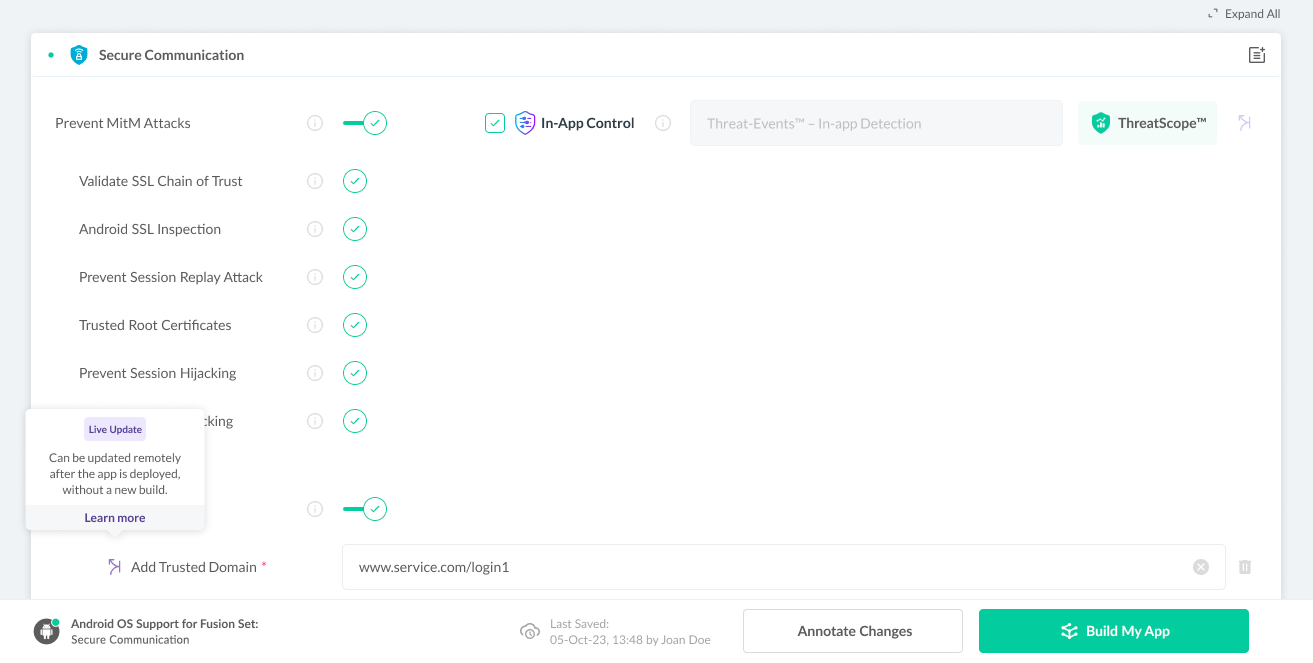
Trust Lists define approved entities that Appdome protections use during runtime, such as trusted domains, endpoints, applications, and other supported resources.
As your environment changes, supported Trust List entries can be updated remotely through Live Update, eliminating the need to publish a new version of the application.
Live Update entitlements are assigned to individual team members through the Team Management settings in Appdome.
To configure Live Update entitlements:
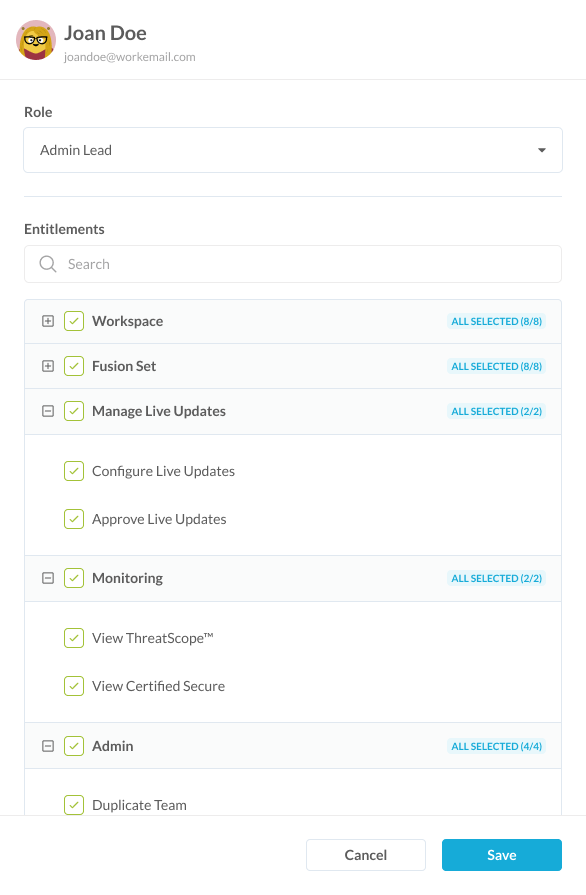
Learn more about Appdome Teams Roles Configuration and Appdome Teams Entitlements.
Every Live Update is gated before it reaches production. The user who configures and submits a Live Update cannot approve the same update. A different user with the Approve Live Updates entitlement must approve it.
A user may have both Live Update entitlements but cannot configure and approve the same Live Update. Appdome enforces this separation of duties.
Configure → Review Changes → Submit for Approval → Approve / Reject → Publish
Live Update follows a controlled workflow that separates configuring and publishing an update from approving it. The Requester configures and submits the Live Update, while the Approver reviews and approves or rejects the request.
Go to Live Update and select the deployed build you want to update.
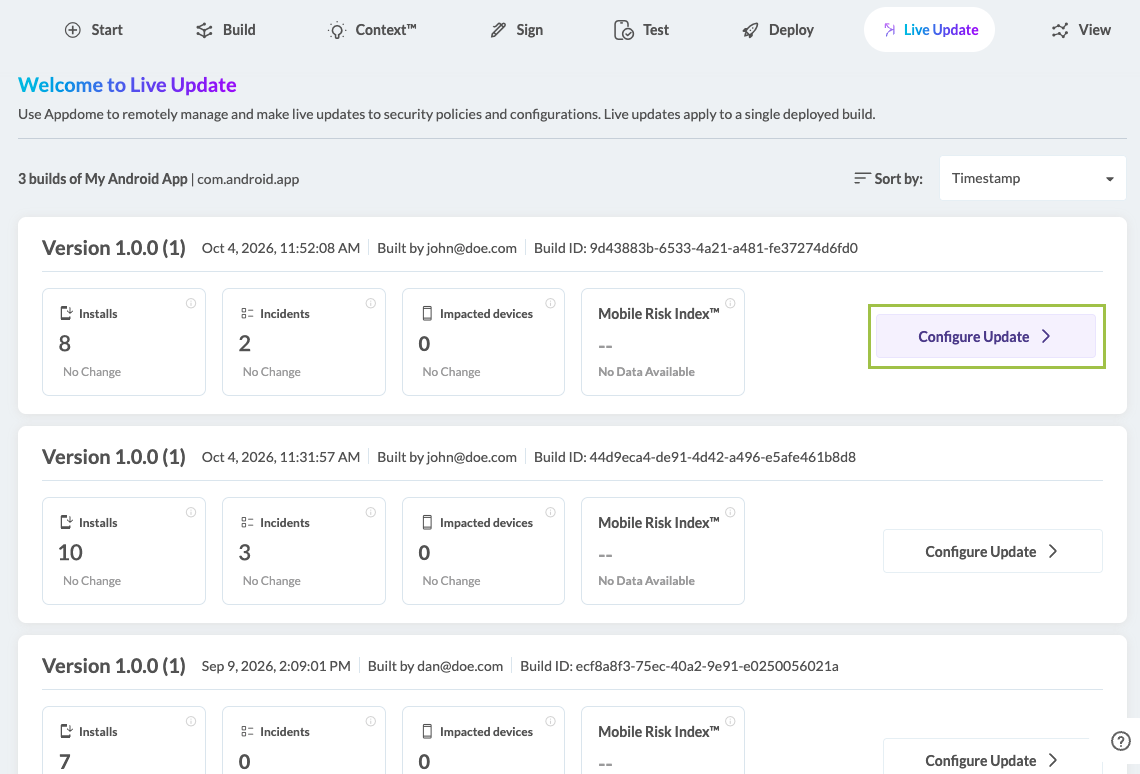
Use Defense Posture to remotely update the behavior of detection signals included in the deployed build.
Note: To manage Defense Posture using Live Update, the app must be built with MobileBOT™ Defense, IDAnchor™, or both, and the applicable capabilities must be licensed.
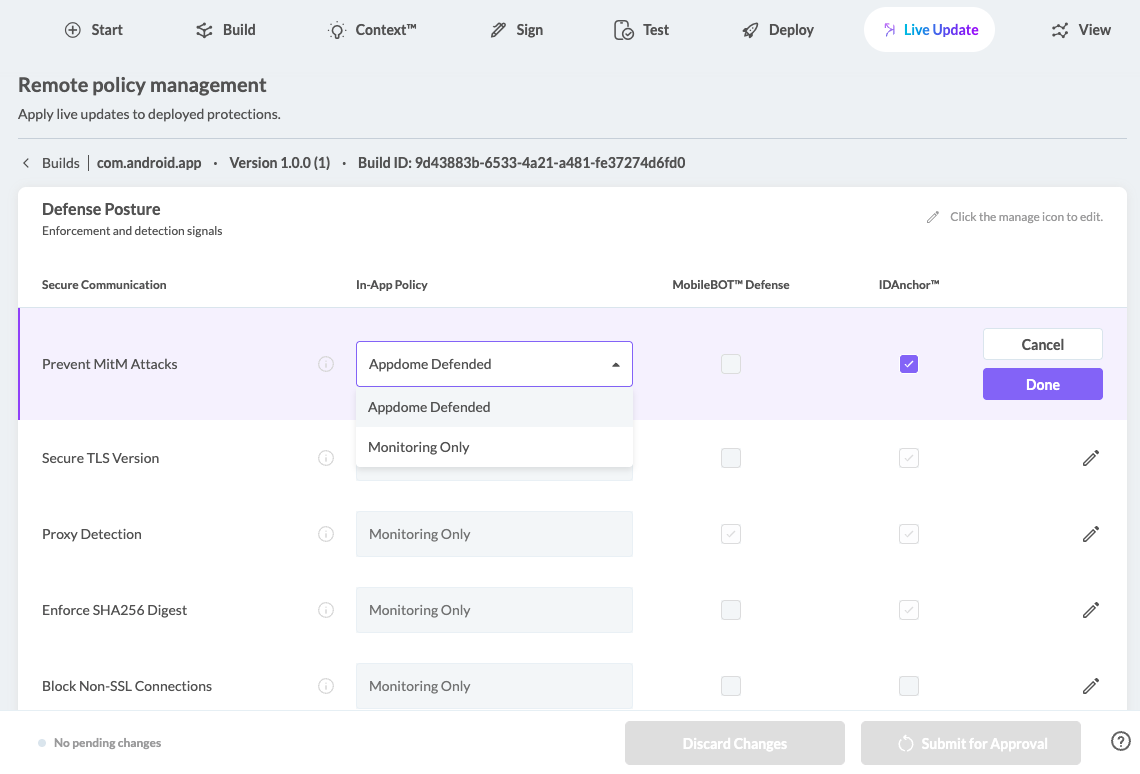
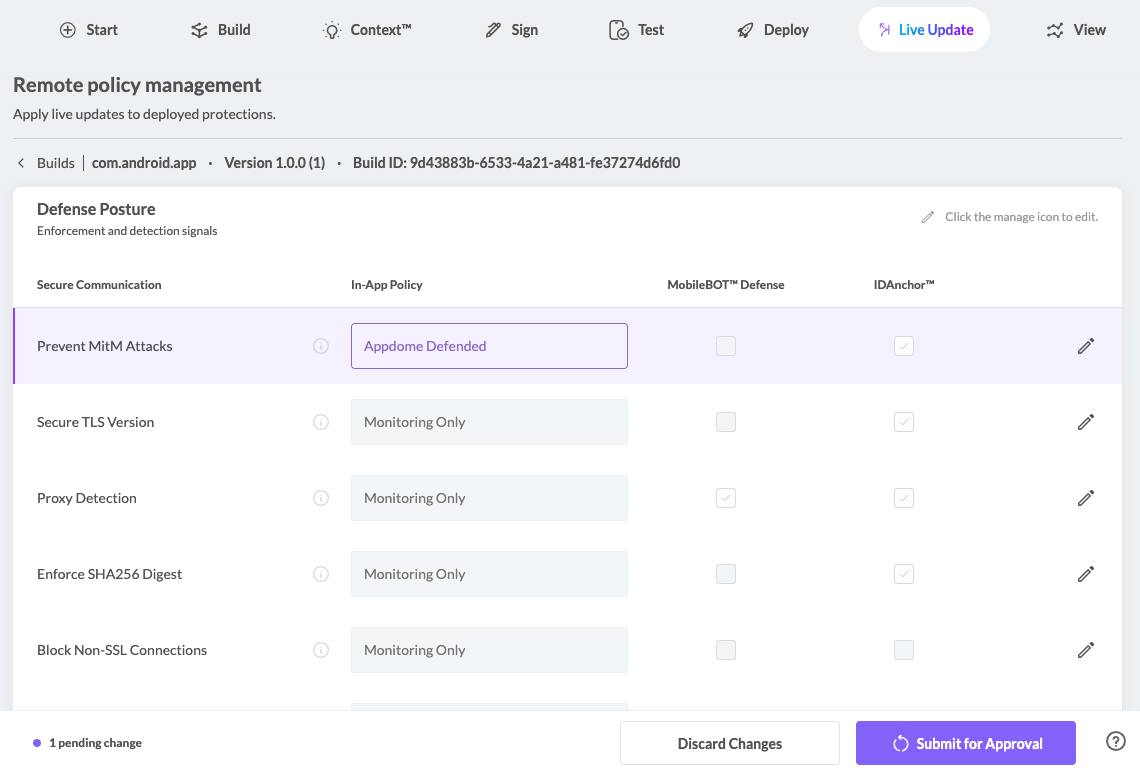
Note: On builds with Threat-Events™, the In-App Policy can be changed between any available policy options. On builds without Threat-Events™, only Monitoring Only and Appdome Defended are available. Signals configured with Threat Memory™ are read-only and cannot be modified using Live Update.
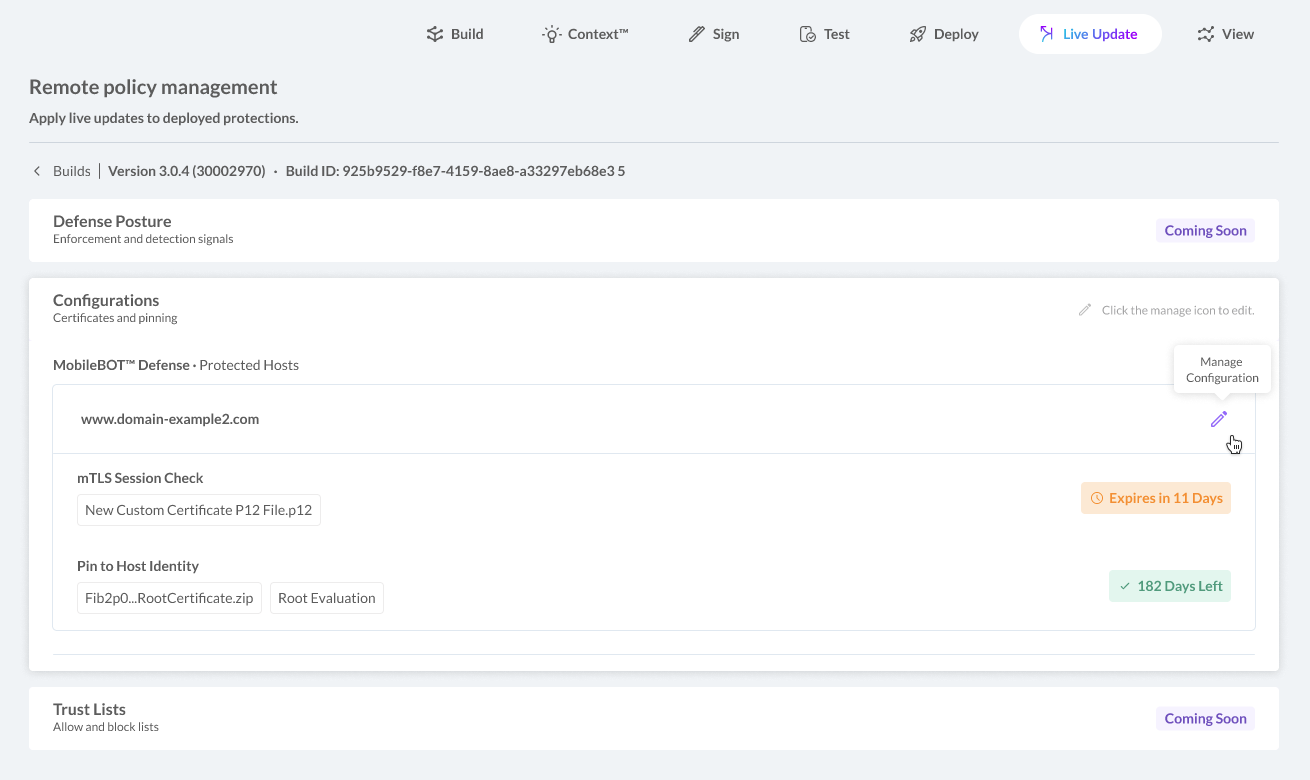
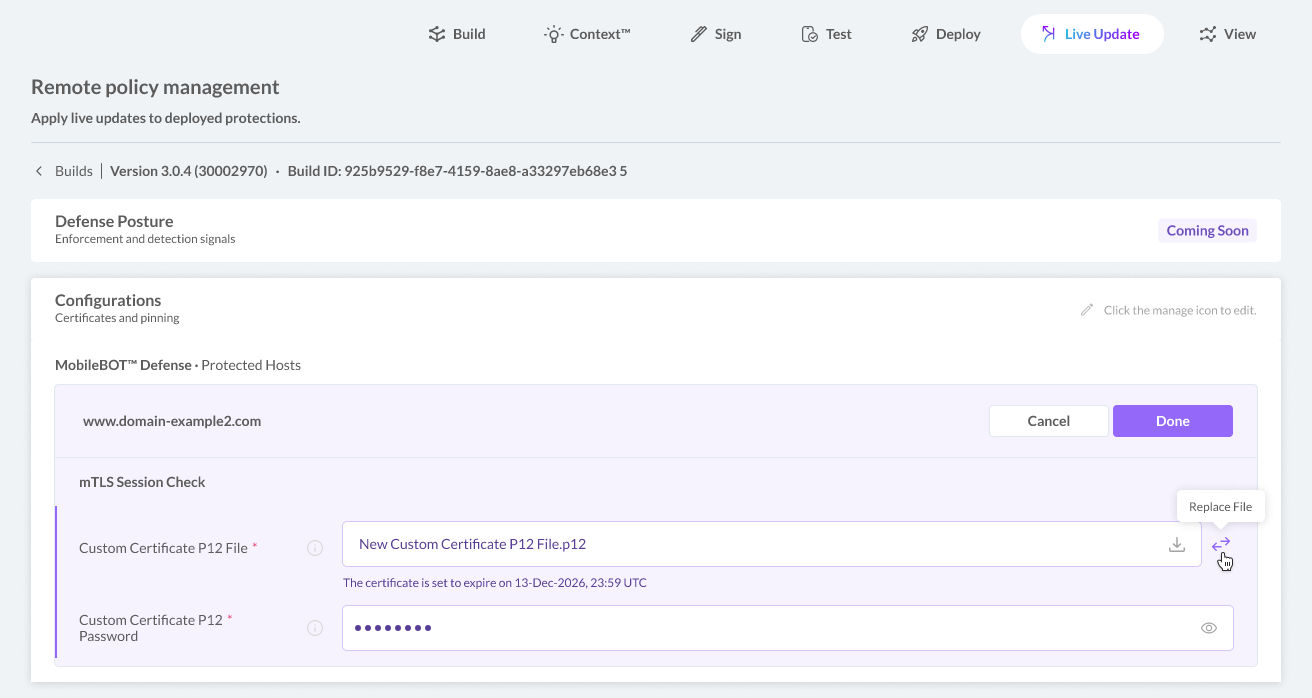
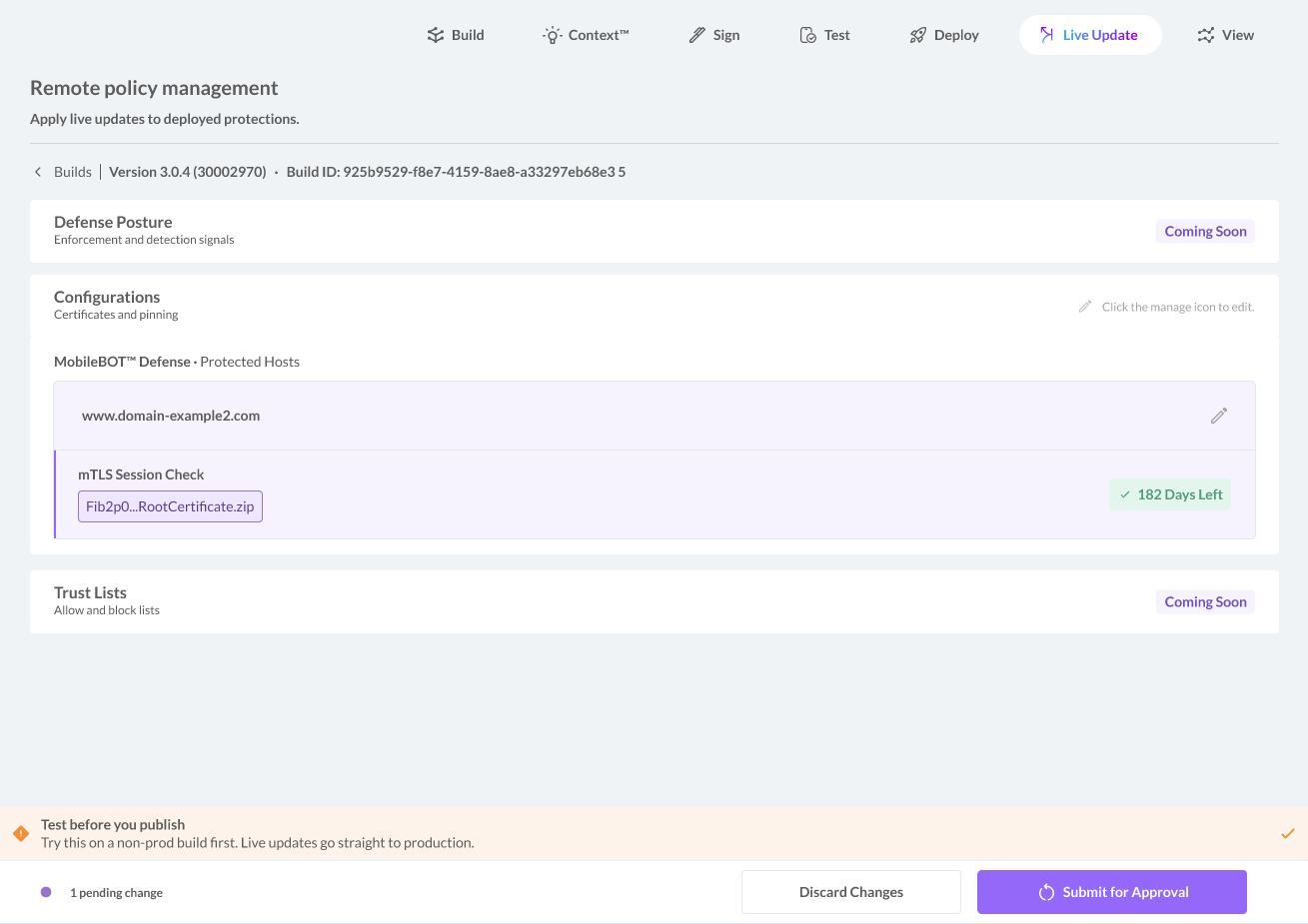
After completing the required updates, review the pending changes before submitting the Live Update.
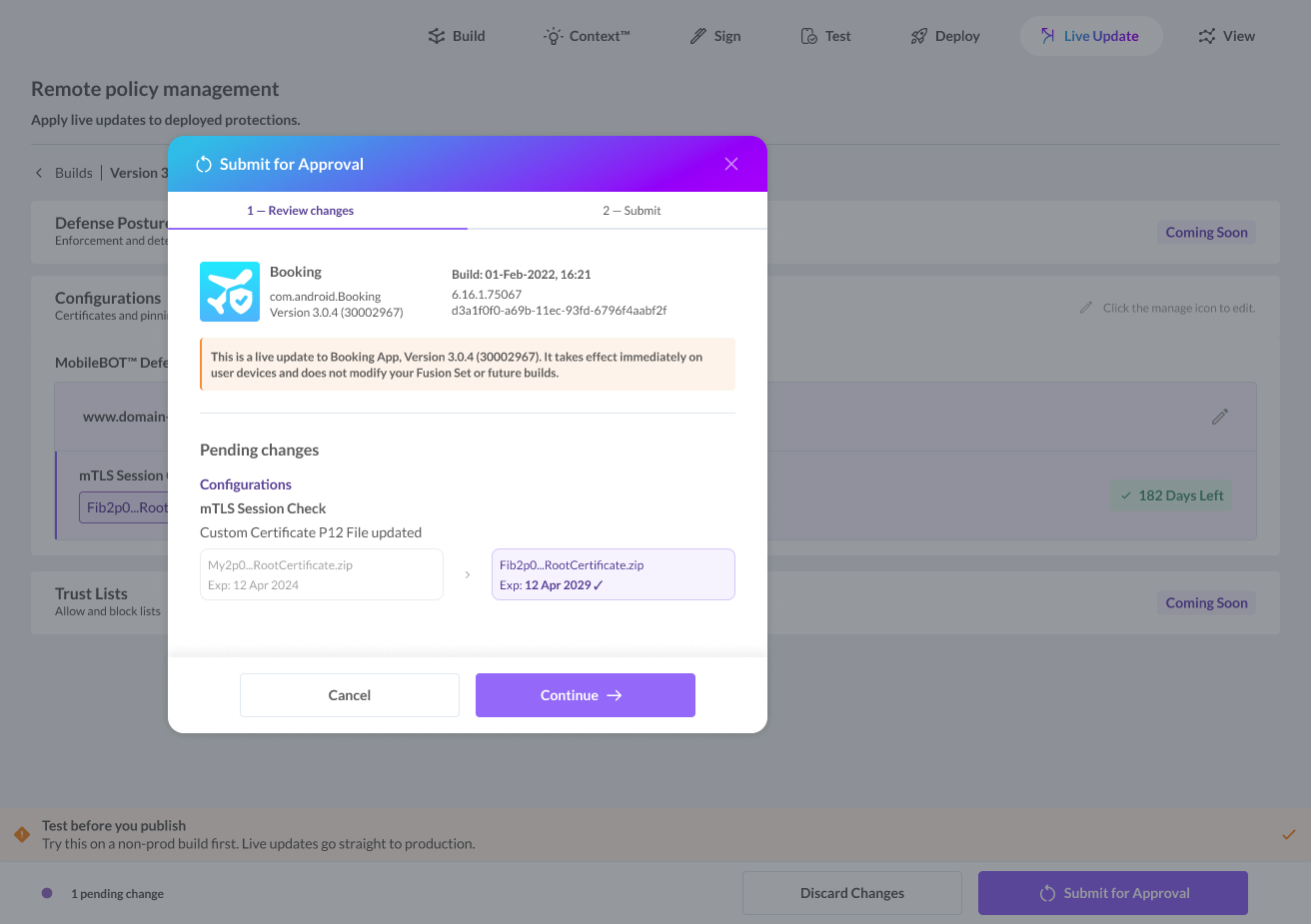
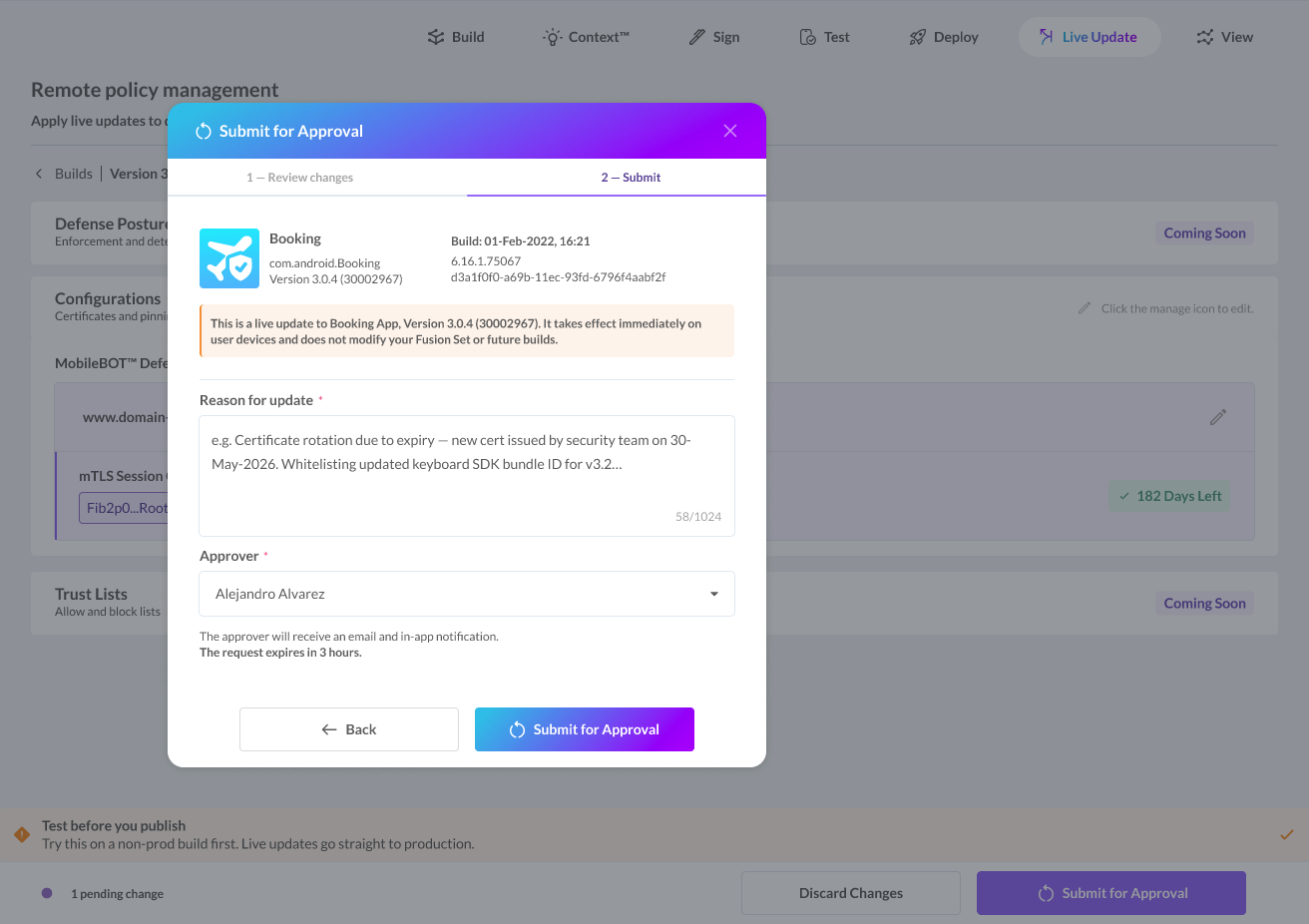
The Live Update enters the Pending Approval state. While the request is pending, the Requester can withdraw it if necessary.
The Live Update enters the Pending Approval state. The Approver must review the request within 3 hours. If no action is taken within this period, the approval request expires. While the request is pending, the Requester can withdraw it if necessary.
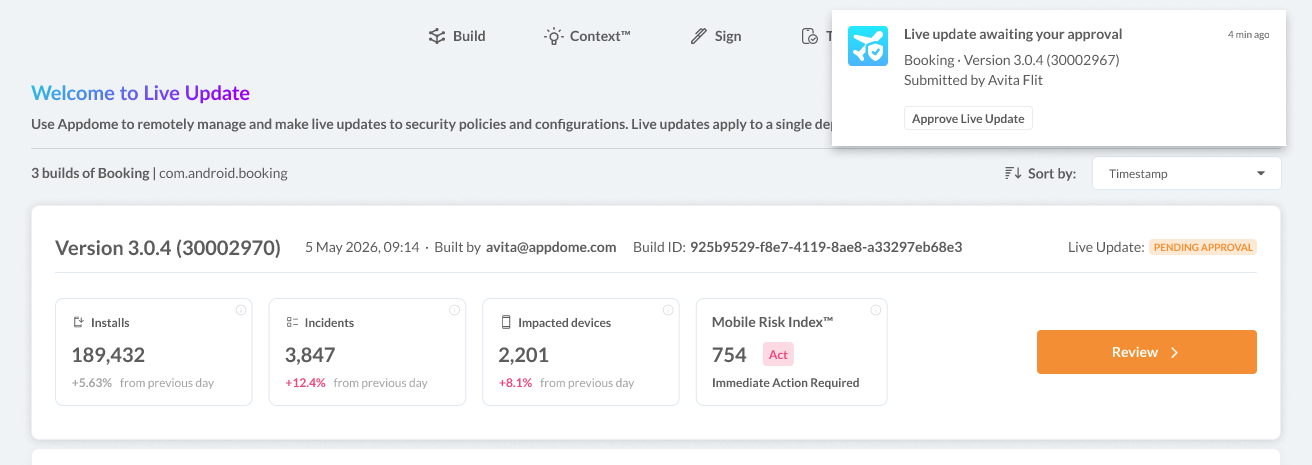
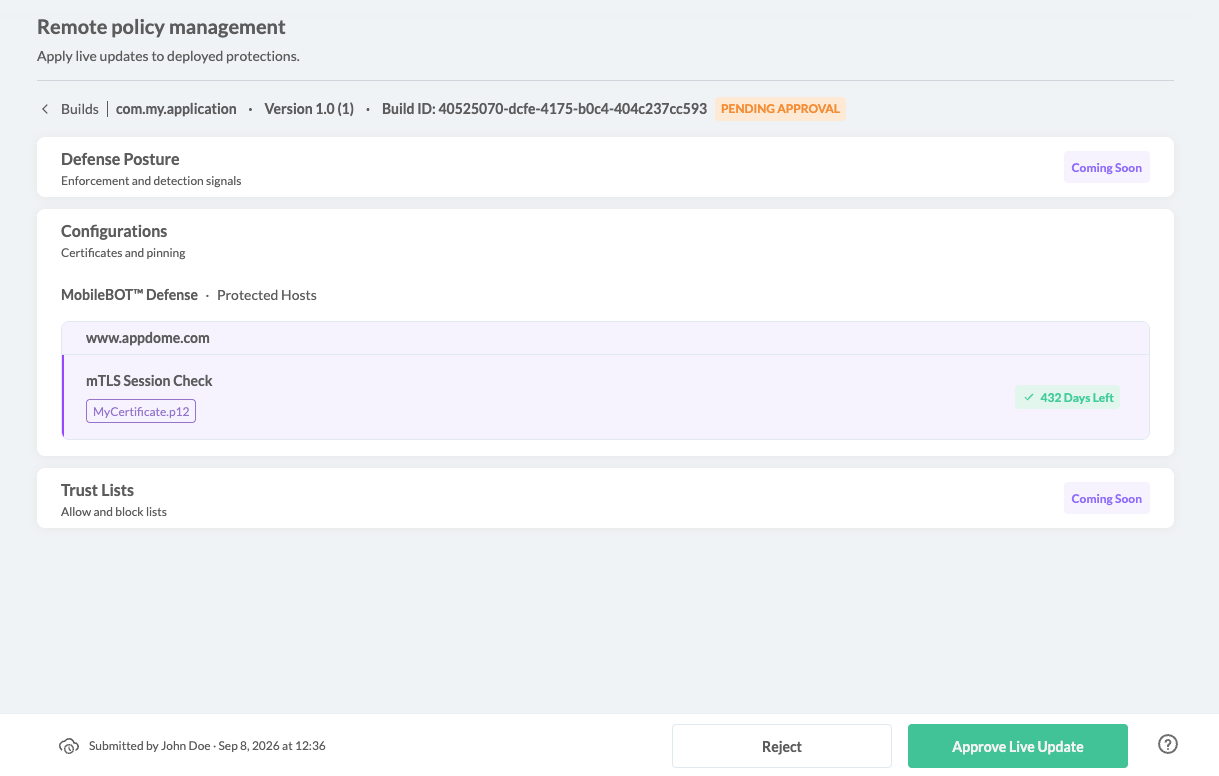
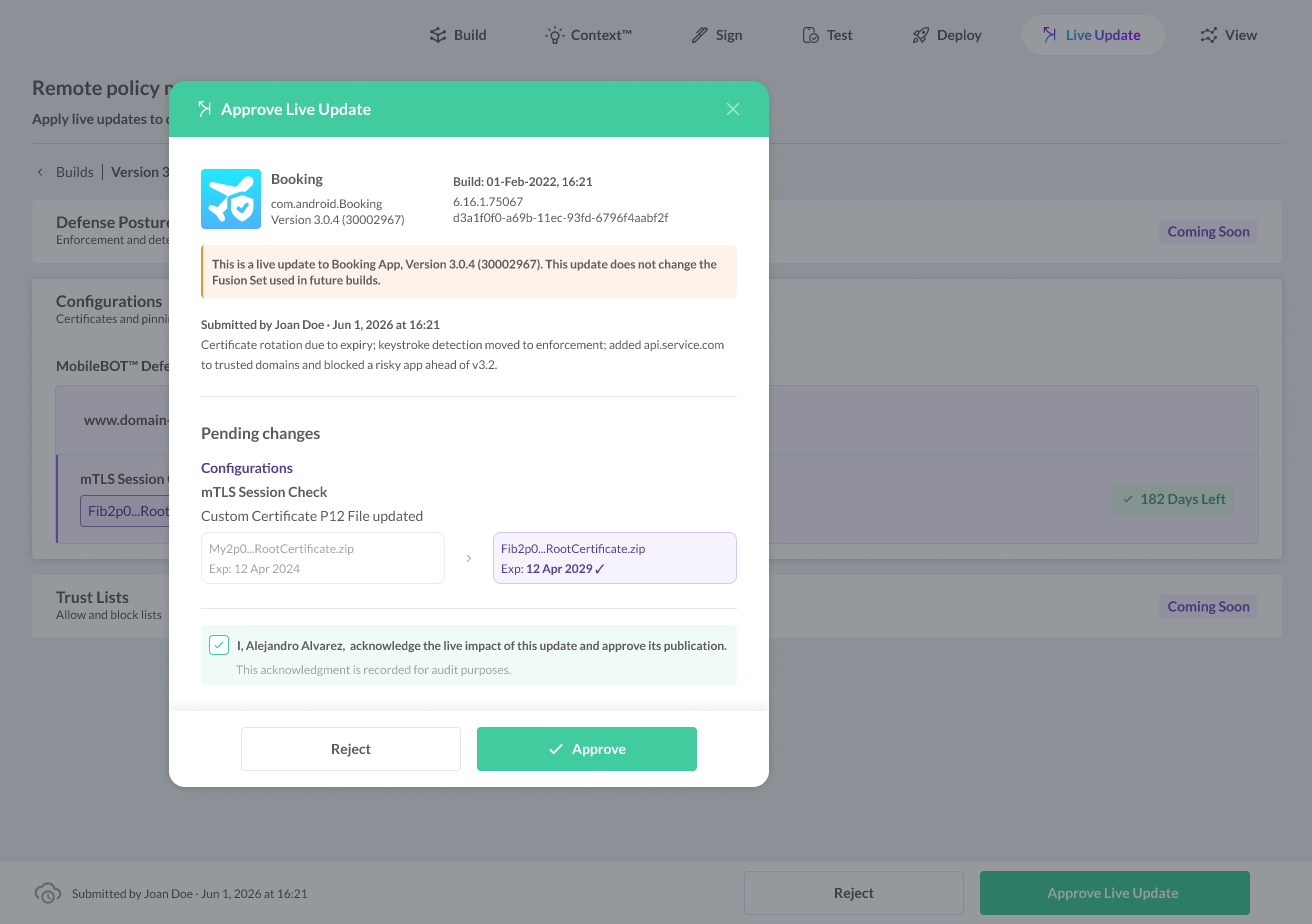
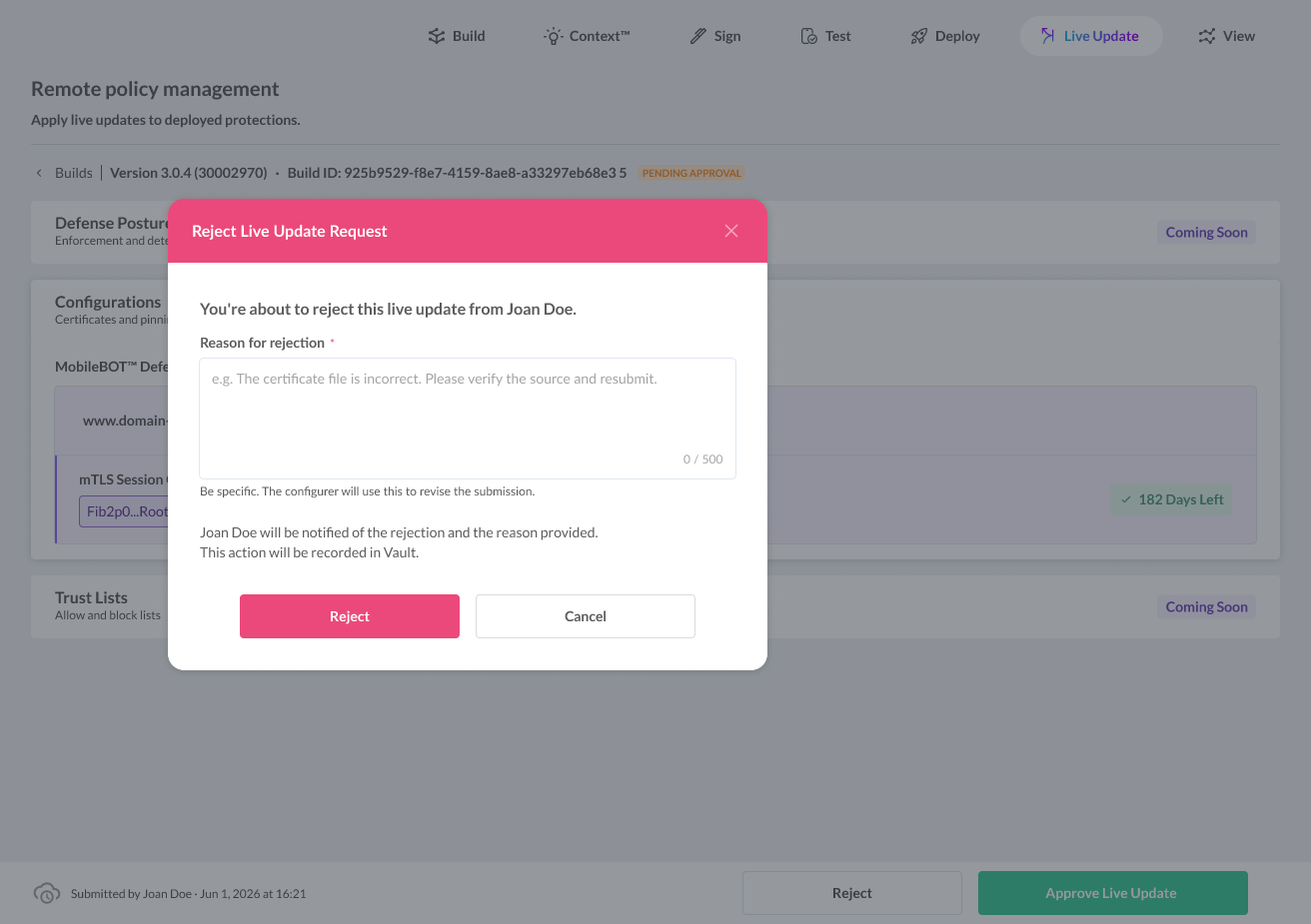
Approval does not automatically publish the Live Update. After approval, the Requester completes the publishing process.
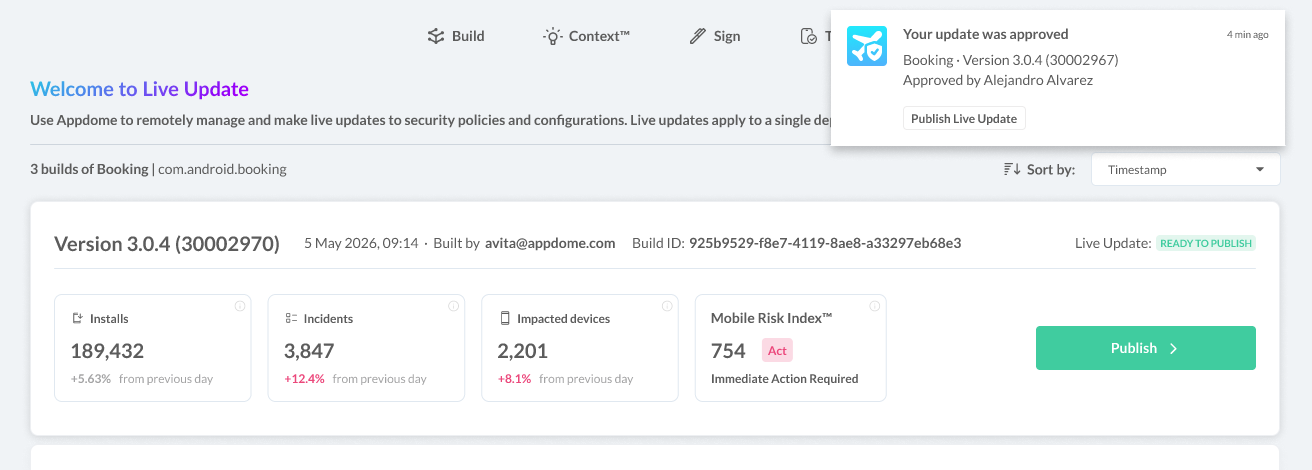
Note: The Requester cannot approve their own Live Update. A different user with the Approve Live Updates entitlement must approve the request. A user may have both the Configure Live Updates and Approve Live Updates entitlements but cannot perform both responsibilities for the same Live Update.
Live Update activity is recorded in Appdome Vault™ to provide audit and compliance visibility throughout the update lifecycle. Recorded events include:
Where applicable, Vault provides details about the Live Update and the changes associated with the event.
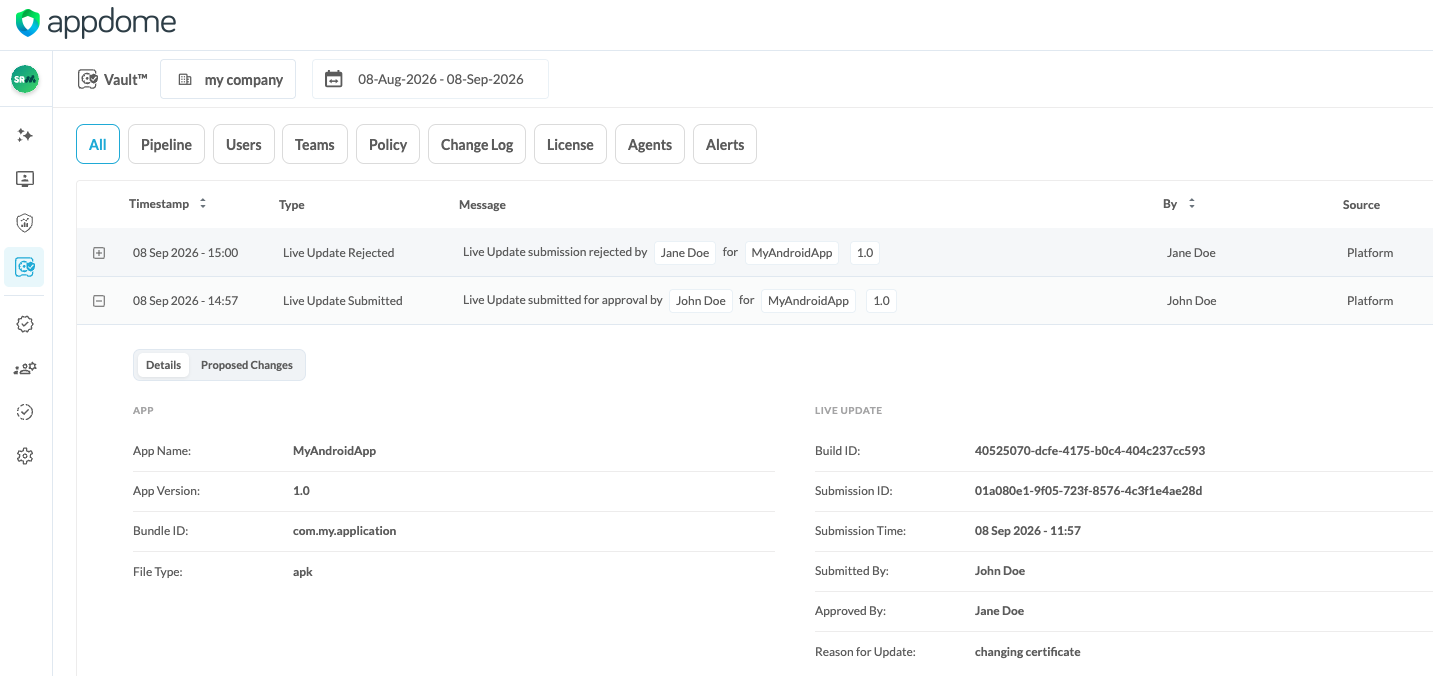
Learn more about Appdome Vault™.
If you have any questions, please send them our way at support.appdome.com or via the chat window on the Appdome platform.
Thanks for visiting Appdome! Our mission is to secure every app on the planet by making mobile app security easy. We hope we’re living up to the mission with your project. If you don’t already have an account, you can sign up for free.
Want a Demo?
Cyber Release Management™